Guide
Reset Support Portal Password
If you have forgotten your password to your Rencore Support Portal Account, or if you have sent an email to support but have not yet signed in, you will need to reset your password.
-
Go to the Rencore Support Portal:http://support.rencore.com/, where you will see the support portal login page.
-
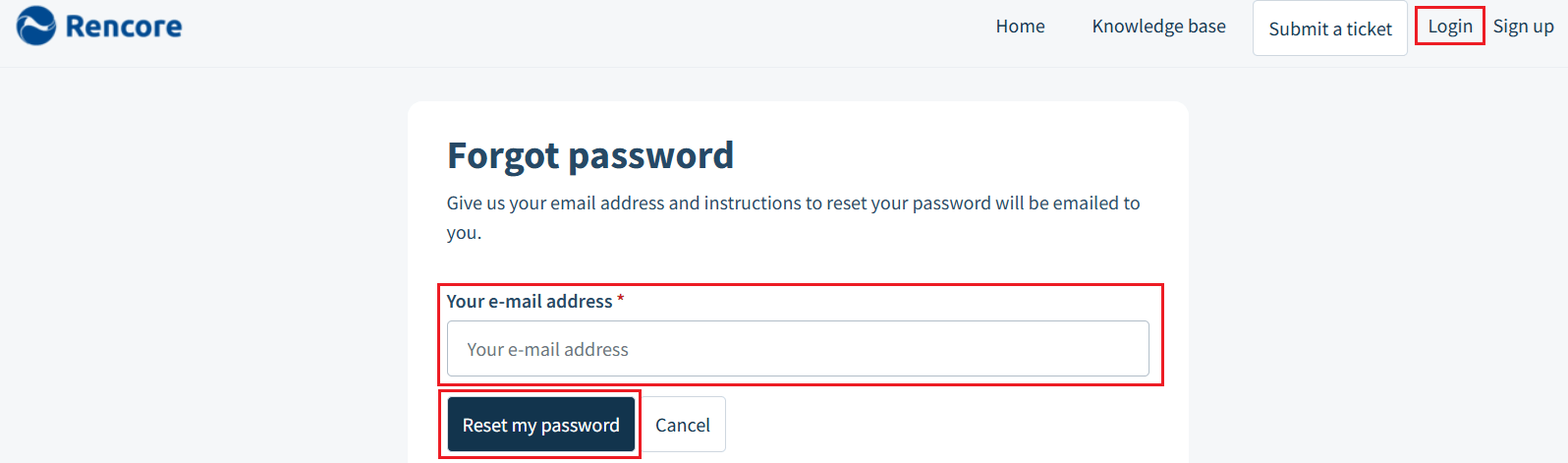
On the login page, select “Forgot your password?” to begin the password reset process. This will take you to the password reset page, where you can request a reset link.
- Enter the email address associated with your support portal account.
- Click “Reset my password”. The system will send a password reset link to your registered email address.
-
Open your email inbox, locate the password reset email (if it is not present, check your Spam or Junk Folder) from the support portal.
-
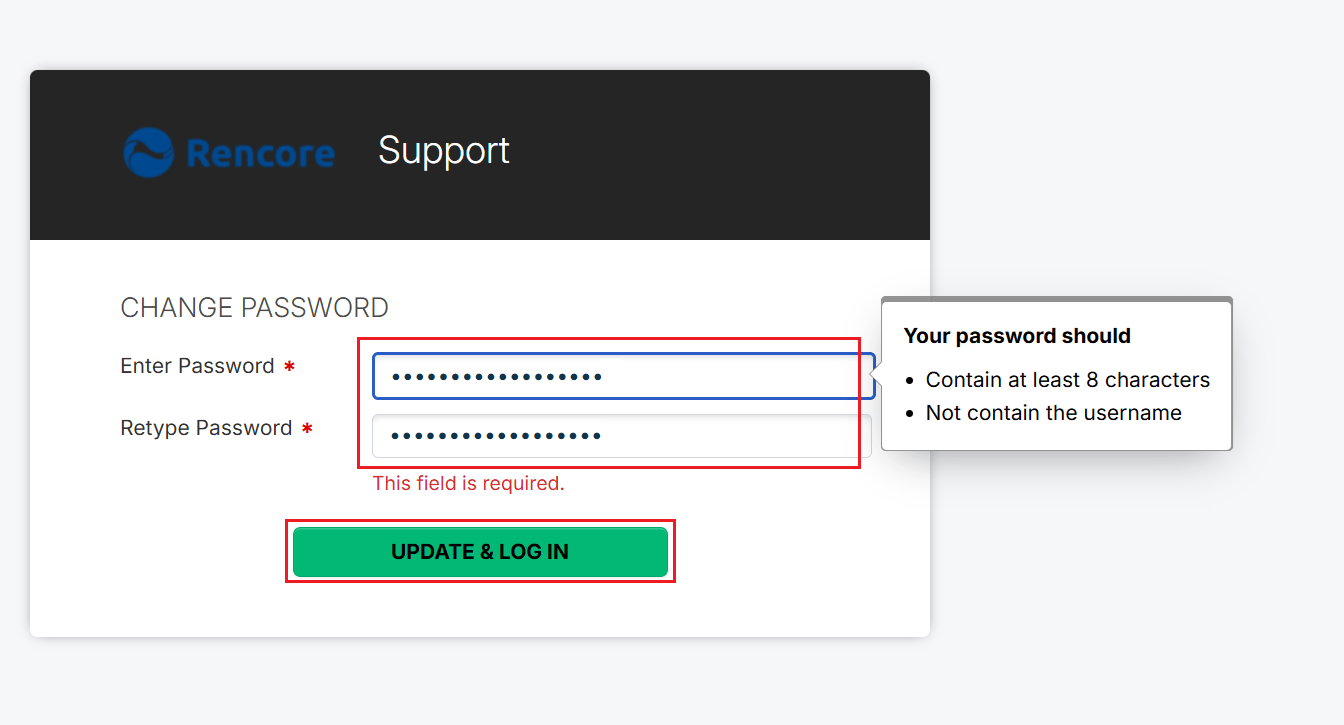
After clicking the reset link, you will be prompted to create a new password.
- Enter your new password
- Retype the password
- Click “UPDATE & LOG IN”.
-
Once your password has been updated:
- Return to the login page.
- Enter your email address and your new password.
- Click “Login”.
-
You can now access the support portal and manage your support tickets.