Guide
Restrict Workspace Access by Domain
Warning: Domain access rules will be ignored for users with the Built-in role of Owner.
To restrict access to a workspace via Domain, you will need to:
-
Click on “Settings”.
-
Click on “Users & Roles”.
-
Click on “Access Settings”.

-
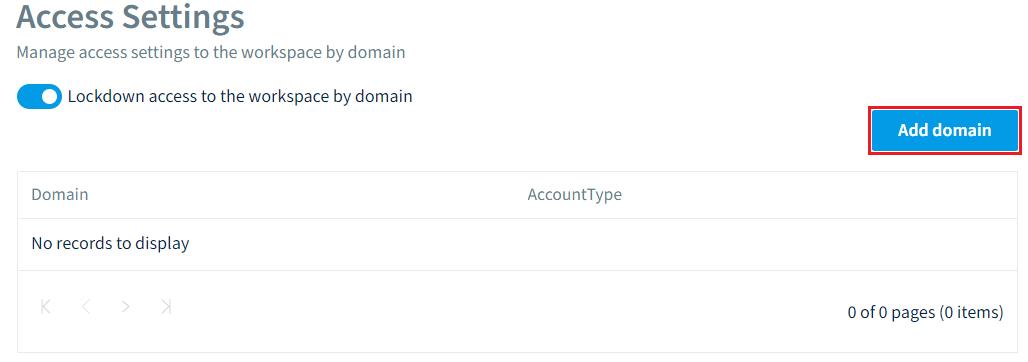
Under “Access Settings”, enable “Lockdown access to the workspace by domain”.
-
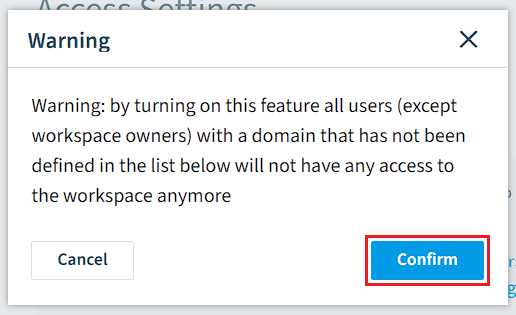
Click “Confirm” on the warning prompt that appears.
-
Click “Add domain”.
-
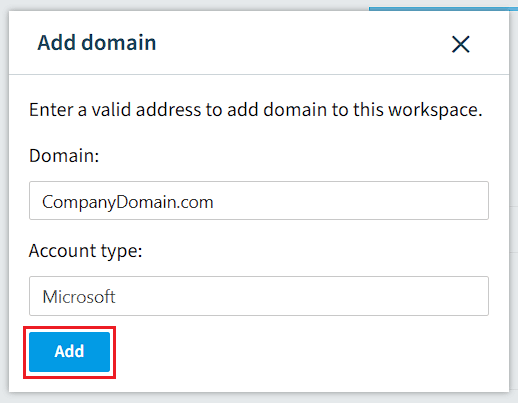
On the dialog window, enter the “Domain” URL and select the “Account type” (Either Microsoft Works account and/or Rencore account).
- Once all details have been added, click “Add”.
- Once all details have been added, click “Add”.
-
To add additional domains, repeat steps 6 & 7.
Note: Adding a Domain permits users who have been invited to the workspace and are using the domain access. It does not give access to all users to that domain if they have not already been invited to the workspace.