Guide
Configure Inventory Objects
To disable an object, disable a relation, or change the update Interval for an object, you will need to:
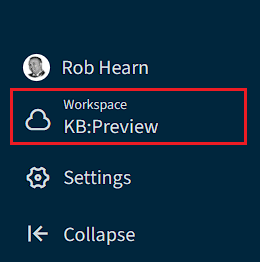
- Select the environment that you want to configure via the “_Workspace & Environment Selecto_r”.
- Click on “Inventory”.
- Click on “Inventory Options”.
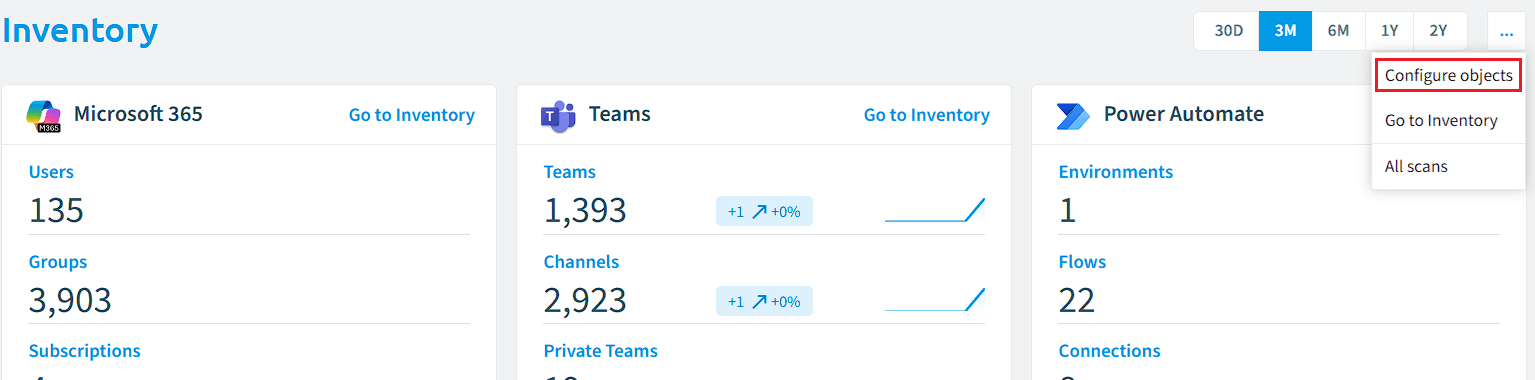
- Click on “Configure objects”.
Disable an Object
If you want to disable an object from Rencore Governance and want all the data to be removed from the service, you need to:
-
Narrow down the objects using the search options at the top of the “Inventory object configuration” page.
-
Once you have narrowed down the object selection, click the toggle next to the object you want to disable.
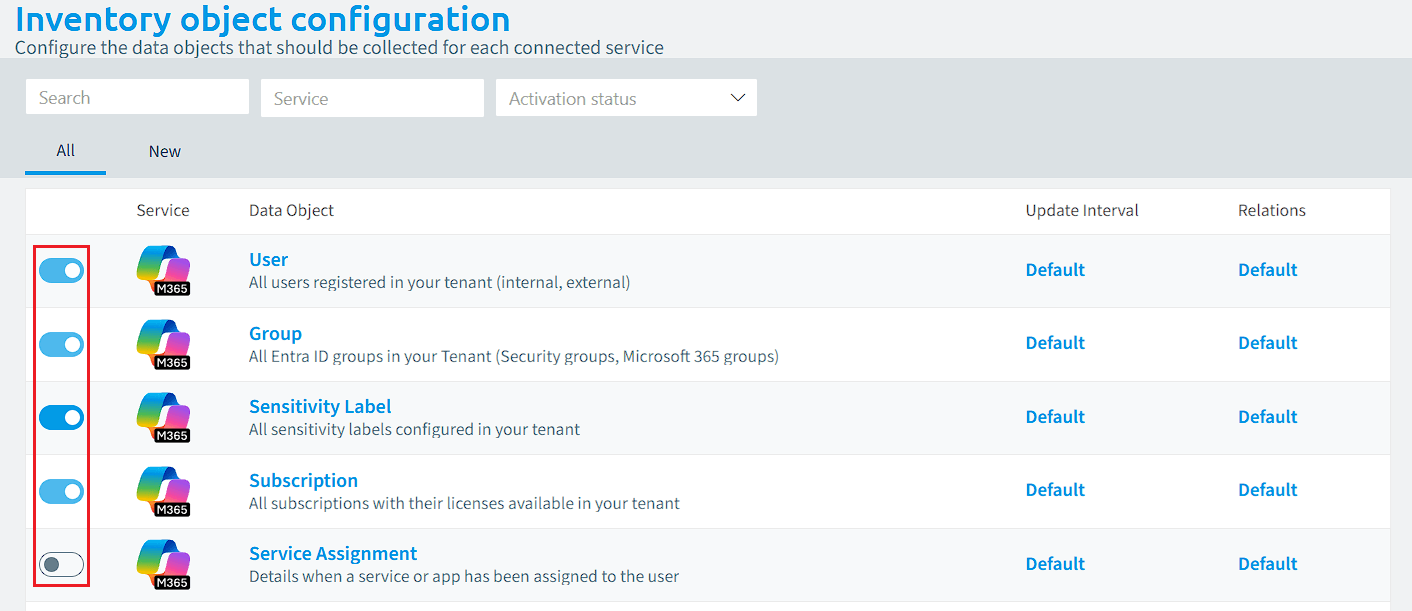
-
A message appears asking, “Do you want to disable the data object <Data Object>? All data and related policies will be removed”.
- Click “Disable data object”.
Update Scan Intervals
Changing the default Intervals allows you to focus on the objects that are more important to your governance needs.
To update the scan intervals of objects, you will need to:
- As above, narrow down the object selection, then against the desired object, click the link in the center column under “Update Interval”.
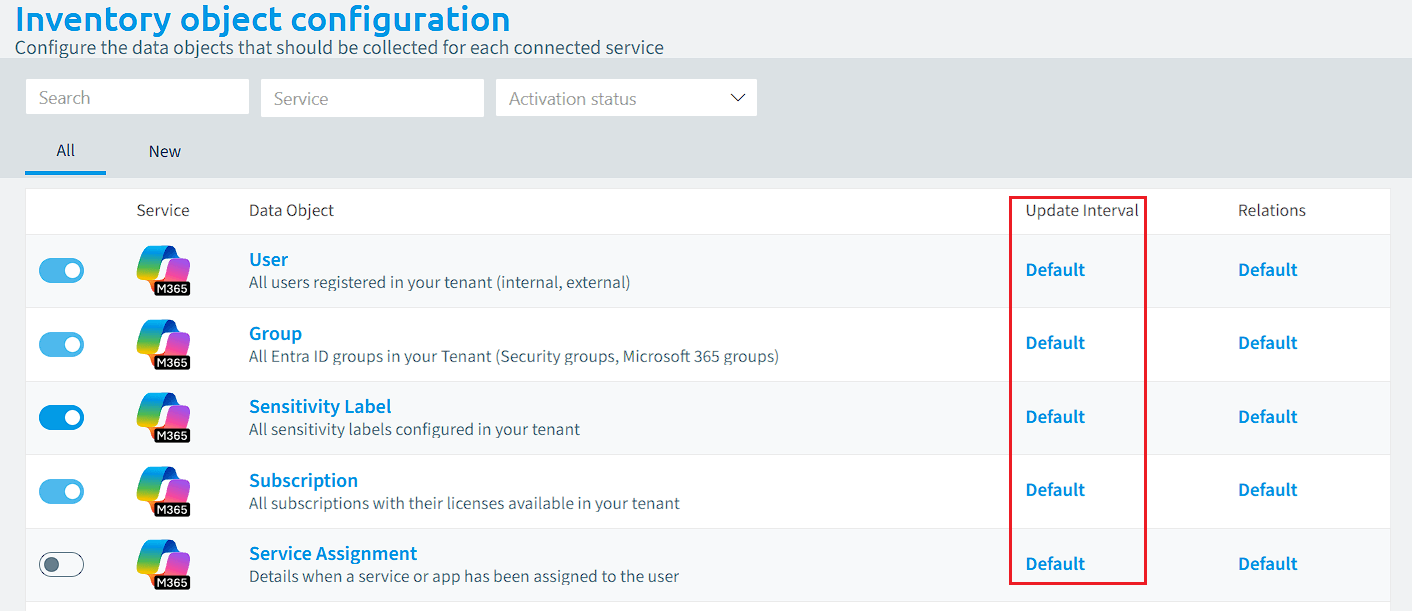
- The pop-up is divided into 3 sections (Object, Properties, and Relations). To disable scanning for an element, toggle the check on the left.
- To change the interval period, select the desired value in the dropdown on the right between Daily, Weekly, Bi-Weekly, and Monthly.
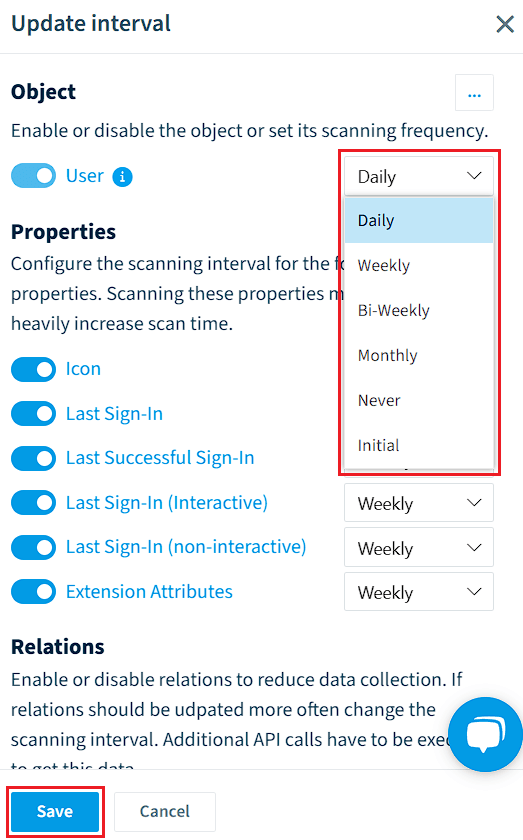
- Once you have chosen the desired intervals for each element, click “Save” at the bottom of the screen.
Disable Relations
Disabling relations could improve the scan time for the object. To disable relations that are not needed, you will need to:
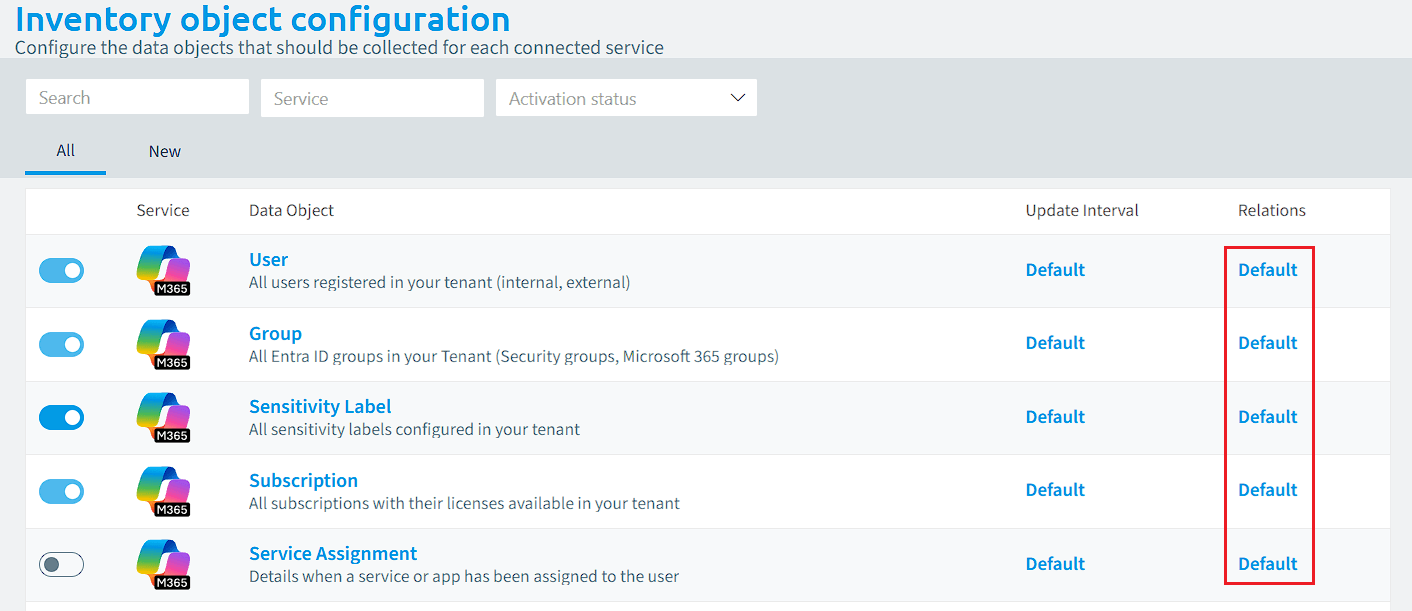
- As above, narrow down the object selection, then against the desired object, click the link in the far right column under “Relations”.
- On the dialog, deselect any of the Relations for the desired Object, you would like to disable.
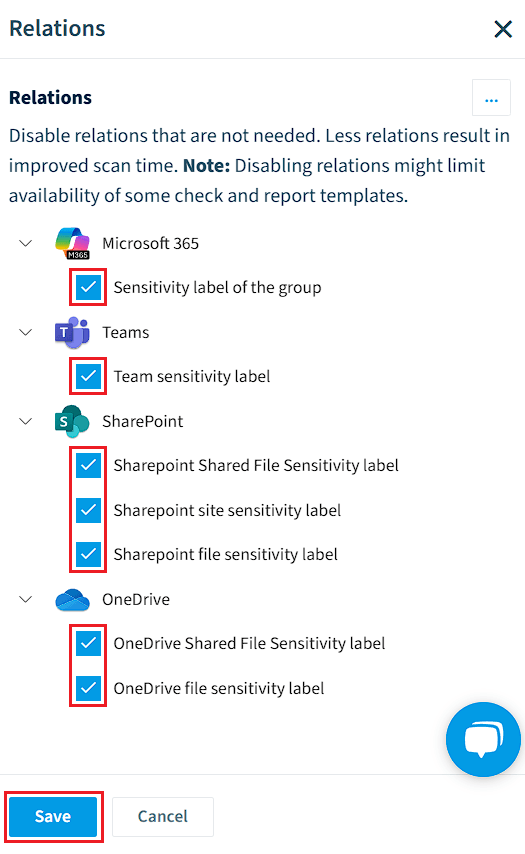
- Once happy, click “Save”.