Guide
Delete a Workspace
Deleting workspaces will result in all data from all the environments being deleted. This data can only be restored by our support team and must be done within 30 days of deletion. It cannot be restored past this period.
Deleting a workspace also cancels all your subscriptions within this workspace immediately.
If you need to delete a workspace from Rencore Governance and want all the data to be removed from the service, you need to:
-
On the Nav Panel, click “Settings”.
-
Click “Workspace Settings”.
-
Click on the context menu ([…]) on the right and select “Delete Workspace”.

-
A confirmation screen will appear confirming the Workspace that you are going to delete and the environments attached to that workspace.
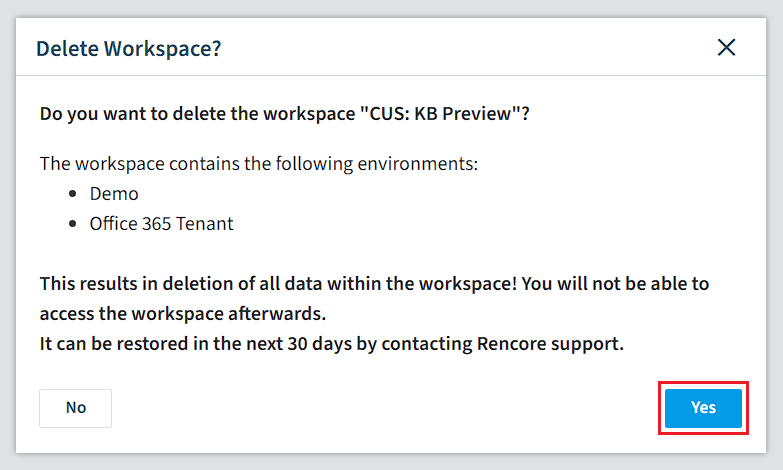
- To continue the process, click “Yes”.
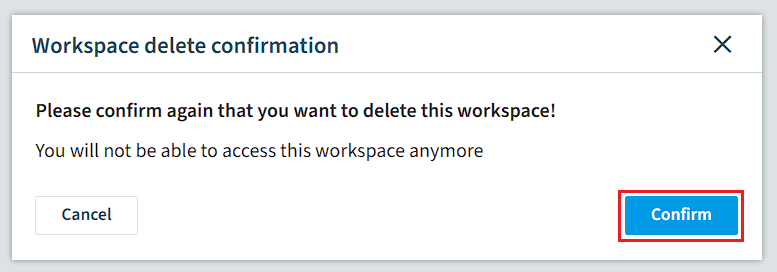
- A final confirmation will appear asking you to confirm. Click “Confirm”, and the workspace will be deleted.
Deleting a workspace in Rencore Governance does not revoke permissions in your tenant; this needs to be done manually. Please see Revoking Permissions for details on how to do this.