Guide
Monitoring Reviews
Once a review schedule is enabled and cycles are running, you can monitor progress, inspect individual reviews, and take administrative action from the User Portal.
Review the schedule detail page
Click a review schedule title on the dashboard to open its detail page.
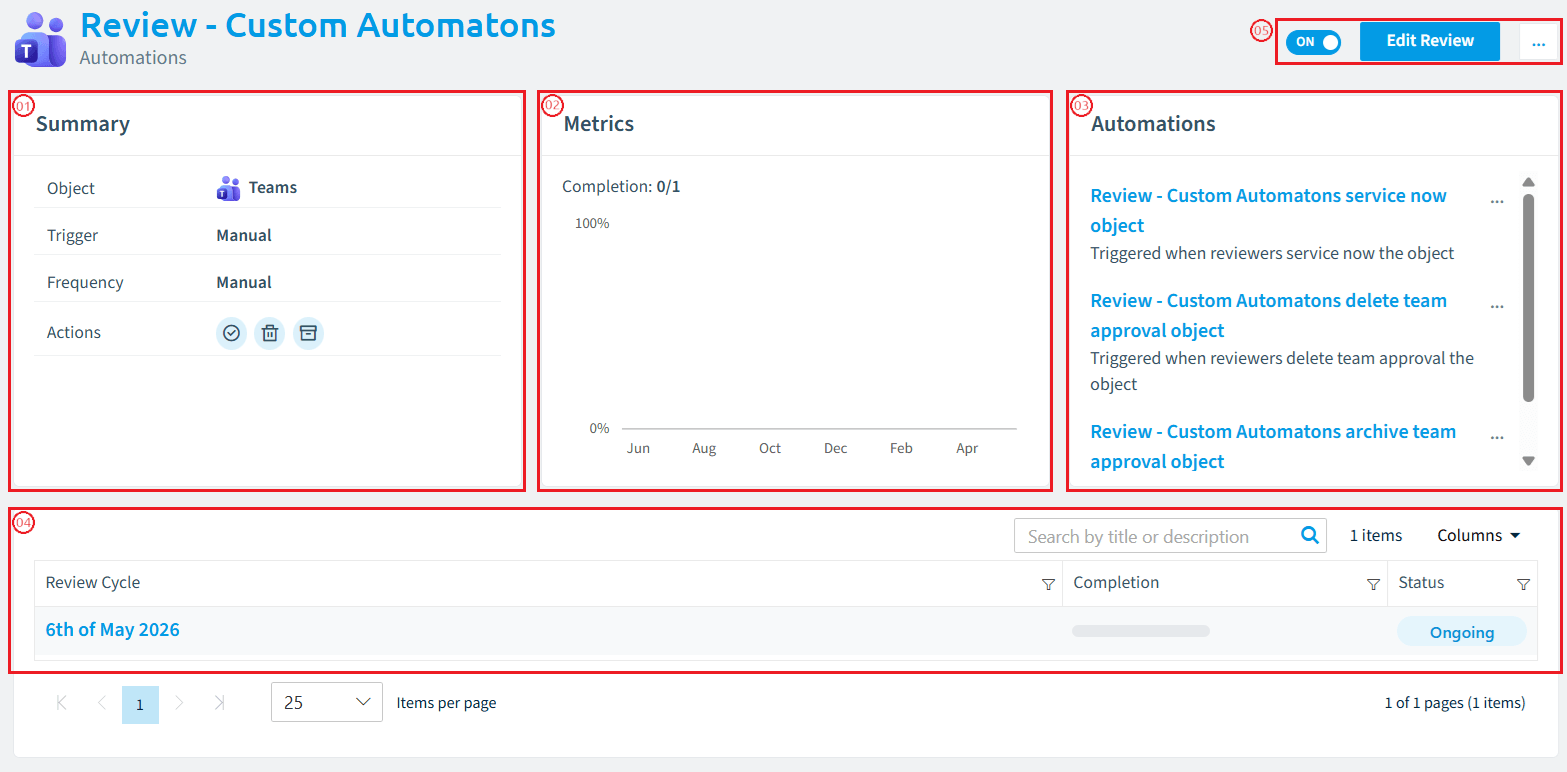
Summary card
Shows the schedule’s core configuration at a glance:
Field | Description |
|---|---|
Object | Service type being reviewed (e.g., Teams) |
Trigger | Manual or Scheduled |
Frequency | How often (e.g., "Every 3 Month(s)") or "Manual" |
Actions | Icons for all enabled custom automations. Hover for the action name. |
Metrics card
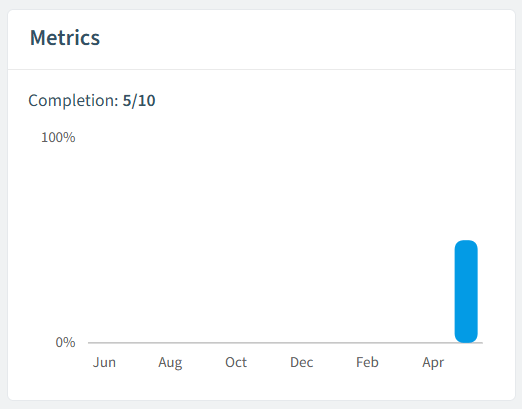
Tracks review completion over time:
- Completion count - How many object reviews are completed out of the total for the current or most recent cycle (e.g., “12/83”).
- Completion chart - A 12-month bar chart showing the completion rate percentage for each month. The current month is highlighted.
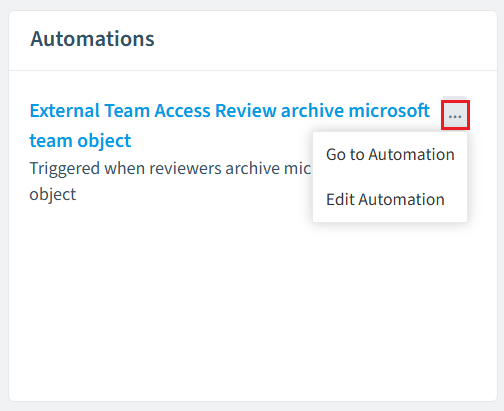
Automations card
Lists all automations attached to this review schedule:
- Rejection automation (if configured)
- Expiry follow-up automation (if configured)
- Custom automations with their action names
Click an automation name to navigate to it, or use the ellipsis menu to go to or edit the automation directly.
Cycle grid
Below the cards, a data grid lists all cycles for this schedule (most recent first):
Column | Description |
|---|---|
Review Cycle | Cycle name. Click to open the cycle detail page. |
Completion | Progress bar showing completed vs. total object reviews. Hover for exact numbers. |
Status | Current cycle status |
Cycle status values:
Status | Meaning |
|---|---|
Aggregating | The system identifies matching workspaces and creates object reviews. This typically takes a few minutes. |
Ongoing | The cycle is active - reviewers are working through their assigned reviews. |
Finished | The cycle due date has passed. All object reviews are closed. |
Canceled | An admin stopped the cycle before completion. |
Page actions
The page header provides:
- Enable/Disable toggle - Same behavior as on the dashboard
- Edit Review button - Opens the schedule in the builder
- Ellipsis menu - Edit, Clone, Trigger (manual only), Delete
Cycle detail page
Click a cycle name in the grid to open its detail page. This is where you inspect individual workspace reviews and track detailed outcomes.
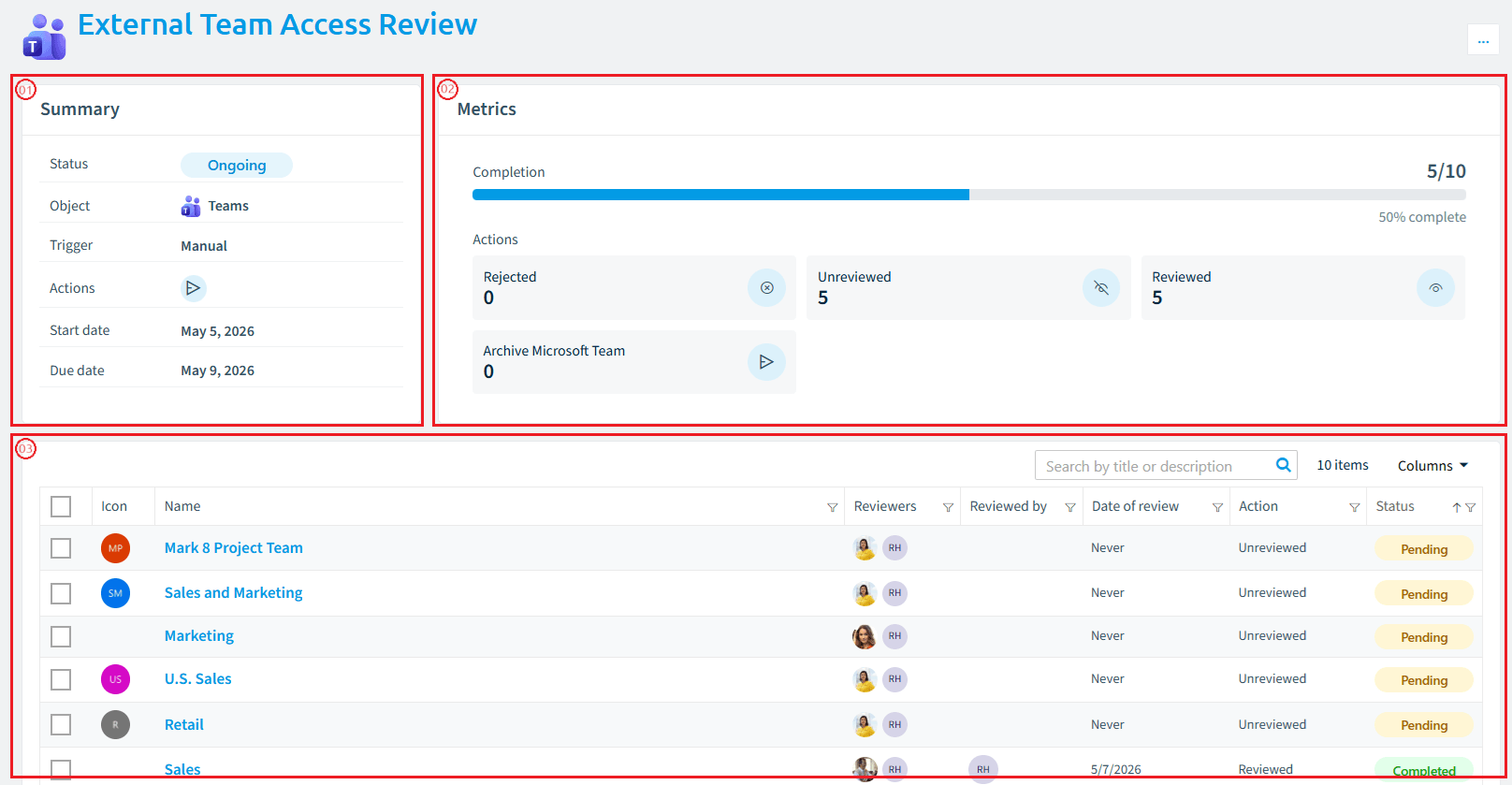
Summary card
Shows the cycle’s configuration and timeline:
Field | Description |
|---|---|
Status | Current cycle status |
Object | Service type |
Trigger | Manual or Scheduled |
Actions | Enabled custom automation icons |
Start date | When the cycle started |
Due date | When the cycle is due |
Decision metrics
A set of tiles showing how object reviews were resolved. Each tile shows a count:
Tile | Meaning |
|---|---|
Reviewed | The reviewer completed the review without selecting a custom action |
Rejected | All assigned reviewers declined the review |
Unreviewed | No reviewer completed the review (still pending, expired, or in progress) |
Custom action tiles | One tile per enabled custom automation, showing how many reviews used that action (e.g., "Archived: 15", "Deleted: 3") |
Object Review Grid
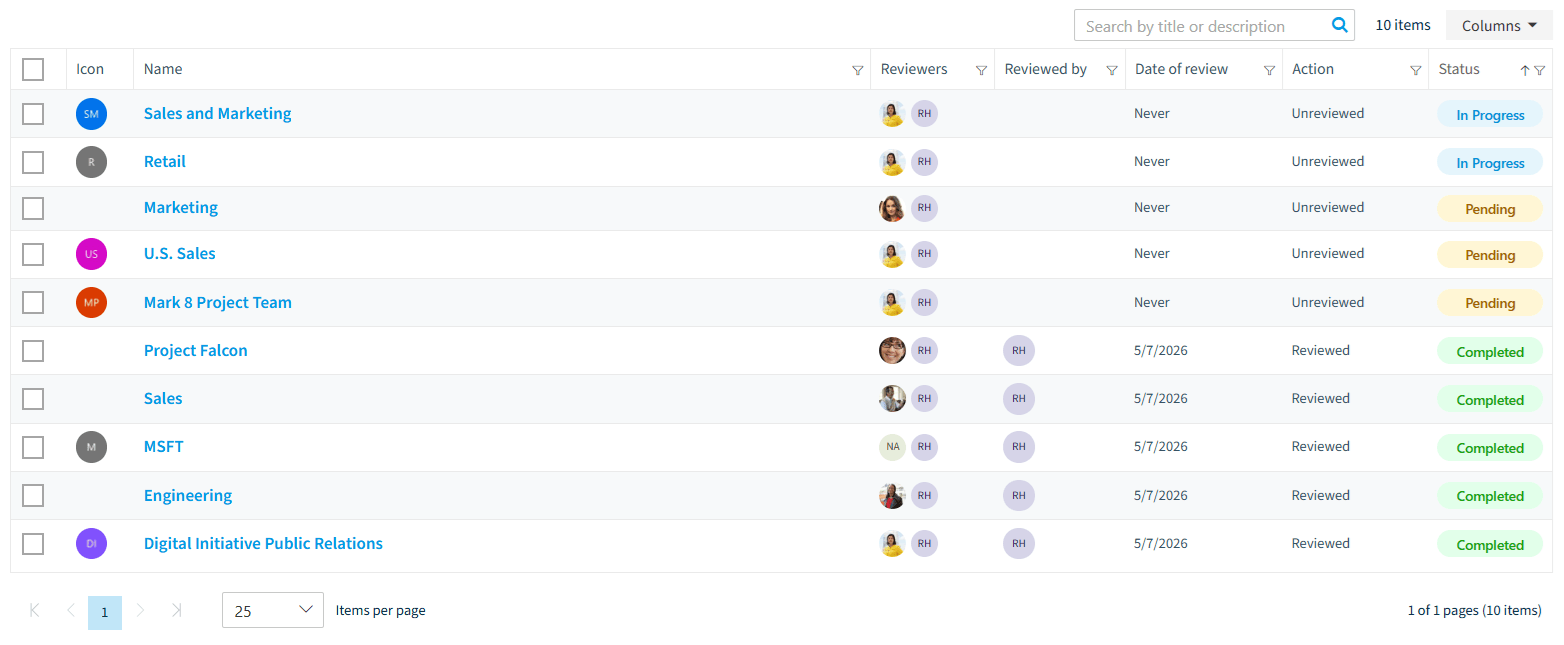
The main grid lists every workspace included in the cycle:
Column | Description |
|---|---|
Name | Workspace name with service icon |
Reviewers | All assigned reviewers (avatar stack) |
Reviewer | The reviewer who completed the review (empty if not yet reviewed) |
Date of review | When the review was completed |
Decision | The outcome: Reviewed, Archived, Deleted, Rejected, Unreviewed, or custom action name |
Status | Lifecycle state: Pending, In Progress, Completed, Expired, or Canceled |
Use the column filters to narrow down the grid - for example, filter by Decision to find all workspaces marked for deletion, or by Status to see which reviews are still in progress.
Bulk actions
Select rows using checkboxes to export selected object review data.
Understanding review outcomes
After a cycle finishes, use the decision metrics and object review grid to assess results:
-
High “Unreviewed” count - Many reviewers did not act before the due date.
- Consider increasing the review duration, improving notification emails, or adding reminder communications.
-
High “Rejected” count - Reviewers are declining because they feel they are not the right person.
- Review your reviewer assignment strategy or workspace ownership.
-
Custom action usage - Track how often reviewers use actions like Archive or Delete to understand the real governance impact of your reviews.