Guide
Create a Provisioning Request
To create a Provisioning Request for a Team in Rencore Governance, you need to:
-
Click on “Provisioning” on the Navbar.
-
Either, Click on “Add Provisioning Request”.

- All enabled Provisioning templates will be displayed.
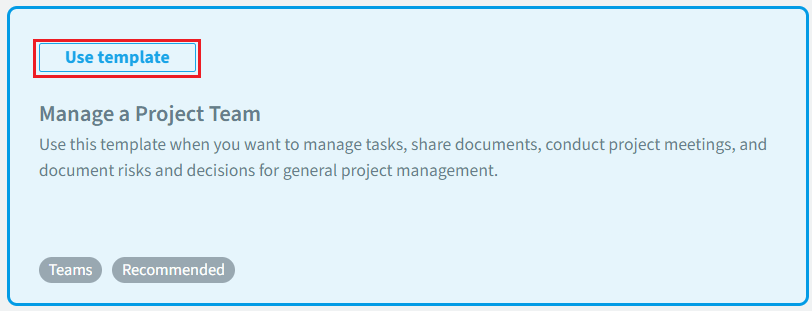
- Highlight the desired template and click “Use Template”.
-
Or, click “Manage Provisioning Templates”.
- Click on the desired Team template.
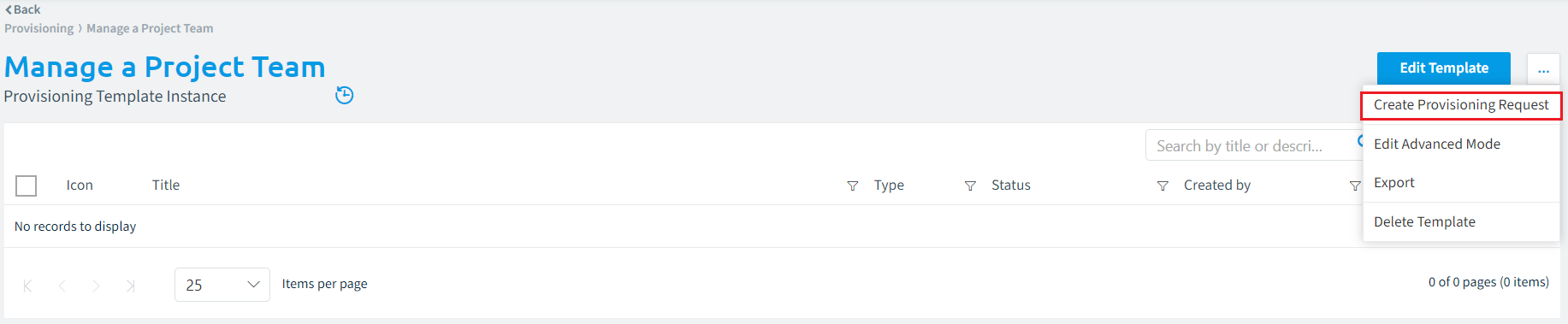
- Click on the ellipses menu ([…]) and select “Create Provisioning Request”.
The request can be completed in four simple steps.
Basic Settings
The first step is to enter the basic information for the Team you are provisioning.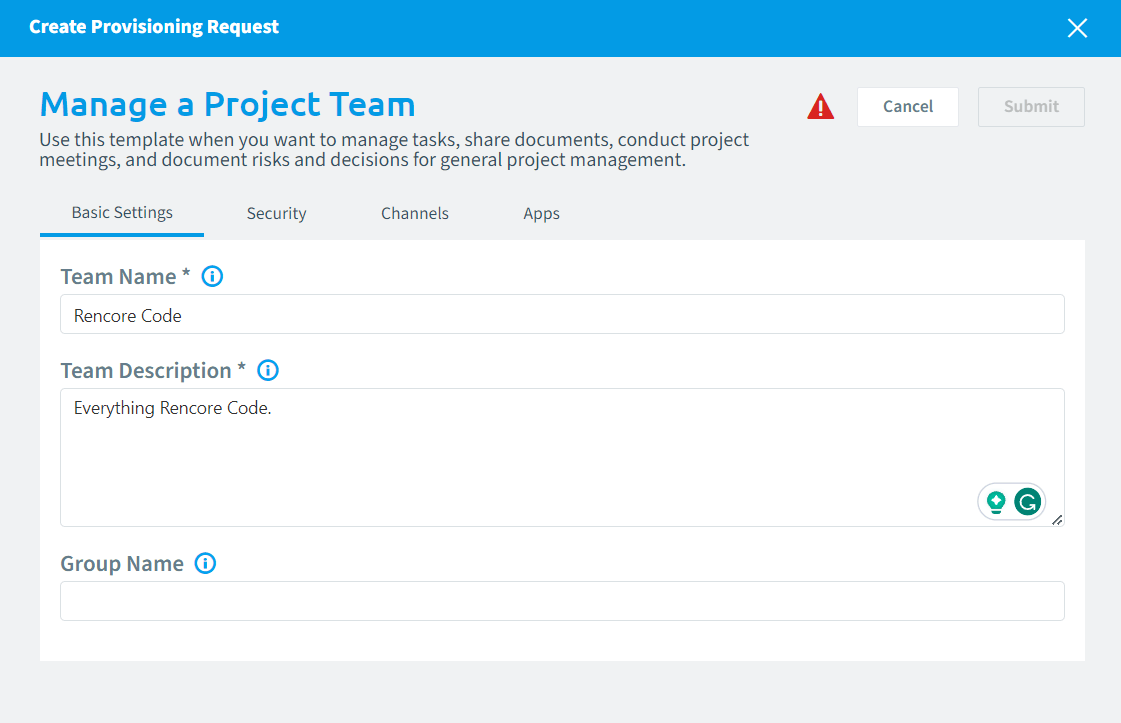
- Team Name: Enter a Meaningful name for the Team.
- Team Description: Describe the Team and its purpose.
- Group Name: If you wish to customize the default group that will be generated for the team, please specify it here.
Security
The second step is to configure the security settings for the Team you are provisioning.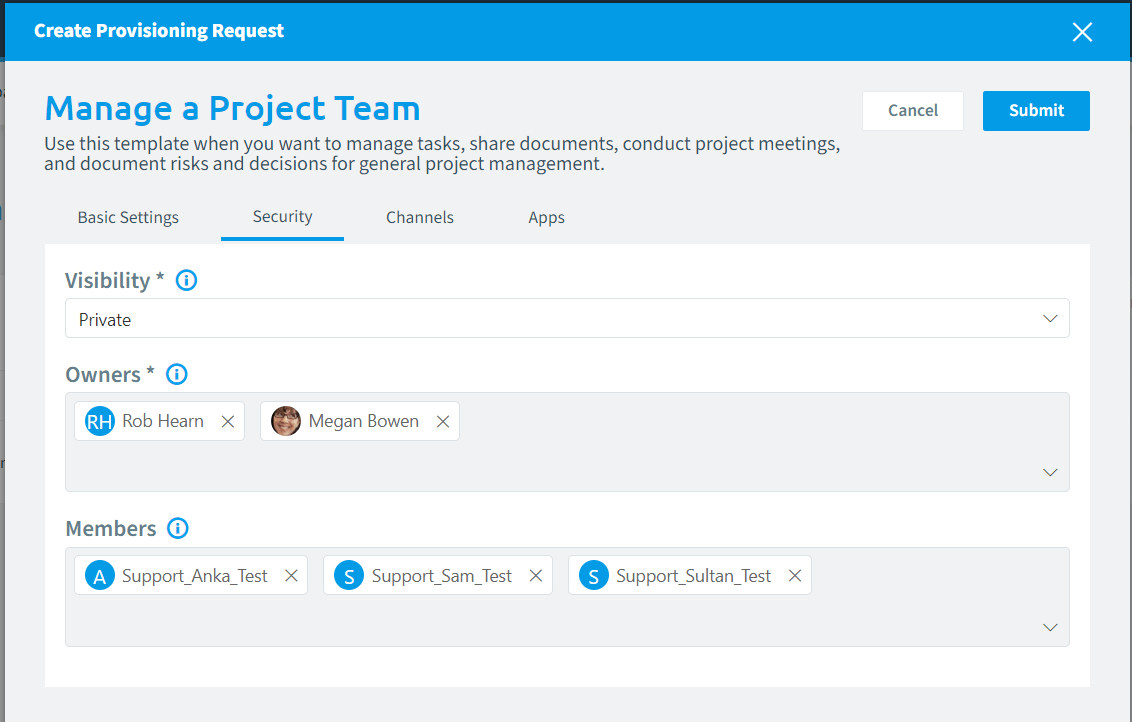
- Visibility: Select whether the Team is Private or Public if permitted by the setting in the Provisioning Template.
- Owners: Enter the M365 users that will be the owners of the Team.
- Members: Enter the M365 users that will be the members of the Team.
Channels
The third step is to select what channels the Team will have when created. If the Provisioning Template permitted the user to change the channels.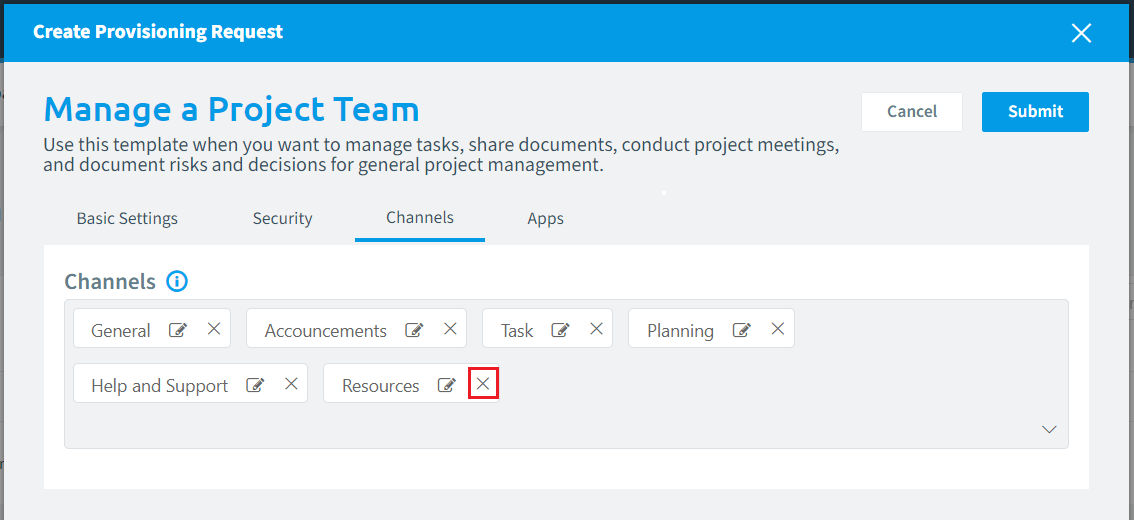
- To add a Channel click on the box and enter a Suggest Teams Channels.
- To remove a Channel click the “X” next to a Channel.
Apps
The fourth step is to select the Apps that will be installed to the Team will have when created. If the Provisioning Template permitted the user to change the channels.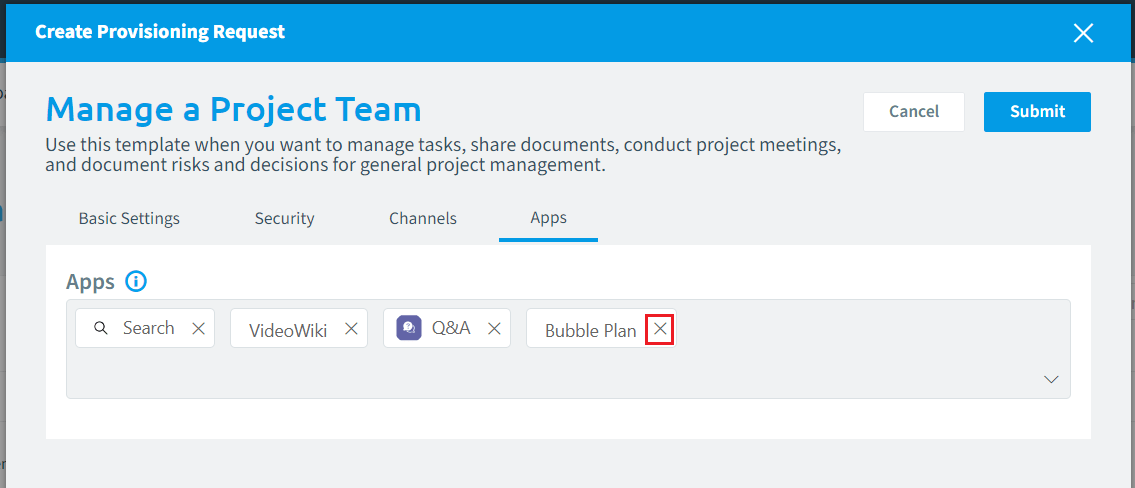
- To add an App click on the box and enter an App name.
- To remove an App click the “X” next to the App.
Completion
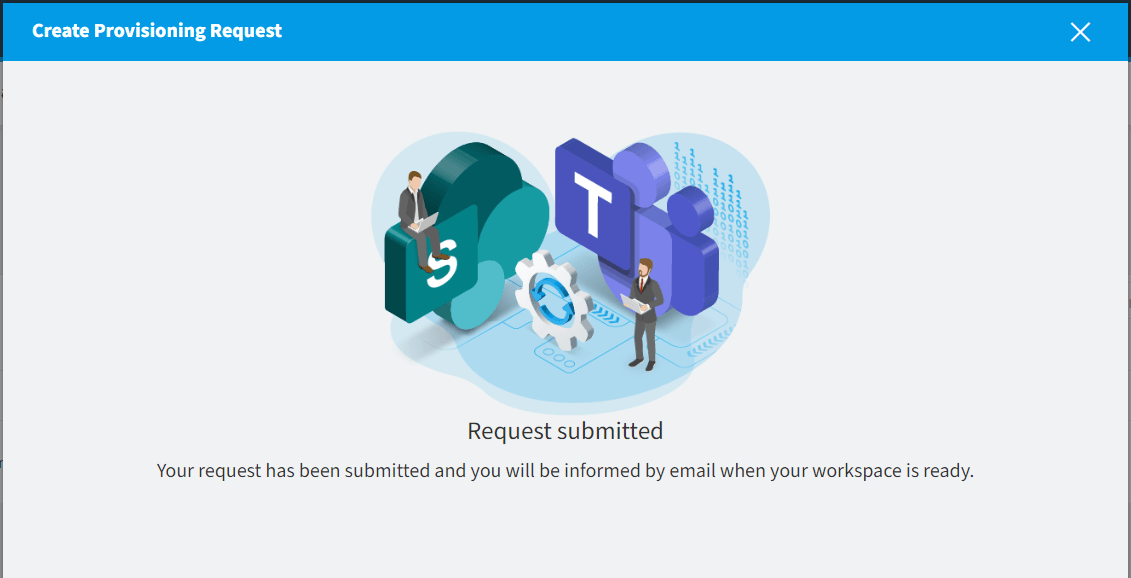
After all the steps have been completed. click “Submit” in the top right of the screen. A prompt will appear confirming “Your request has been submitted and you will be informed by email when your workspace is ready”.