Guide
Re-consent Permissions
To re-consent to permissions.
-
Click on “Settings”.
-
Click on “Environment Settings”.
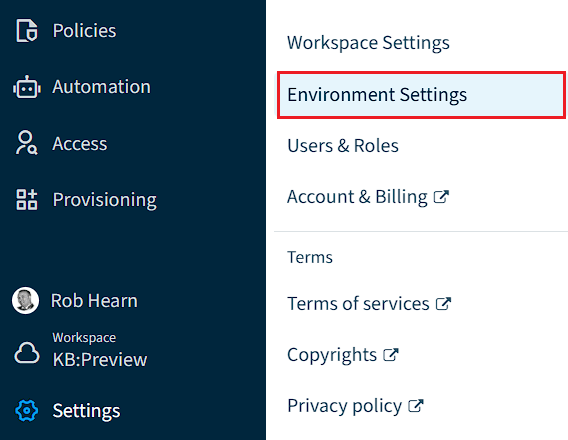
-
Click on the “Environment Action Menu” ([…]).
-
Click “Manage Consent”.
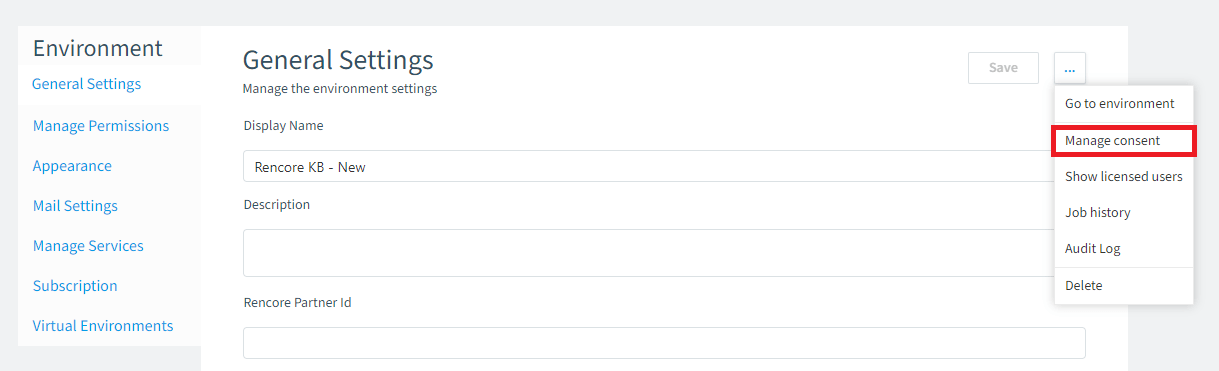
- Alternatively, go to https://<datacenter>.app.rencore.com/workspaces/<WorkspaceID>/environments/<EnvironmentID>/checkconsent#Area=Inventory. Where <datacenter> refers to the data center your workspace is located in, <WorkspaceID> is the ID of the workspace, and <EnvironmentID> is the ID of the environment.
-
Against the desired Service, click the “Action Menu” and either click “Reconsent” or “Ask admin for reconsent”.
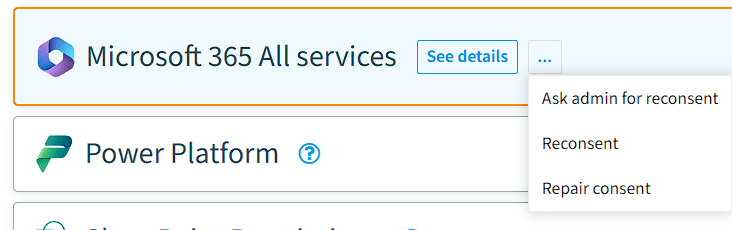
- Alternatively, try to “Repair Consent”, which will attempt to use the existing consent and reapply..
-
Once an Admin Account has given consent, the permissions for Rencore Governance will be complete and services restored.