Guide
Create a Dashboard
Although Rencore Governance comes with many Dashboards, you may want to create your Dashboard. To do this, you will need to:
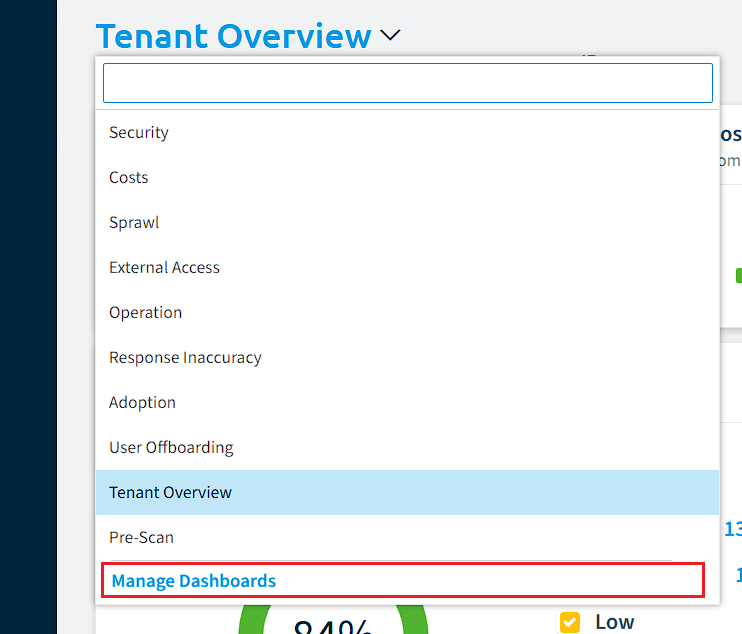
- Click on the Dashboard Selector and then click on “Manage Dashboards”.
- Click on “Create Dashboard” on the top right of the screen, which takes you to the “Dashboard Template Library”.
Here you can either choose a pre-configured dashboard template or a blank template.
Pre-configured Dashboard
-
Select a Preconfigured Dashboard from the list (e.g. Costs).
-
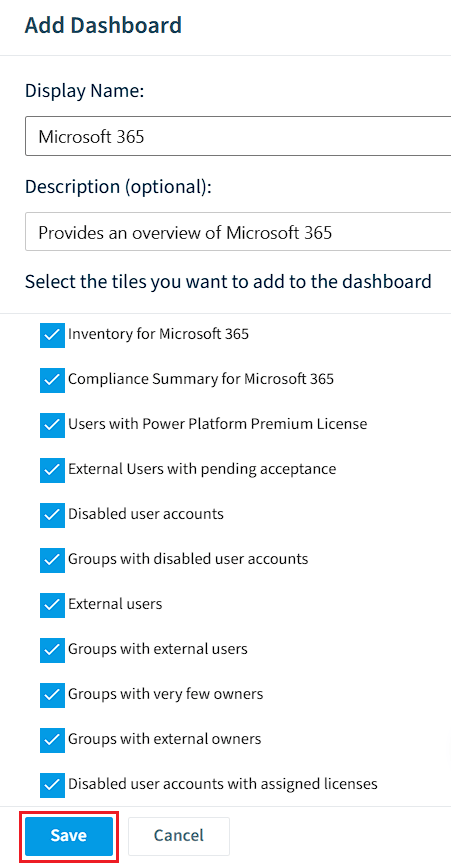
A side panel will appear on the right. Here you will need to:
- Enter a Name for the dashboard.
- Enter a Description for the dashboard.
- Choose which Tiles to include.
-
Once happy with your choices, click “Save”. This will create the dashboard and load straight to it.
Blank Dashboard
-
Select the “Blank Dashboard”.
-
A side panel will appear on the right. Here you will need to:
- Enter a Name for the dashboard
- Enter a Description for the dashboard.
-
Once happy with the choices, click “Save”. This will create a blank dashboard and load straight to it.
-
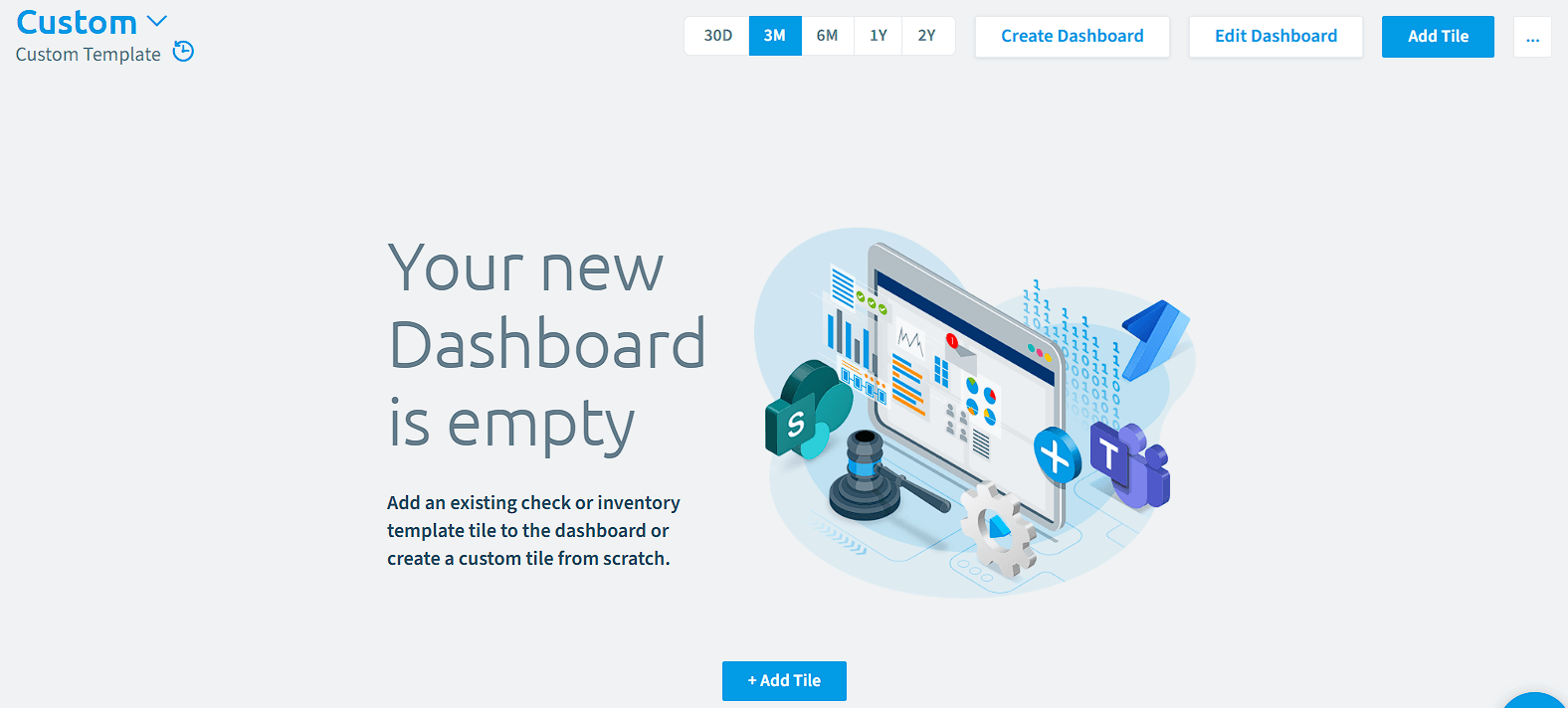
As the new dashboard is empty, you will need to add the tiles you want.
For details on how to add a tile, view the Knowledge Base article Add Tiles to a Dashboard.