Guide
Invite Users to an Environment
This process can only be performed by either an owner or an admin of the workspace.
Adding a user to an environment instead of a workspace provides an additional level of security. A Global user who is invited to a workspace has access to all environments within that workspace. Inviting a user to the environment means that the user only has access to that specific environment within the workspace.
To add a user to an environment on your workspace, you will need to:
-
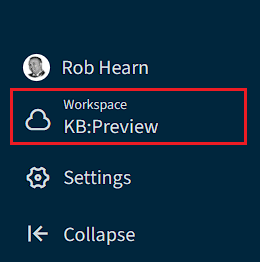
Select the desired environment using the “Workspace & Environment selector”.
-
Click on “Settings”.
-
Click on “Environment Settings”.
-
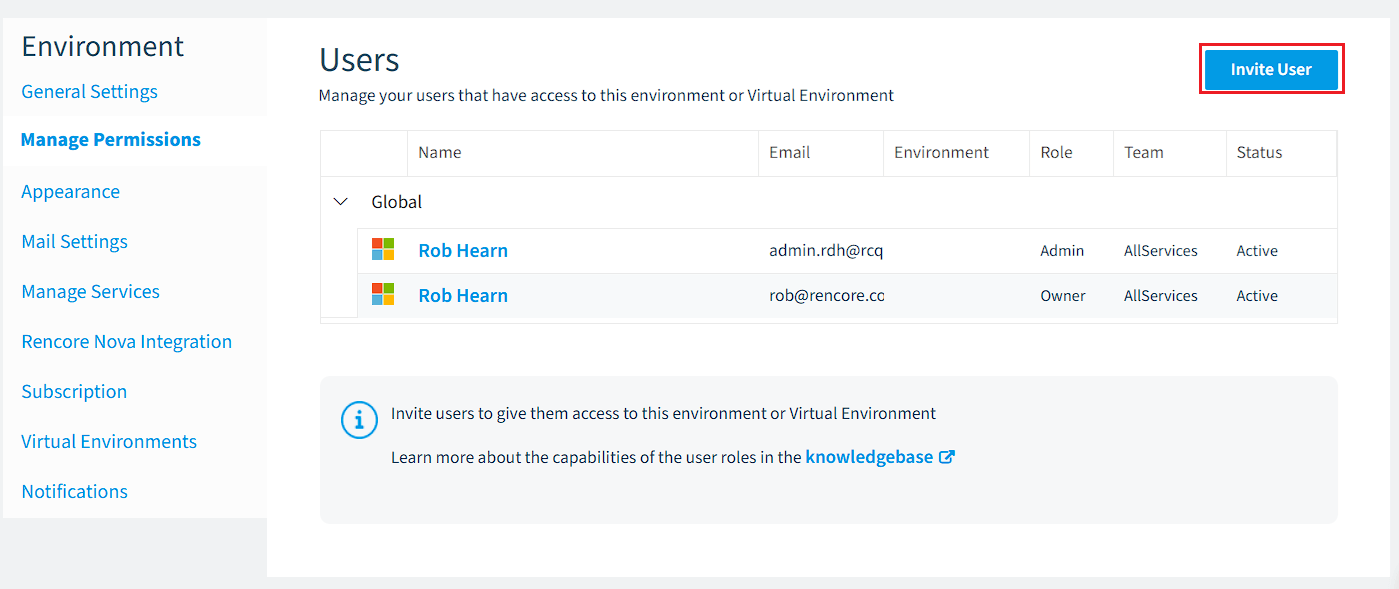
Click on “Manage Permissions”.
-
Click the “Invite User” button in the top-right corner.
-
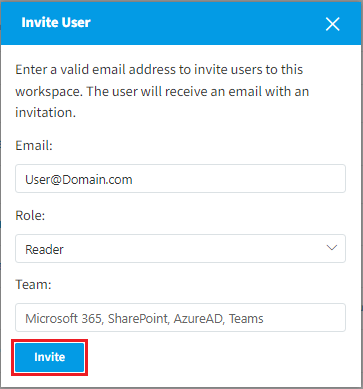
Enter the email address of the user you want to invite to your Environment.
-
Select what role you want that user to be:
- Owner: There should be at least one owner, and that is the first person to create the workspace (limited to a maximum of 3).
- Admin: This user has the same rights as the owner, where they can add and remove environments, Workspaces, Dashboards, and Users.
- Contributor: This user can work with data, creating dashboards, checks, inventories, etc.
- Reader: This user can only read the data granted to them.
- Custom Role: A custom role created by a workspace Owner or Admin.
-
Select what team you want that user to be in:
- All Services: This team has access to the entities for all services.
- Microsoft 365: This team has access to the entities for the service Microsoft 365.
- Power Automate: This team has access to the entities for the service Power Automate and includes Users and Groups from Microsoft 365.
- Power Apps: This team has access to the entities for the service Power Apps and includes Users and Groups from Microsoft 365.
- SharePoint: This team has access to the entities for the service SharePoint and includes Users and Groups from Microsoft 365.
- OneDrive: This team has access to the entities for the service OneDrive and includes Users and Groups from Microsoft 365.
- Entra ID: This team has access to the entities for the Entra ID service and includes all entities for the Microsoft 365 service.
- Teams: This team has access to the entities for the service Teams and includes Users and Groups from Microsoft 365.
- Viva Engage: This team has access to entities for the service Yammer.
- Exchange: This team has access to entities for the service Exchange.
-
Click “Invite” and they will receive an email inviting them to the workspace in Rencore Governance.