Guide
Trigger a Webhook for Power Automate
This manual will show you how to trigger an external webhook using the automation actions Send HTTP request or Trigger webhook.
In this example, we are calling a Microsoft Power Automate flow that has a trigger “When a HTTP request is received”.
Obtaining a URL for your HTTP request.
-
Go to Microsoft Power Automate.
-
Go to the desired Flow or create a new When a HTTP request is received Flow:

-
Copy the “HTTP Post URL” from the action.
-
The “HTTP Post URL” can now be entered in Rencore Governance_._
Create a Trigger webhook action Automation
-
Click on “Automation” on the Nav Panel
-
Click on the “Add Automation” button on the right-hand side.
-
Click “Create Custom Automation”.
-
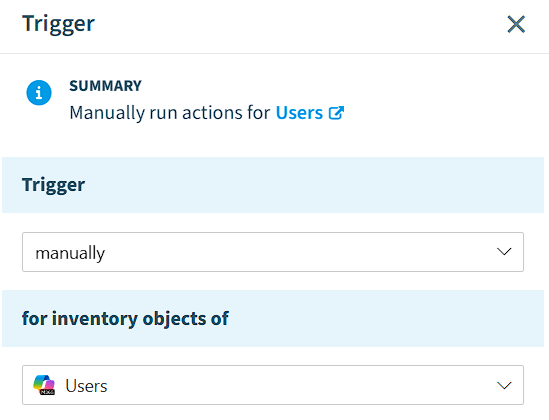
Set the “Trigger” to “manually” and “for inventory objects of” to “Users”.
-
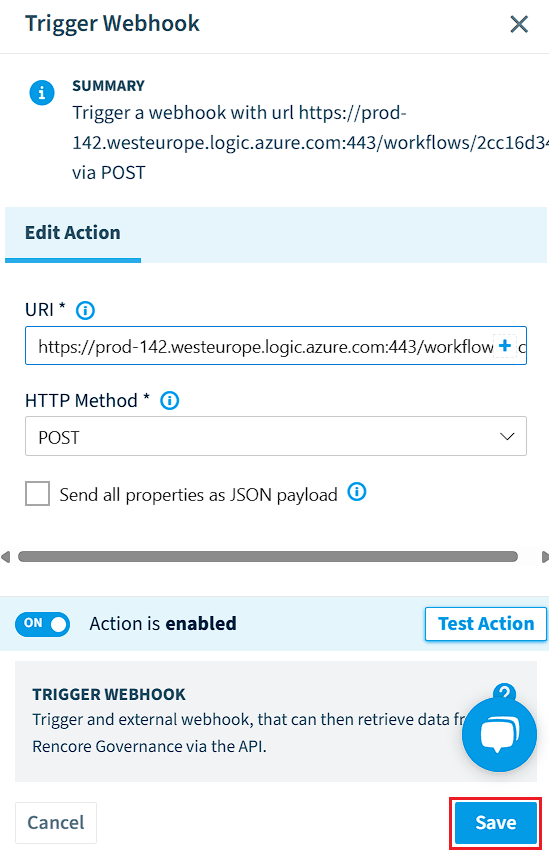
Click the ”+” and select “Trigger Webhook” (or a “Send HTTP request action”).
- Enter the “HTTP Post URL” of your flow in the “URI” field.
- Set the “HTTP Method” to be the same as in your Flow (e.g. “POST”).
- Click “Save”.
-
Click “Next”.
-
On the “Details” page, provide the following:
- A “Title” for the Automation.
- A “Description” to identify the purpose of the Automation.
- Choose an appropriate “Category” if there is one.
- Choose an appropriate “Icon”.
-
Once complete, click “Done”.
-
Afterwards, every time the automation gets executed on a user, an HTTP Request will be executed for your flow endpoint.