Guide
Configuring Rencore Teams App
Configuring the use of the Rencore Teams App instead of Rencore Nova
To use the Rencore Teams app instead of Rencore Nova.
-
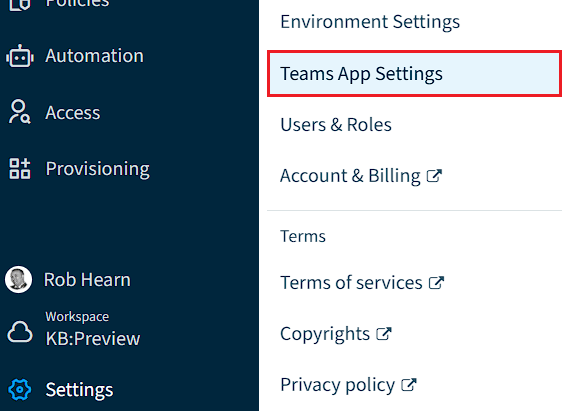
Click on “Settings” on the Nav Panel.
-
Click on “Teams App Settings”.
-
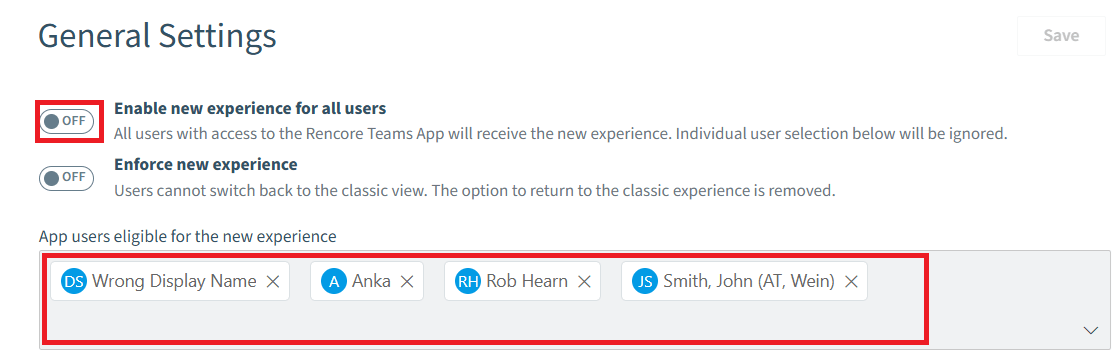
On the “General Settings” tab. Select how you want to enable the experience to users.
-
Enable new experience for all users: Toggle “Enabled new experience for all users” sets Rencore Nova for all users
-
Enable for selected users: Disable the toggle for “Enabled new experience for all users” and in “App users eligible for the new experience”, add the desired users to be able to access the Rencore Teams App.
-
-
Currently, users can hop between the Rencore Teams App and Rencore Nova. If you want users only to use the Rencore Teams App, enable “Enforce new experience”. This will stop users from going back to using Rencore Nova.
-
Click “Save”.
Set up what Users can access in the Rencore Teams App
-
To permit or restrict what features (Review, Requests, Approvals, Workspaces) users can access in the Rencore Teams App:
-
In Rencore Governance, click on “Settings”
-
Click on “Teams App Settings”.
-
Click on “Setup”.
-
Enable or disable the features below:
-
Review: When on, the Review tab is visible in the Rencore Teams App navigation.
-
Requests: When on, the Requests tab is visible in the Rencore Teams App navigation.
-
Approvals: When on, the Approvals tab is visible in the Rencore Teams App navigation.
-
Workspaces: When on, the Workspaces tab is visible in the Rencore Teams App navigation.
- Additionally, you can decide which workspaces (Teams, SharePoint). See here for more details.
-