Guide
Executing an Action
Built-in actions allow you to perform actions within the Environment (for a full list of current actions click here). It is possible to perform actions for single objects or multiple objects.
Executing an Action for a Single Object
There are a few ways in which you can perform an action for a single object either through the Details View or a Datagrid.
Details View
To perform the desired action for an object, you will need to:
-
Click on “Inventory” on the Nav Panel.
-
Either click on the segment, hover over the desired Service and click “Go to Inventory” or click “Inventory Options”([…]), then select “Go to Inventory”.
-
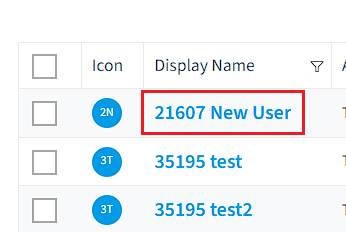
Click on the desired object.
-
Click “Go to Object”.
-
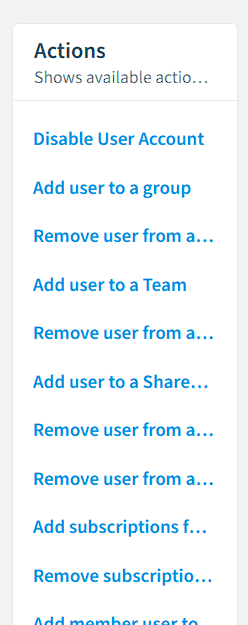
On the details page, click on the desired action on the right side of the screen.
-
In the following dialog, you will be prompted to add additional information or confirm the action, depending on which action you have chosen.
Action Dialog
After selecting an Action to perform a dialog will appear either asking for a confirmation of the action or adding additional information.
Example
After selecting the action “Add user to a Team”. The dialog box will appear.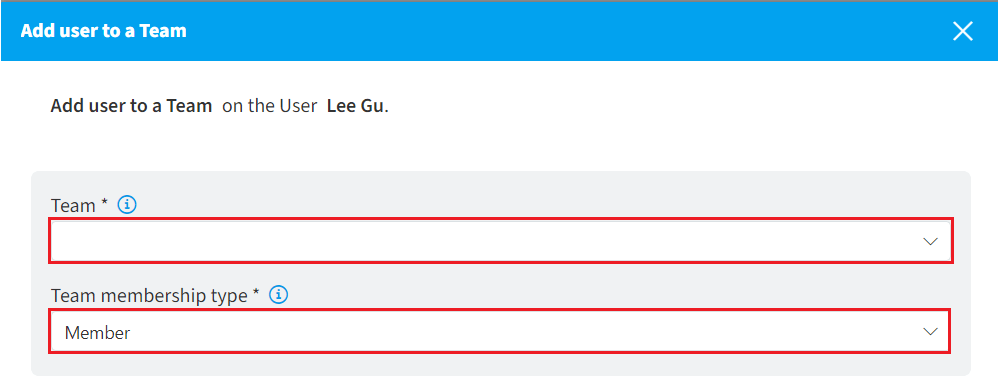
- On “Team”: Either enter a TeamID or select the team.
- On “Team membership type”: Select the membership type (Owner/Member).
Action Permissions
Depending on the action selected, additional permission may be required on first use.
Example
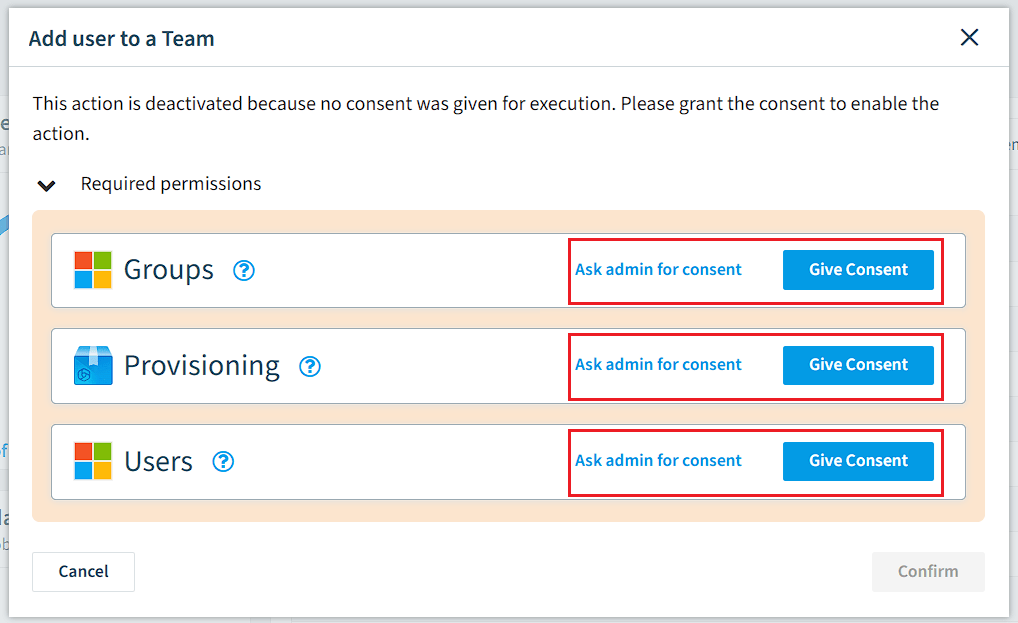
After selecting the action “Add user to a Team” for the first time, the following permissions are required.
-
If you have Administrator credentials, click “Give Consent”.
- Enter your username and password
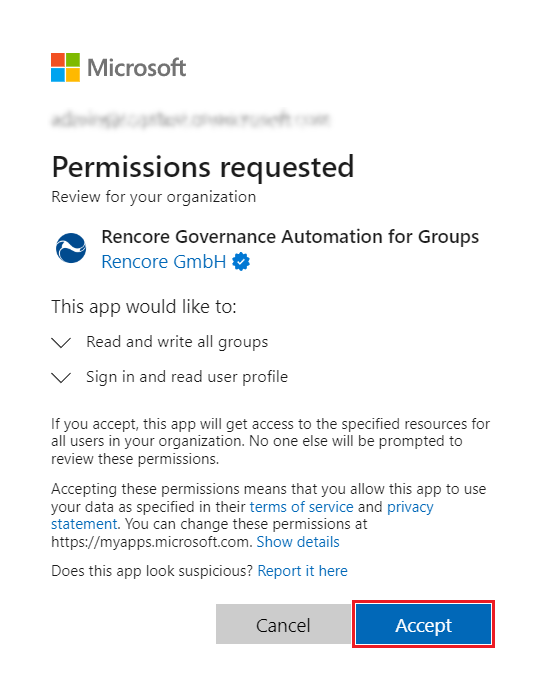
- A dialog will appear confirming the permissions required. At the bottom of the dialog, click “Accept”.
-
Else, click “Ask admin for consent”; this will produce a URL.
- Either click on the copy icon and give the URL to the admin to consent or click “Send link as mail” which will populate an email and the URL in, you then just need to add the email address before sending.
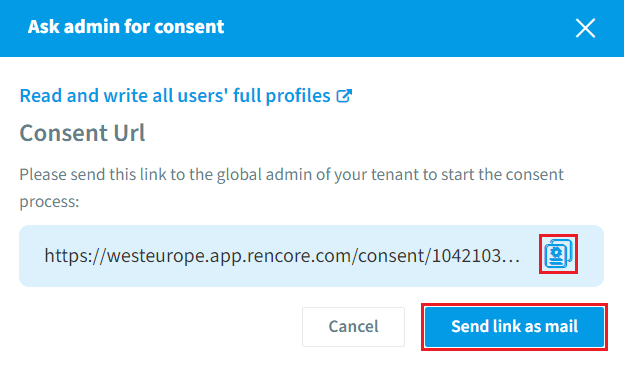
- Either click on the copy icon and give the URL to the admin to consent or click “Send link as mail” which will populate an email and the URL in, you then just need to add the email address before sending.
Datagrid
To perform the desired action for an object or objects you will need to:
-
Click on “Inventory” on the Nav Panel.
-
Either click on the segment, hover over the desired Service, and click “Go to Inventory” or click “Inventory Options”([…]), then select “Go to Inventory”.
-
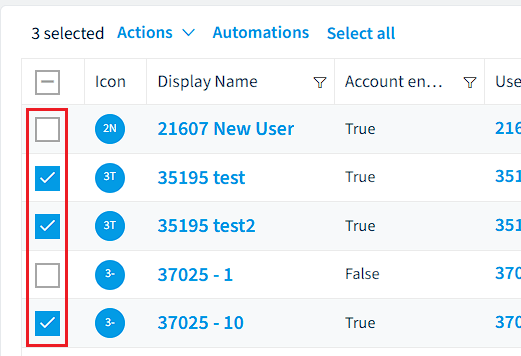
Selected the desired object(s).
-
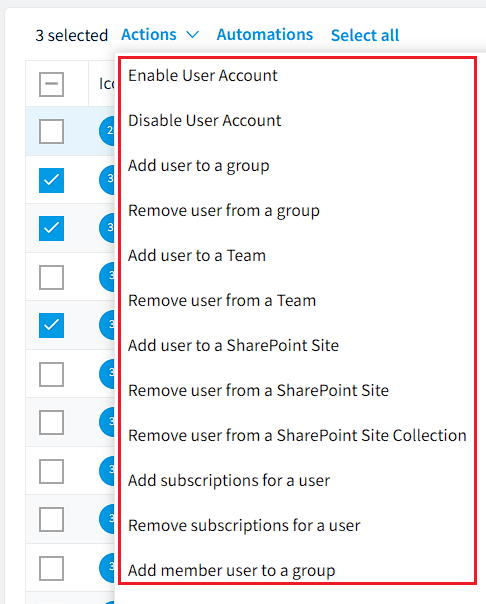
Click “Actions”.
-
On the pop-up menu, select the desired action.
-
On the dialog, you will be prompted to add additional information or confirm the action, depending on which action you have chosen.
Note: Depending on the action selected, additional permission may be required. See Action Permissions above for an example.