Guide
Restricting Azure Users to Governance & Nova
Rencore Governance
Assignment Required for Rencore Governance
To restrict users from accessing Rencore Governance you will need to:
-
Sign into Microsoft Entra Admin Center.
-
Click on “Identity”.
- Click on “Applications”.
- Click on “Enterprise applications”.
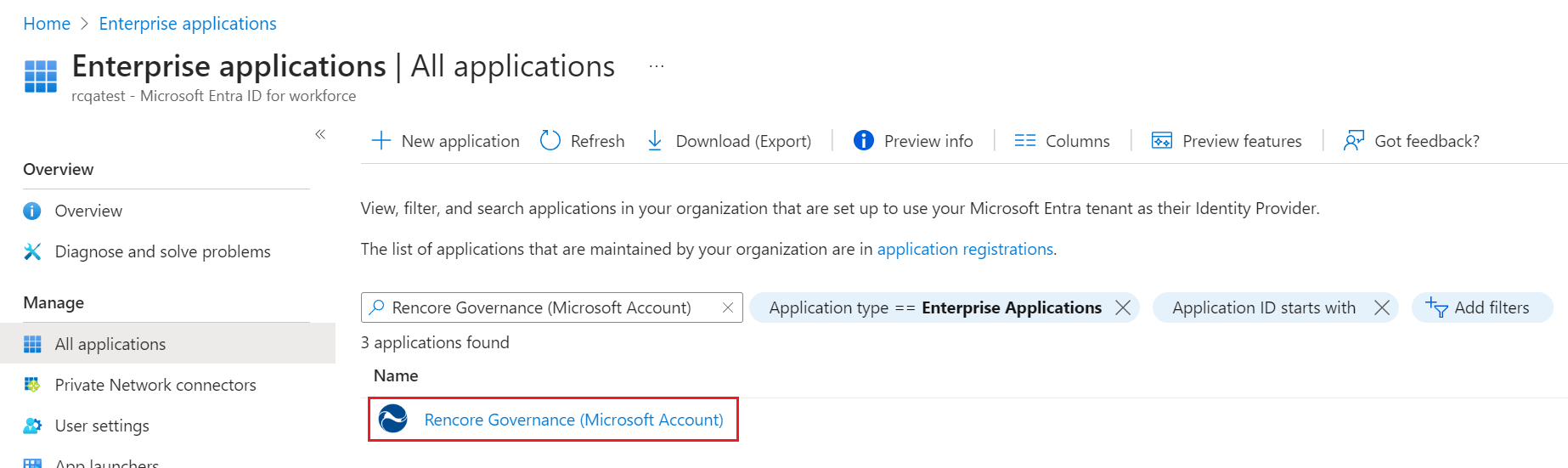
- Click on “All applications”.
- On the search enter “Rencore Governance (Microsoft Account)” and press “Enter”.
-
Click on the “Rencore Governance (Microsoft Account)” application.
-
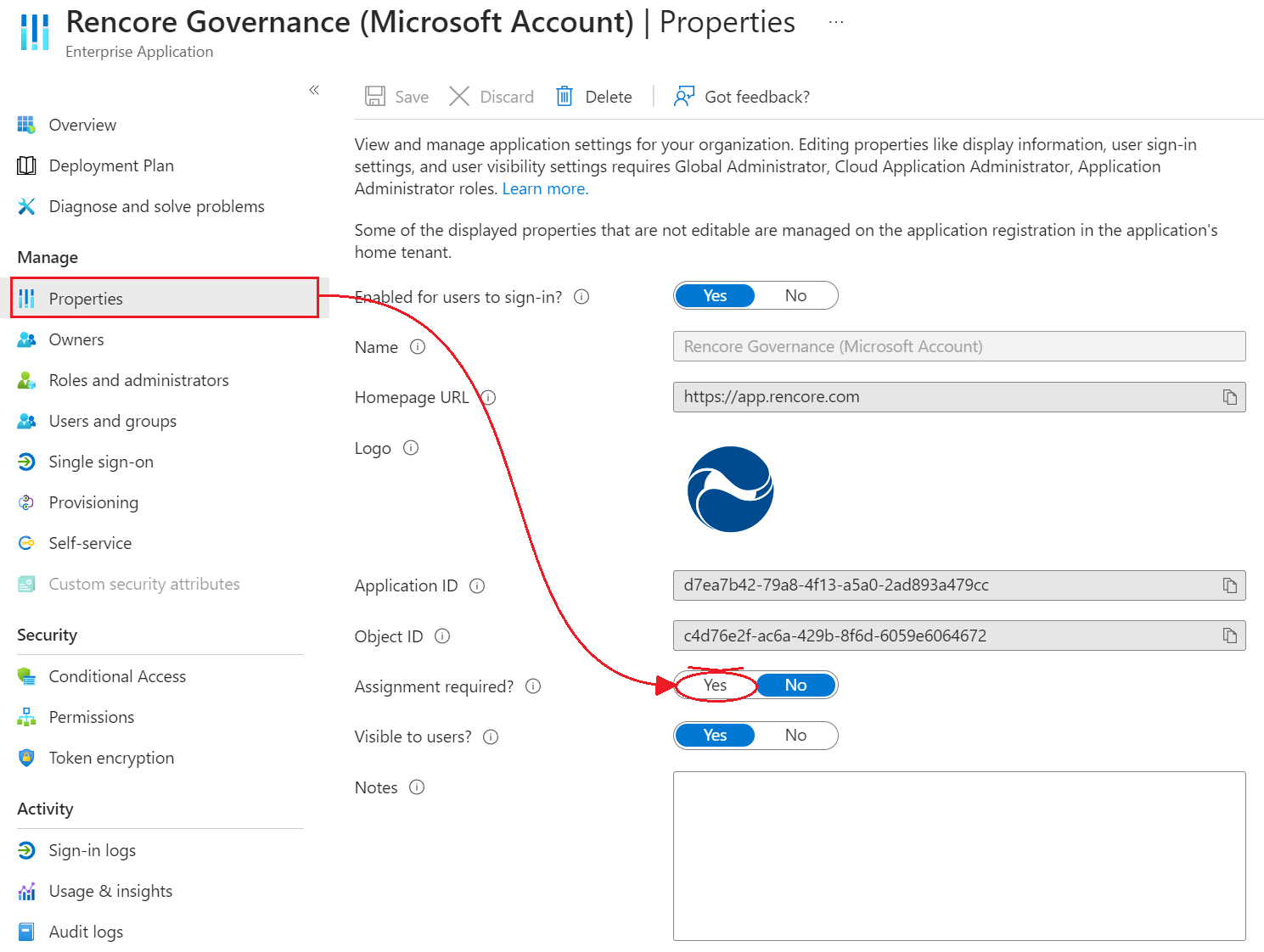
Click on “Properties”.
-
Set “Assignment required?” to “Yes”.
-
Click “Save”.
Assigning Users and Groups to Access Rencore Governance
Now that the “Assignment required” setting is enabled, users and other apps or services must first be assigned this application before being able to access it. To grant access to Rencore Governance.
-
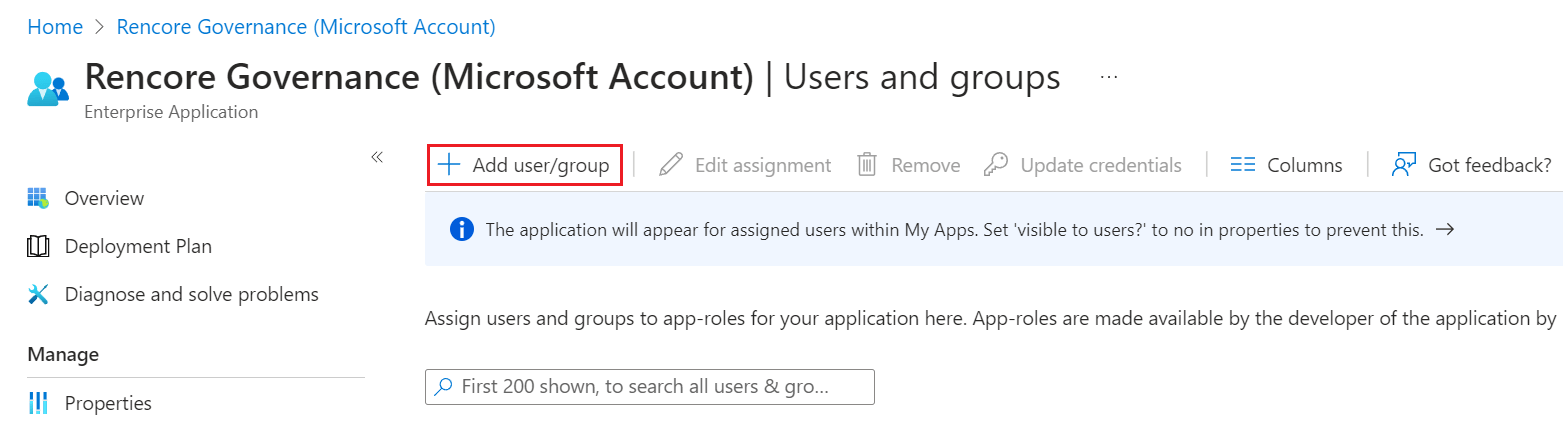
Now click on “Users and Groups”.
-
Click “+Add user/group”.
-
Click on “None Selected”.
-
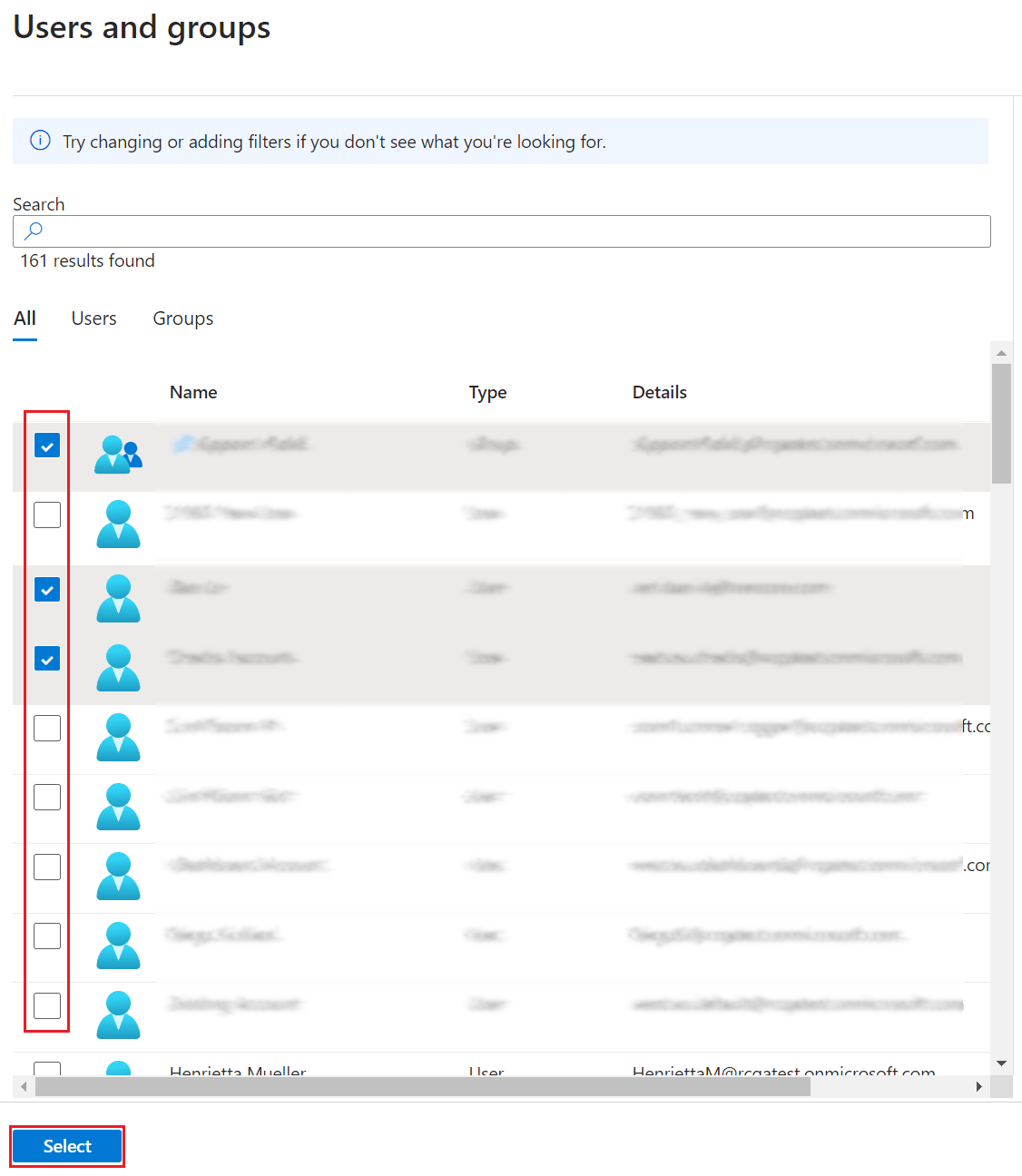
A list of users and security groups will appear with the option to search for specific entities at the top of the page.
- To grant access to Rencore Governance, select the Users and groups you desire.
- Once finished selecting click “Select” at the bottom.
-
To complete the selection of new users/groups click “Assign” at the bottom of the page.
Rencore Nova
Assignment Required for Rencore Nova
To restrict users’ access to Rencore Nova, you will need to follow the details in Assignment Required for Rencore Governance. Instead of searching for Rencore Governance, search for Rencore Nova, the steps are the same for the app,
Assigning Users and Groups to Access Rencore Nova
Now that the “Assignment required” setting is enabled, users and other apps or services must first be assigned this application before being able to access it. To grant access to Rencore Nova. Please follow the details as instructed Assigning Users and Groups to Access Rencore Governance.