Guide
Environment Notifications
To configure the notifications that Rencore Governance sends out for an environment, you will need to:
-
Click on “Settings” on the Nav Panel.
-
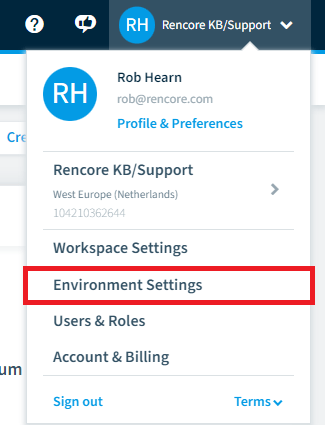
Click on “Environment Settings”.
-
Click on “Notifications”.
The “Notification Settings” screen is divided into three sections, each covering a different event that Rencore Governance can alert you to:
- Consent Lost: the tenant has withdrawn or lost the consent Rencore Governance needs to run scans and other operations.
- Error in Automation: an automation has failed to run, including when it stops after reaching a configured threshold limit.
- Thresholds in Automation - an automation with a threshold set has exceeded it.
- Error in Provisioning: a Provisioning task has failed to complete.
- Subscription threshold - licensed Rencore Governance users exceed 95% of subscribed user accounts.
Each section is set to “Off” by default. Enabling a section and choosing who is notified works the same way for all three:
-
Click the toggle next to the section to change it from “Off” to “On”.
-
Select who should receive the notification. You can choose any combination of “All Owners”, “All Admins”, and specified email addresses.
-
Once you have enabled the sections you need and chosen the recipients for each, click “Save” at the top of the screen.
Warning: Notification settings are configured per environment. If your workspace has multiple environments, repeat this configuration in each environment where Owners and Admins need to receive these alerts.
Consent Lost
This section covers consent loss on the tenant connection. For example, when an admin revokes the permissions granted to Rencore Governance, or a certificate or secret used for consent expires. While consent is lost, scans and other operations that rely on that connection cannot run.
Enable this section so a Workspace Owner or Admin is notified as soon as consent is lost, rather than discovering it days later when data stops updating.
Error in Automation
This section covers any automation that fails to run to completion. For example, when an automation action is incorrectly configured.
Thresholds in Automation
This section applies to any automation with a configured threshold and sends a notification when the threshold limit is met.
Error in Provisioning
This section covers any Provisioning task, such as provisioning a new environment or workspace resource, that fails to complete.
Subscription threshold
This section covers when licensed user consumption reaches 95% or more of the subscribed user limit. No further notifications are sent while usage remains at or above 95%; notifications are only re-enabled after usage falls below the threshold.
The email includes the environment name and subscription usage in the format “Users X of Y” along with the utilization percentage.