Guide
Onboard a New Organization
Using multiple workspaces is typically most relevant for consulting partners or managed service providers who manage multiple clients or environments.
M365 Tenant: Rencore Governance Environment in the Workspace. Each workspace supports a single M365 tenant, and all users within a workspace can access that tenant's environment.
Each customer needs their own workspace, since Rencore Governance permits only one M365 tenant per workspace. This gives data separation, so only their own tenant is visible to them, providing client anonymity.
To create a new workspace and onboard new organizations, you will need to log into your Rencore Governance Portal:
Creating a New Workspace
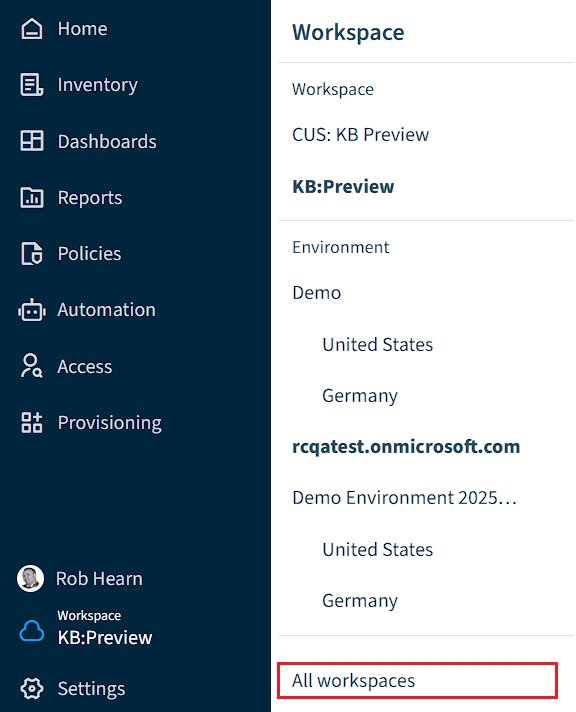
- Click on “Workspace & Environment Selector”.
- Click “All workspaces”.
- Click “Add workspace”.
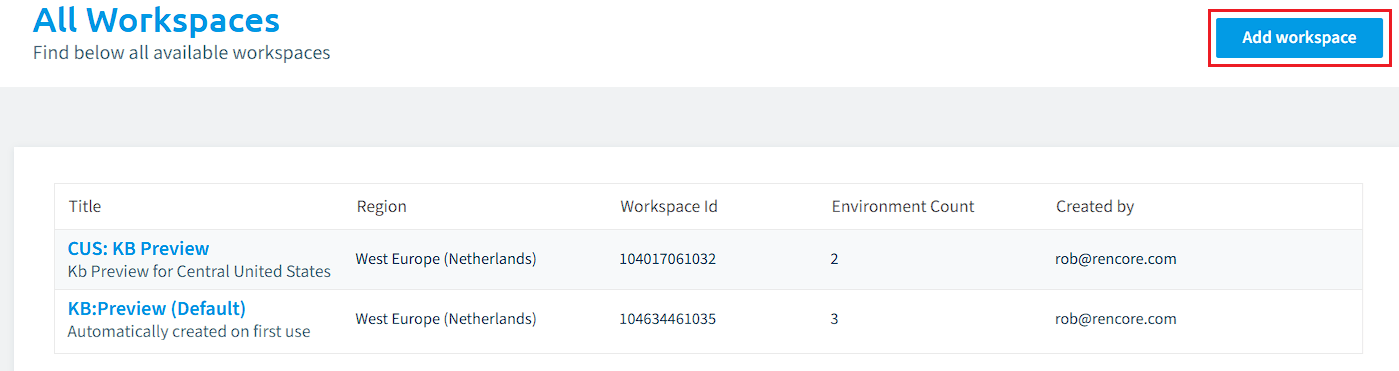
- Create the Workspace by completing the setup wizard as indicated in the Quick Start.
Assigning Users to a New Workspace
- On the Nav Panel, click “Settings”.
- Click “Users & Roles”.
- Click “Invite User”.
- Enter the user’s email address, set the user’s role and team as detailed in the Knowledge Base article Invite Users to a Workspace.
- Click “Invite”.
Demo Environment and Connecting Customers Tenant
With the creation of the new workspace, Rencore automatically creates a demo environment with fresh data within the workspace, which you can use to demo the solution to the organization without actually connecting a tenant.
When the organization is ready, you can connect the M365 tenant and scan it to explore Rencore Governance with actual real data. On the creation of an environment, a 30-day trial is started.
For details on connecting a tenant, please follow the details in the knowledge base article Add Environments to a Workspace.