Guide
Change appearance in Rencore Governance
To change the look and feel of Rencore Governance, you will need to:
- Click on “Settings”.
- Click on “Workspace Settings”.
- Click on “Appearance”.
- Here you can alter the branding and features of the workspace as detailed below. Any alterations that you make will be displayed in the preview at the bottom of the page.
- To save the changes click “Save” at the top of the page.
Branding
There are three sections of branding that can be altered these are Theme Dark Color, Theme Accent Color, and Logo.
Altering each section gives a completely different appearance to Rencore Governance.
Theme Dark Color
There are six possible choices for this section.
Rencore (dark blue) (Default) |  |
|---|---|
Neutral |  |
Aqua |  |
Clay |  |
Purple |  |
Custom |
Theme Accent Color
There are five possible choices for this section.
Rencore (bright blue) (Default) |  |
|---|---|
Aqua |  |
Clay |  |
Purple |  |
Custom |
Custom Gradient Palette
- When you select custom, the last selected default palette will be shown. To the right, “Choose color” will appear.
- Click “Choose color” to load the color selector.
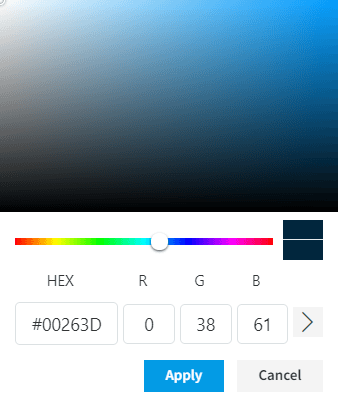
- Either use the slider and selection to choose your color or enter the Hex or RGB values.
- Once the desired color has been entered, click “Apply”. The new Custom Palette Gradient will be loaded.
Logo
There are three possible choices for this section.
Rencore Governance |  |
|---|---|
Generic governance logo |  |
Custom | See Custom Logo for more details |
Custom Logo
- When you select custom, the last selected logo will be shown. To the right, “Upload image” and “Remove” will appear.
- Click “Upload image”.
- A file dialog will appear, either browse for the image to be used or drag and drop the image.
- Once the desired image has been uploaded, it will be shown on the screen.
- Click “Save” at the top of the page.
Features
There are three features that are available to be toggled on and off.
Do not send user onboarding emails
Toggling this off will disable user onboarding emails.
Chat Icon
Toggling this off will disable the direct chat facility to the Rencore Support Team.
Demo Mode
When enabling Demo Mode, all banners to connect your tenant, expiring subscriptions, exceeding user threshold, and enabled preview features are hidden. This toggle is meant for presenting the product to other users without showing the distracting content.