Guide
Approving Access Reviews
To review and approve Access Reviews in Rencore Governance, you need to:
-
Click on “Access”.
-
Click on the title of a Review.
-
This will show the objects that need to be reviewed. At the top, you will see statistics of the review, which include:
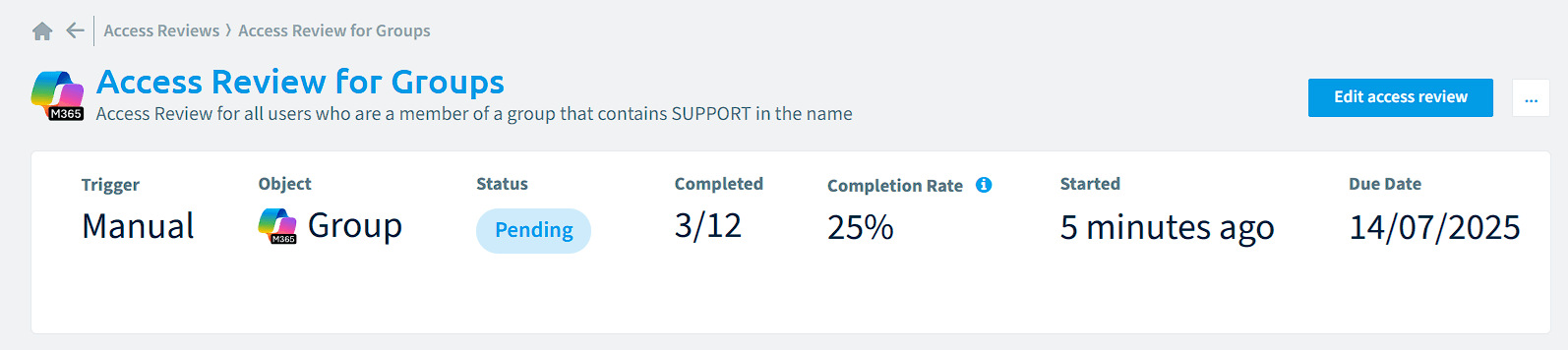
- The Trigger (Manual/Scheduled), Object (Users, Groups, Flows…), Status (Pending, Completed), Completed, Completion Rate (Number of reviews, triggered and completed in the time frame), Started (when the Access Review was created), and Due Date (when the Access Review should be completed).
-
Click on the “Display Name” of the object.
-
This will list the objects that need to be reviewed.
-
Click on an Object that shows the details of the review.
-
To change the action of the Review, go to the right of the “Name”. Click the Change (i.e. “Remove”).
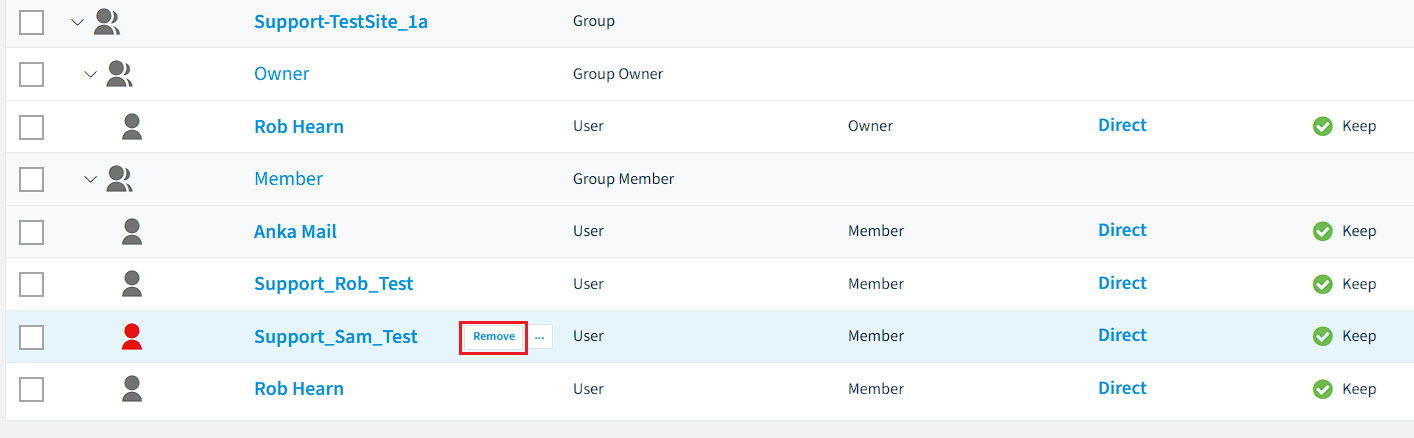
- Alternatively, to change the action of multiple objects, tick the object on the left and click the action at the top. Then click the desired action.
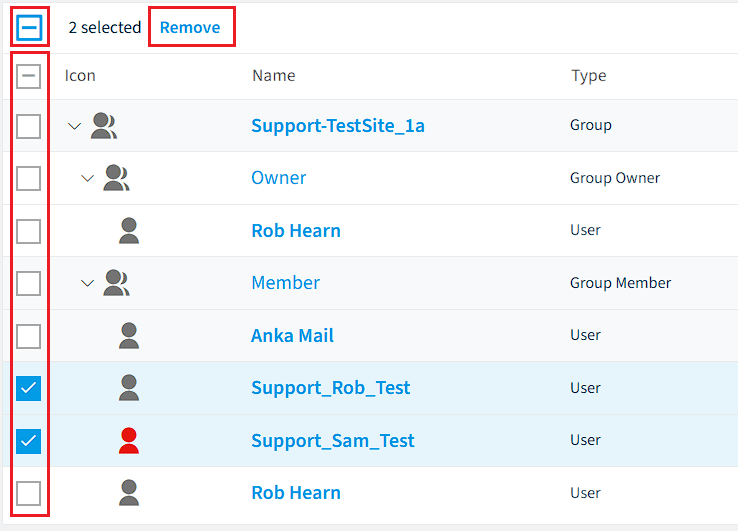
- Alternatively, to change the action of multiple objects, tick the object on the left and click the action at the top. Then click the desired action.
-
After reviewing some or all objects, click “Approve Review” at the top right corner of the screen.

-
Once this review is approved, a list displaying all the changes that will be made will be shown. Simply click the “Approve Changes” button, and the status will be updated to “Approved”.
-
Repeat this for all the remaining objects in the Access Review. When complete, the status will change from “Pending” to “Complete”.