Guide
Approving or Declining a Request
When a new workspace is requested through Rencore Governance or the Rencore for Teams app, the request must be reviewed and approved before the workspace can be provisioned. Submitting a request does not guarantee approval, as all workspace requests must meet the organisation’s governance, compliance, and business requirements. As a reviewer, you can either approve the workspace request or decline it with a valid reason if the request does not meet the required standards or policies.
To approve or decline the provision of a team as an approver, you will need to:
-
Click on “Approvals” on the Navbar.
-
Click on “View Details”
- Alternatively, you could click on the relevant “Things” on the homepage.
-
-
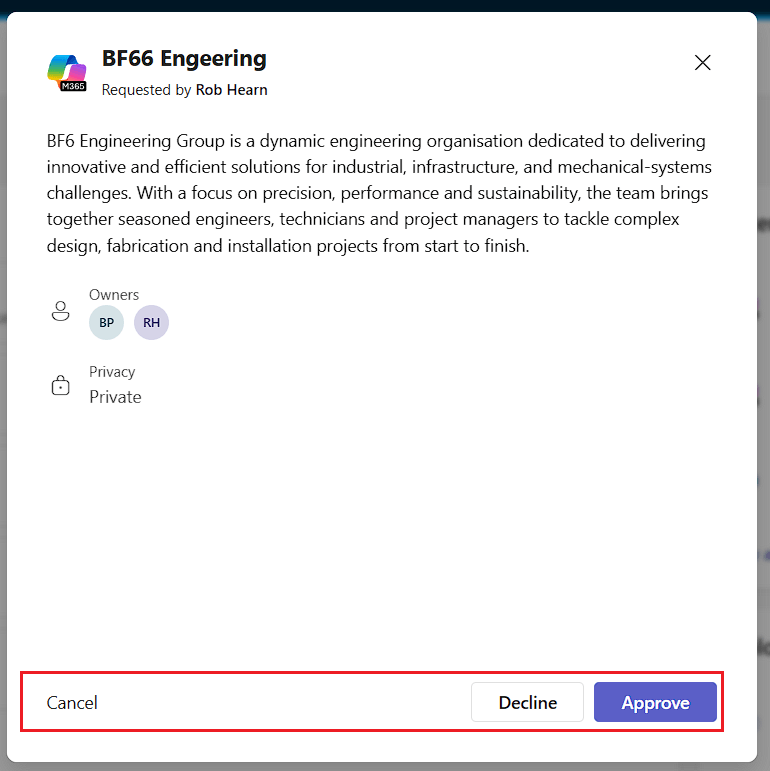
The details for the team will be displayed.
-
Click either;
-
Cancel: To cancel the approval process at this moment.
-
After clicking “Cancel”, you can either click “Leave” to cancel the process for now or “Don’t Leave” to continue to approve the request.
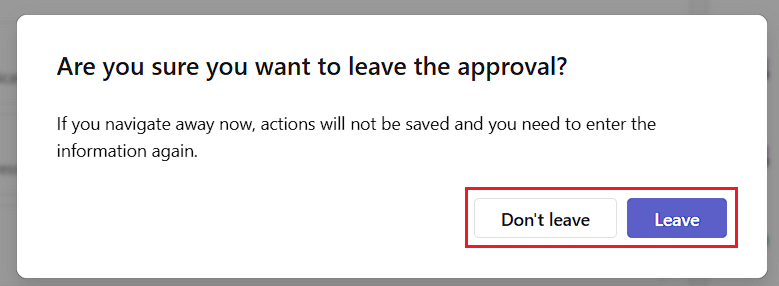 Note: Cancelling the approval process will not save the progress - resuming will start the process from the start.
-
-
Decline: To decline the creation of the Team.
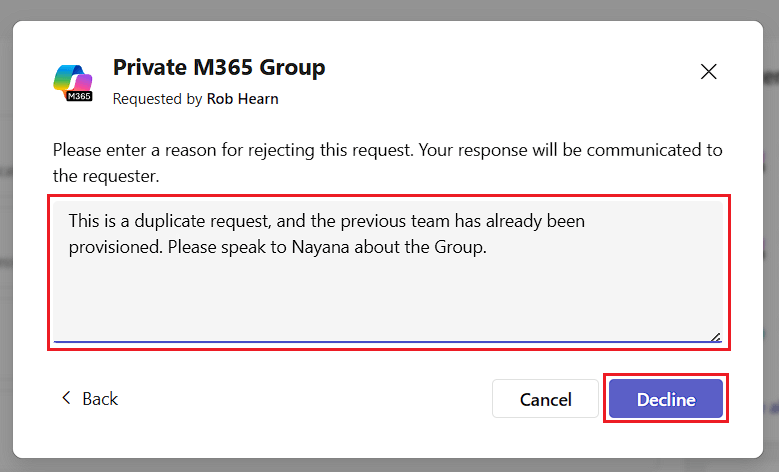
- After clicking “Decline”, you are prompted to enter a reason for declining the request. Fill this in and click “Decline”.
- After clicking “Decline”, you are prompted to enter a reason for declining the request. Fill this in and click “Decline”.
-
Approve: To approve the creation of the Team.
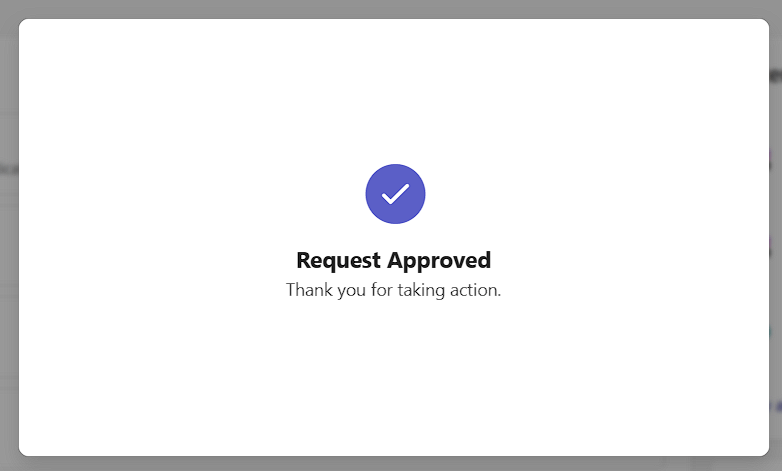
- After clicking “Approve”, a dialog will appear confirming the approval. Depending on the setup of the Template, the Team will be provisioned or will wait for other approvers to confirm prior to provisioning the team.
- After clicking “Approve”, a dialog will appear confirming the approval. Depending on the setup of the Template, the Team will be provisioned or will wait for other approvers to confirm prior to provisioning the team.
-