Guide
Share a Report
Rencore Governance lets users create reports and share them via email, with people who have access to Rencore Governance and people who do not. This article will provide step-by-step instructions on how to do so.
To share a report from Rencore Governance, you will need to:
-
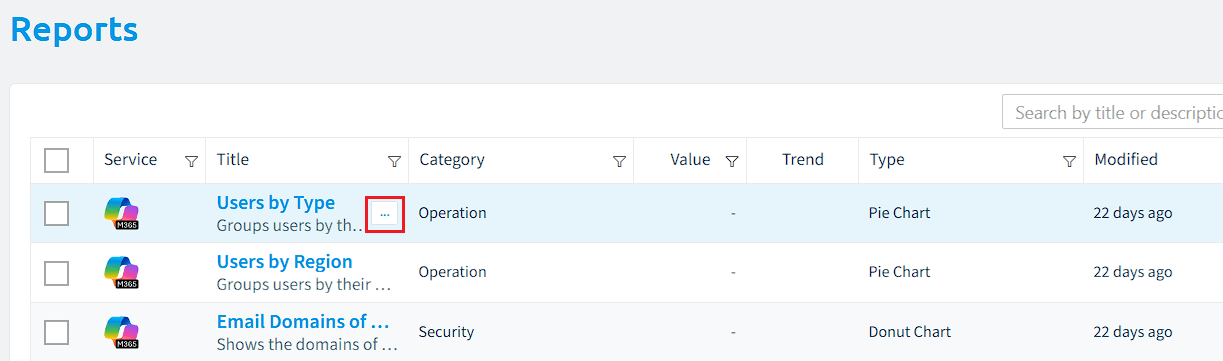
Click on “Reports”.
-
Navigate to the report you want to share.
-
Click on the action menu ([…]) to the right of the title.
-
Select “Share this report”.
-
A new dialogue window will open.
-
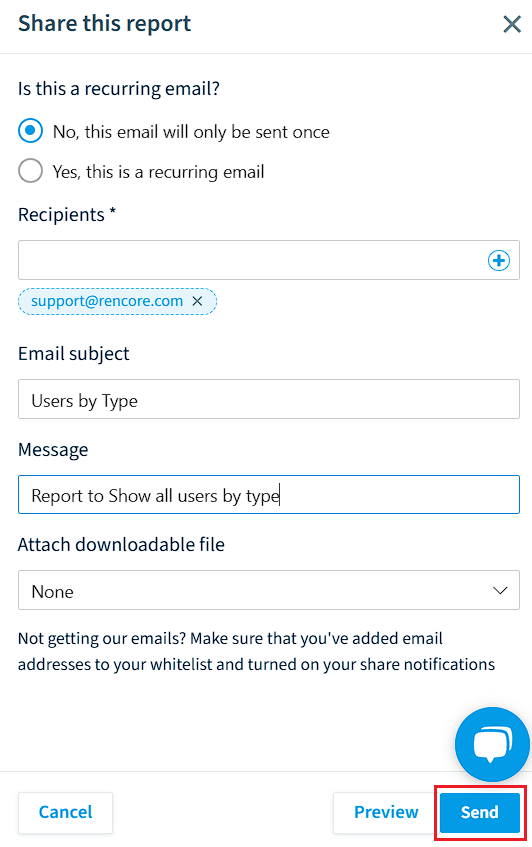
Is the report to be shared more than once?
-
If the report is to be shared once only select “No, this email will only be sent once”.
-
Enter the email addresses of the recipients of the shared report.
-
On “Email subject”, enter a subject for the email.
-
On “Message”, enter a message for the email for the shared report.
-
On “Attach downloadable file” select “PDF” if you want a PDF version of the report to be included or leave this as “None”.
-
Click “Send”.
-
-
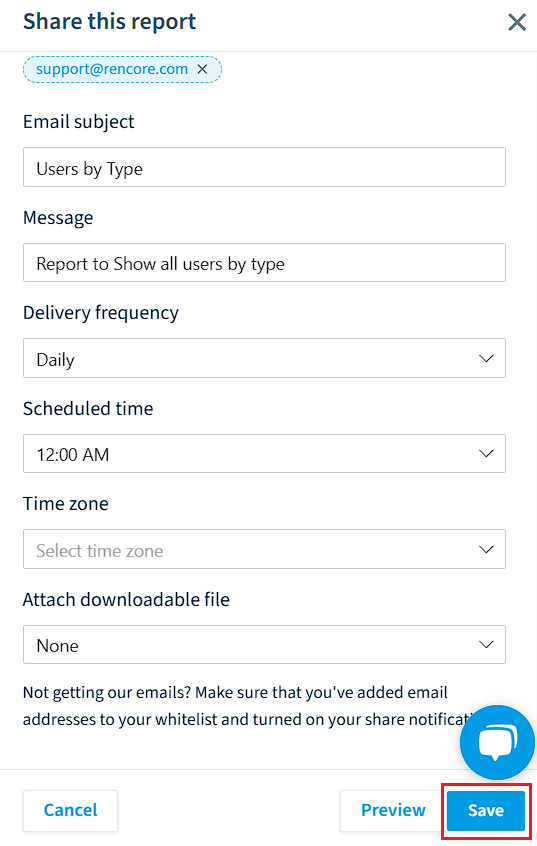
If the report is to be shared more than once, select “Yes, this is a recurring email”. Repeat the steps above, but also set:
-
Name of the recurring email: Enter a name for the recurring share.
-
Delivery Frequency: Select either Daily, Weekly, or Monthly
-
Scheduled time: Select a time from 12:00 am - 11:00 pm.
-
Time Zone: Select a UTC time zone (e.g. (UTC+00:00) United Kingdom Time Europe/London)
-
Click “Save”.
-
-