Guide
Creating Service Now Tickets
Create a ServiceNow
To create a Ticket in ServiceNow using Rencore Governance Automations, you will need to use the ServiceNow Rest API.
-
Create a new inbound incident in ServiceNow using the REST API.
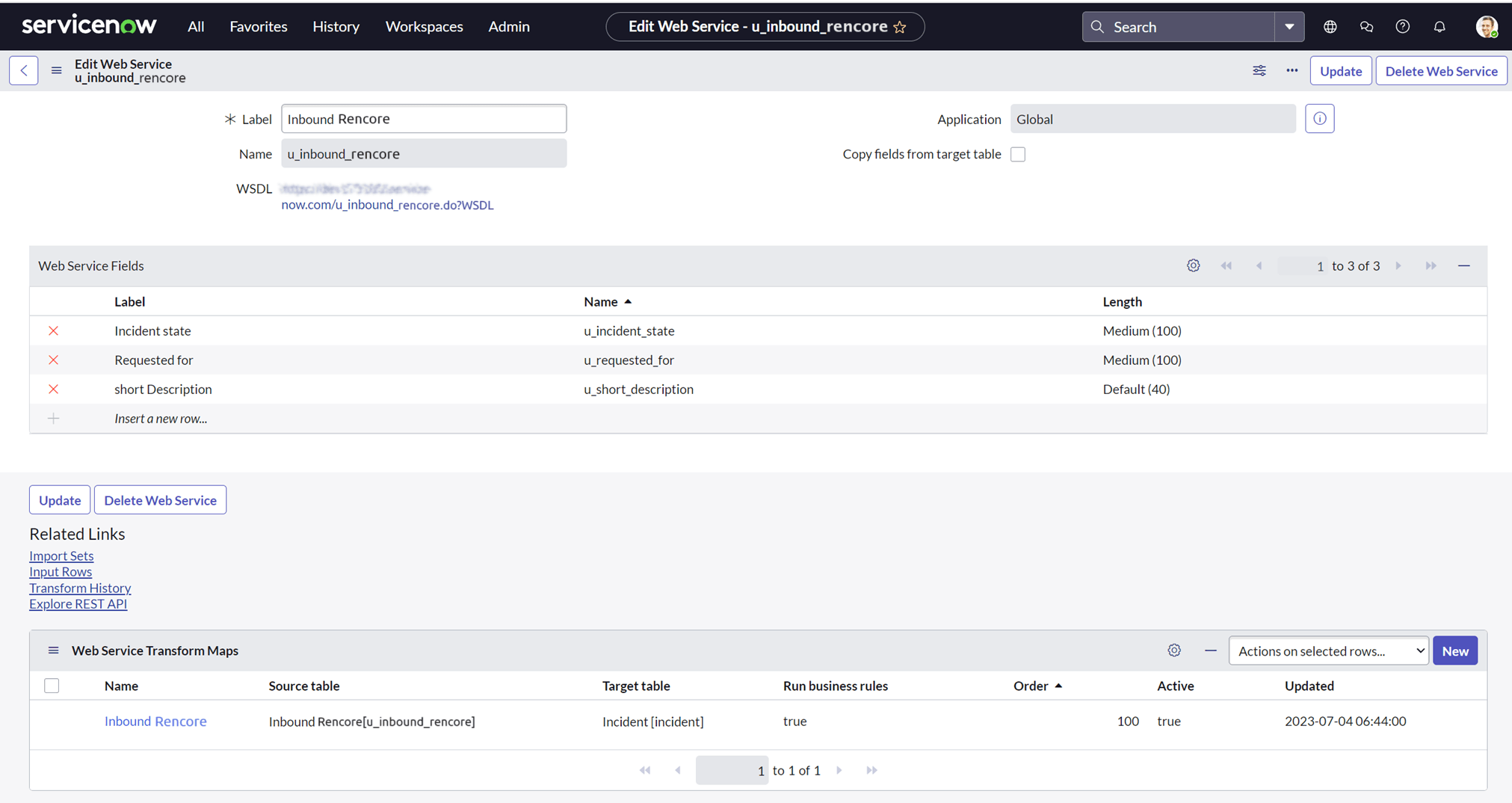
-
Once the Inbound Rest API is created, test it in the Rest API Explorer to create a new incident.
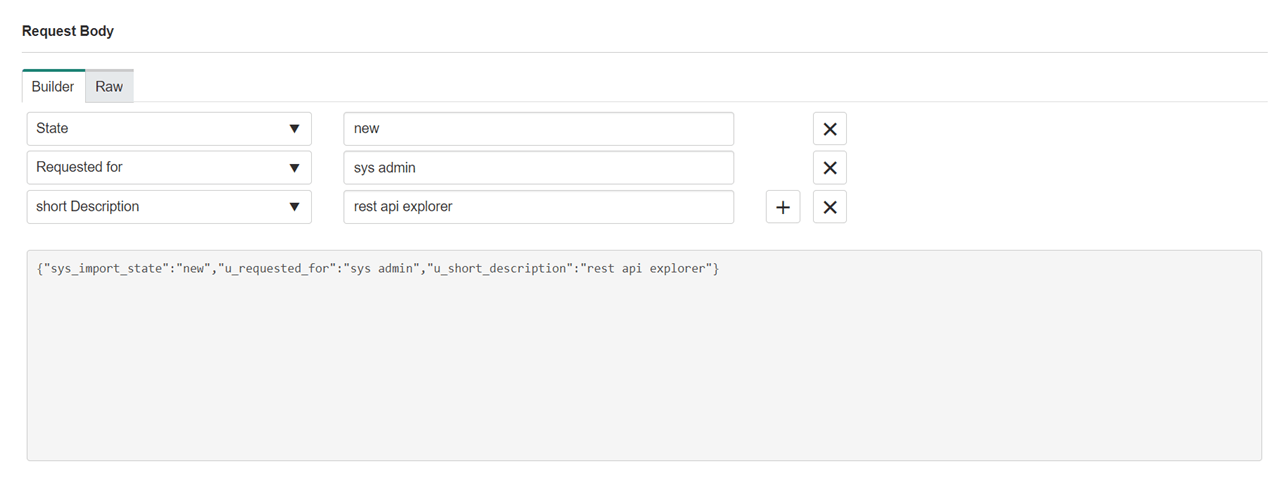
- After the Incident is created in ServiceNow, copy the HTTP method & Request Body from ServiceNow Rest API Explorer and test with Postman.
-
In Rencore Governance.
- Click on “Automation” on the Nav Panel.
- Click “Add Automation”.
- Click “Create Custom Automation”.
-
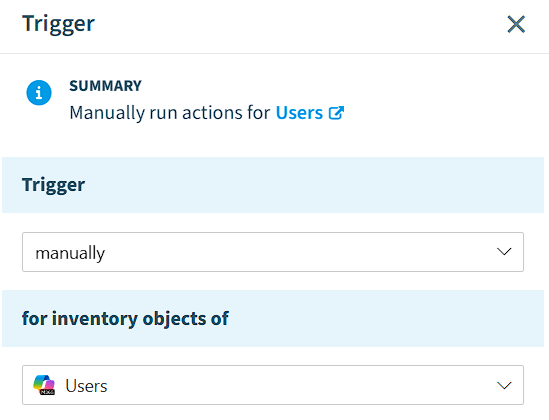
Set the Trigger to “manually” for “Users”.
-
-
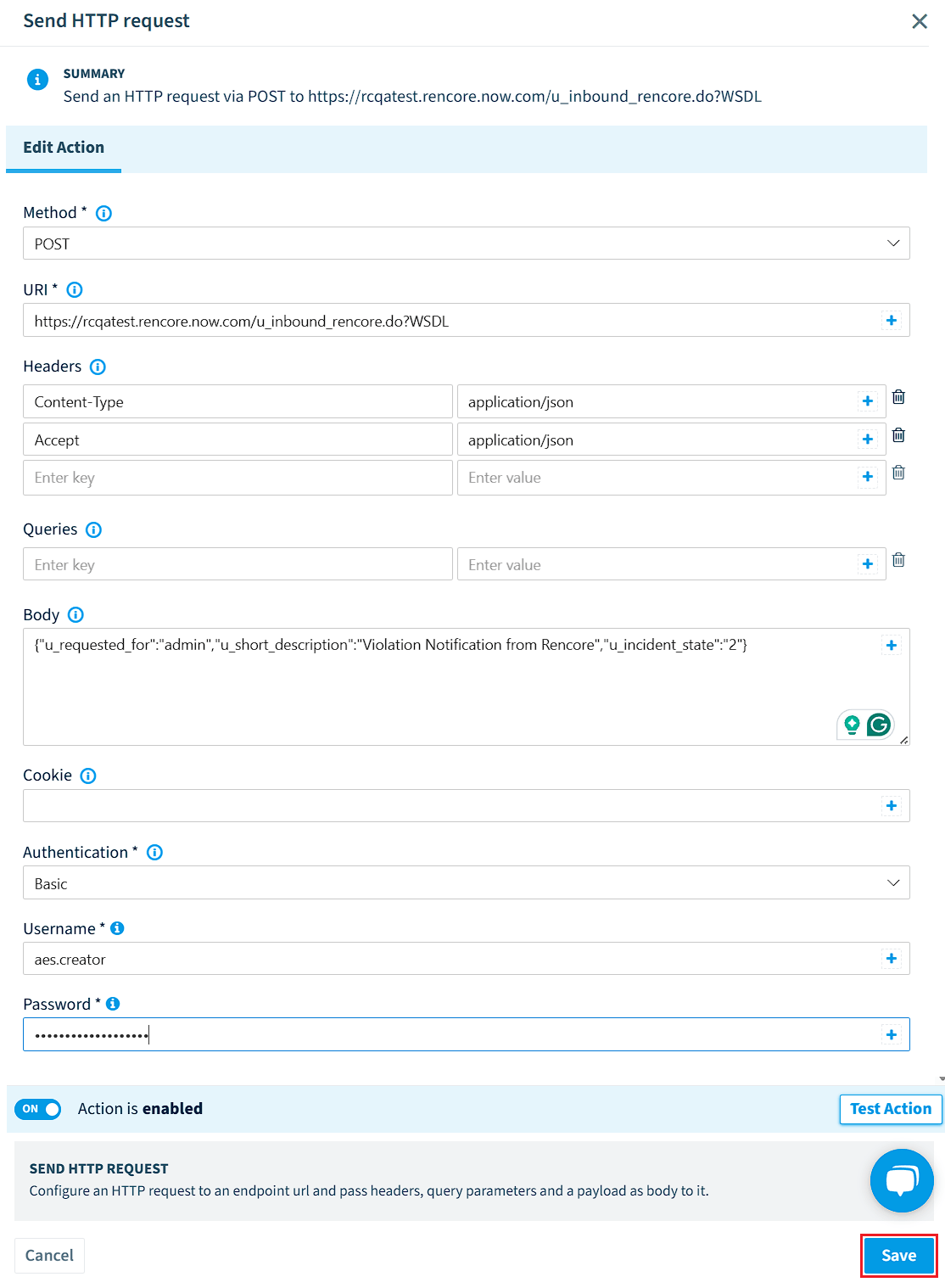
Click the ”+” and select “Send HTTP request action”.
-
Fill in all the details copied from the REST API Explorer.
-
Set the Authentication type to “Basic”.
- Enter your “Username” and “Password”.
-
Click “Test Action”.
-
Select a user to test.
-
Click “Simulate Action”.
- If the status reply is “200”, click “Save”.
-
-
Click “Next”.
1.  Enter a "_Title_", "_Description_", "_Category_", and "_Icon_".
2.  Click "**Done**".
Create a ServiceNow Incident
To create a new incident in ServiceNow, you will need to trigger the ServiceNow Automation you just created against a user. This can either be a user via the Inventory, Policy, or Report.