Guide
Installing Rencore Teams App
Install the Rencore Teams App in the Teams admin center
-
In Rencore Governance, click “Settings”.
-
Click “Teams App Settings”.
-
Click “Setup”.
-
Scroll to the bottom to “Enabling Rencore Teams App”.
-
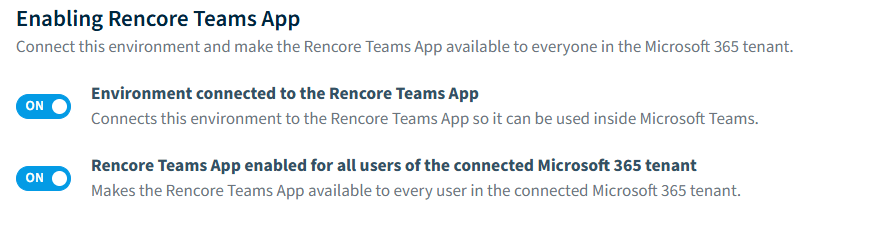
Enable “Environment connected to the Rencore Teams App”.
-
Enable “Rencore Teams App enabled for all users of connected Microsoft 365 tenant”.
-
-
Click “Save”.
-
If you want to change the appearance of the Rencore Teams App follow the details in the knowledge base article: Change Appearance of Rencore Teams App.
-
Once configured, click “Download manifest”.
-
Once you have downloaded the Teams Manifest file.
- Go to Teams Admin Center, and log in with your admin account.
-
Click on “Teams apps”.
- Click on “Manage apps”.
- Click “Actions v”.
- Click ”+ Upload new app”.
-
Click “Upload”.
-
Select the zip file you downloaded and click “Open”.
Install the Rencore Teams App for the end-user
After the Rencore Teams App has been installed in the Teams admin center, users can install it manually by following the steps below. Furthermore, you can also set it up to be rolled out automatically for your users using a Teams Setup Policy (see this article for more information).
-
Go to the Teams web app or Teams Desktop app.
-
Click “Apps”.
-
You should see the Rencore Teams App you have just uploaded.
-
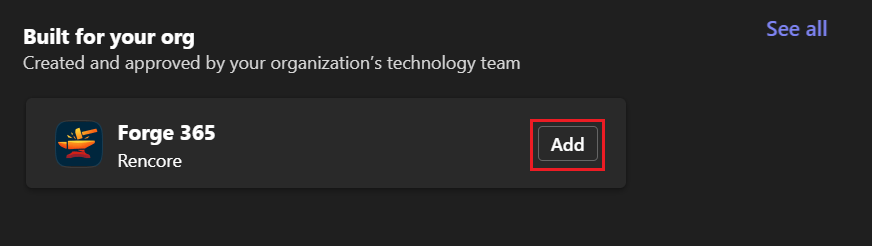
If not, click “See all” against “Built for your org”.
-
Against the app. Click “Add” on the app.
-
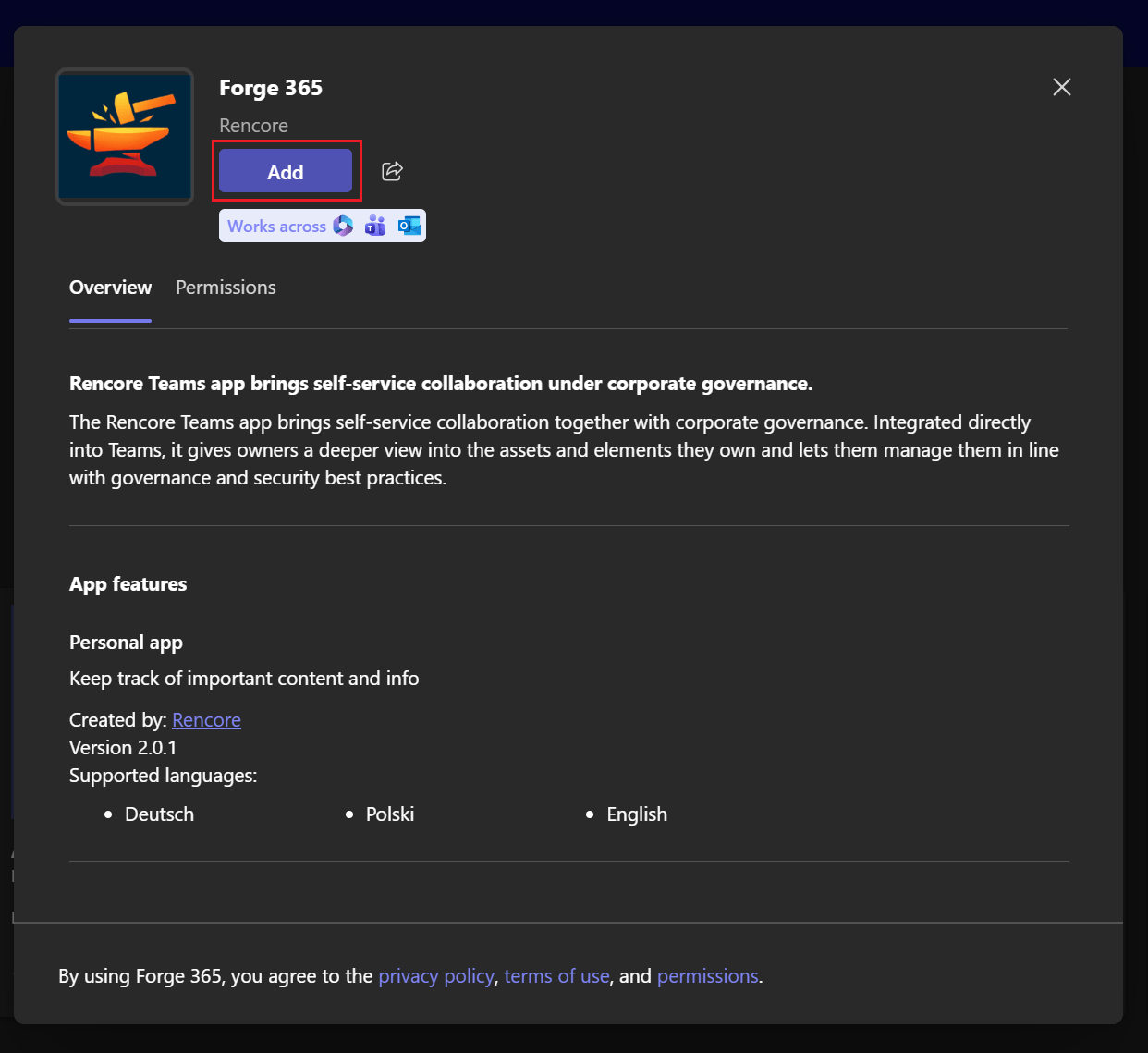
Click “Add” on the new dialog window.
-
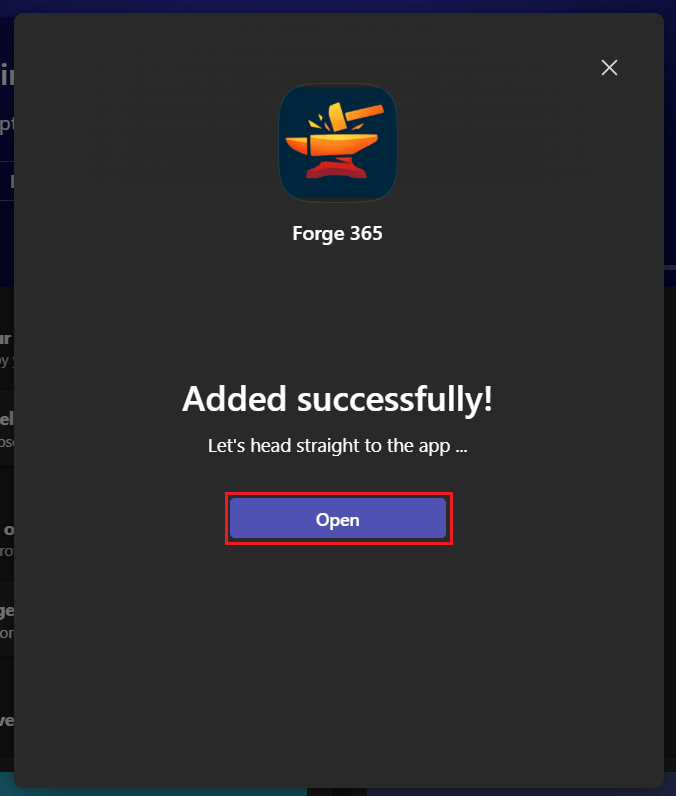
A confirmation window appears. Click “Open” to open the Rencore Teams App.