Guide
Install Rencore Nova
To install Rencore Nova in MS Teams, you must be a Workspace Owner.
Install the Rencore Nova Teams app in the Teams admin center
-
In Rencore Governance, click “Settings”.
-
Click “Environment Settings”.
-
Click “Rencore Nova Integration”.
-
To download the Manifest file, integrate Rencore Governance with Rencore Nova. Click here for instructions.
-
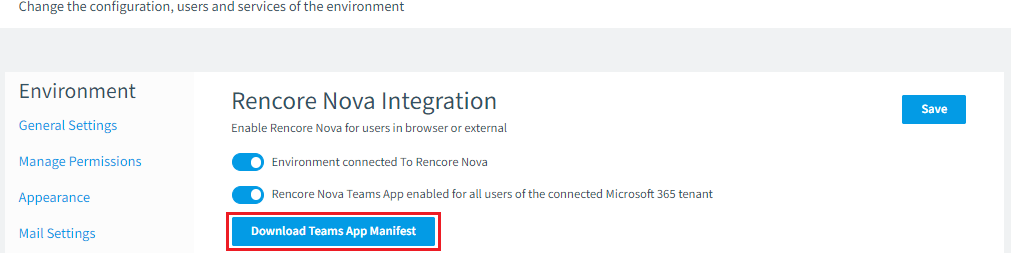
Enable “Environment connected To Rencore Nova”.
-
Click “Download Teams App Manifest”.
-
-
Once you have downloaded the Teams Manifest file.
- Go to Teams Admin Center, and log in with your admin account.
-
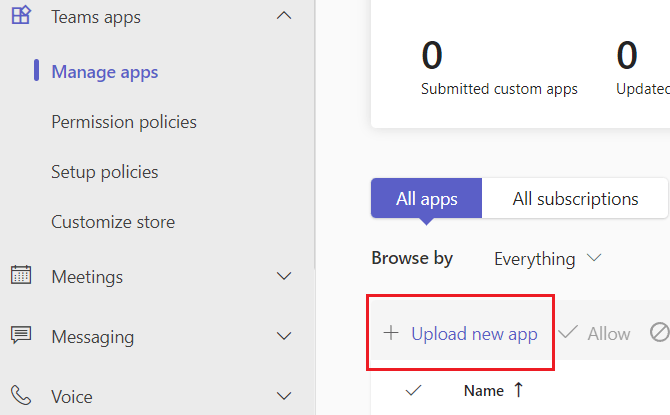
Click on “Teams apps”.
- Click on “Manage apps”.
- Click ”+ Upload new app”.
-
Click “Upload”.
-
Select the zip file you downloaded and click “Open”.
Install Rencore Nova as an end-user
After Rencore Nova has been installed in the Teams admin center, users can install it manually by following the steps below. Furthermore, you can also set it up to be rolled out automatically for your users using a Teams Setup Policy (see this article for more information).
- Go to the Teams web app.
- Click “Apps” and then “Built for your org”.
- Search for “Rencore Nova”.
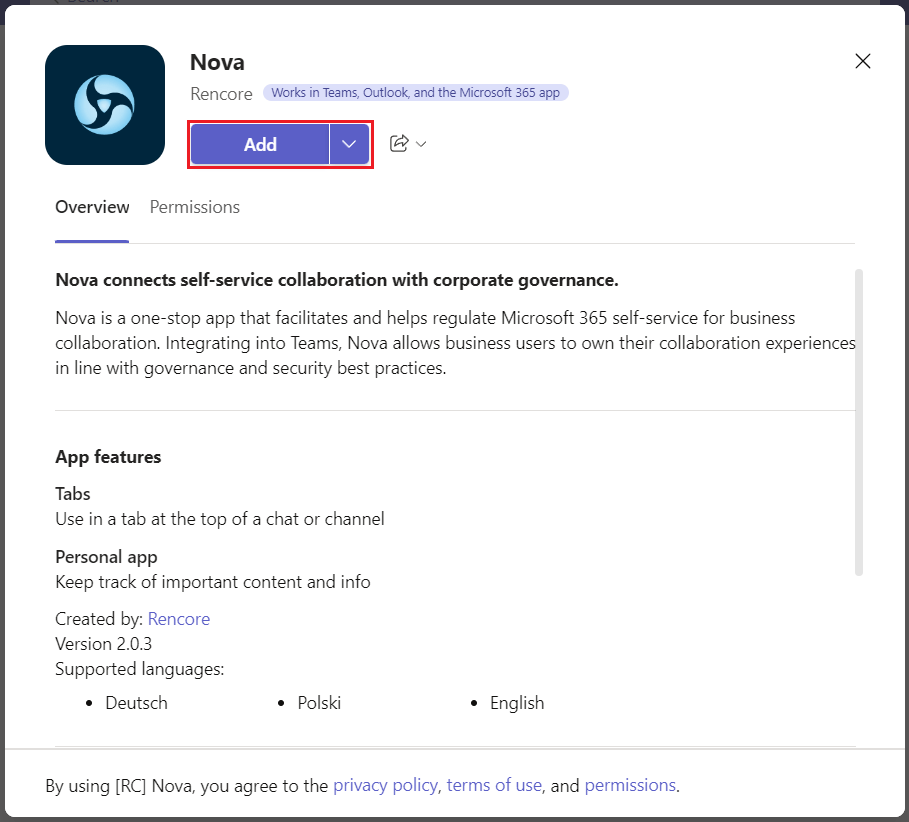
- Click “Add” on the app.
- Click on “Apps”.
- Click “Nova”.
- Click “Continue”.
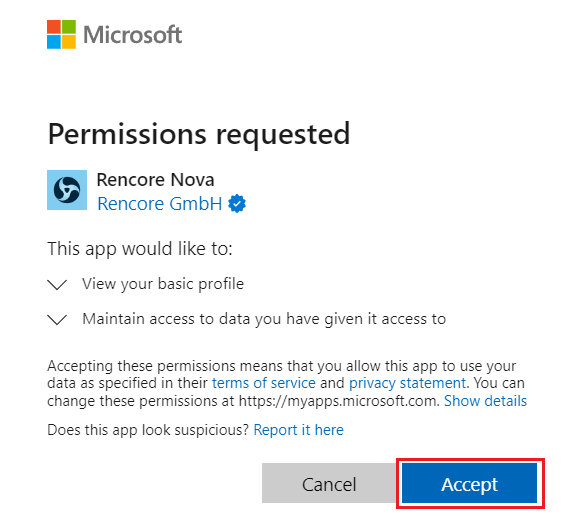
- Check the required permissions and click “Accept”.