Guide
Review Automations
Automations let you define what happens automatically during and after a review. Configure automations on the Automations tab in Step 2 of the Review Builder.
There are two categories: workflow automations (backend triggers) and custom automations (reviewer-facing actions).
Workflow automations
Workflow automations run automatically when specific conditions are met. Reviewers do not interact with these directly.
Rejection automation
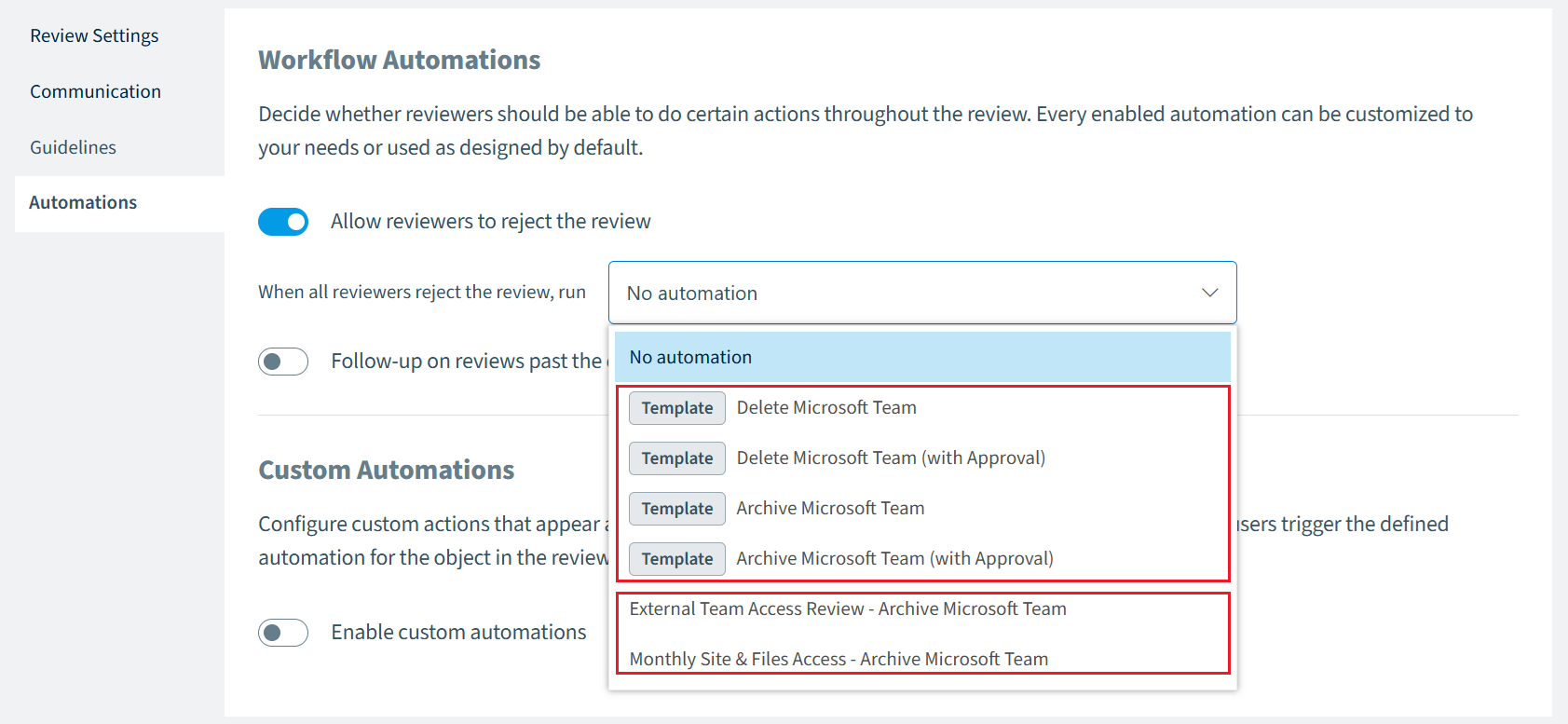
Toggle: Allow reviewers to reject the review
When enabled, reviewers see a “Reject Review” option in the Rencore Teams App. Rejecting means “I’m not the right person to review this workspace” - it is a valid response, not a failure.
If all assigned reviewers reject a review, the automation you select is triggered.
Field | Description |
|---|---|
When all reviewers reject the review, run | Select an automation template from the dropdown. Choose "No automation" if you only want to track rejections without triggering an action. |
- When disabled, the reject option is hidden from reviewers entirely.
Follow-up on expiry
Toggle: Follow-up on reviews past the due date
When enabled, an automation runs when a review expires (the due date passes without any reviewer completing it).
Field | Description |
|---|---|
When no reviewer approves the review, run | Select an automation template from the dropdown for follow-up actions. |
- When disabled, reviews still expire, but no follow-up action is taken.
Custom automations
Custom automations are actions that reviewers can choose when completing a review in the Rencore Teams App. They appear as options on the review’s summary step alongside the standard Complete button.
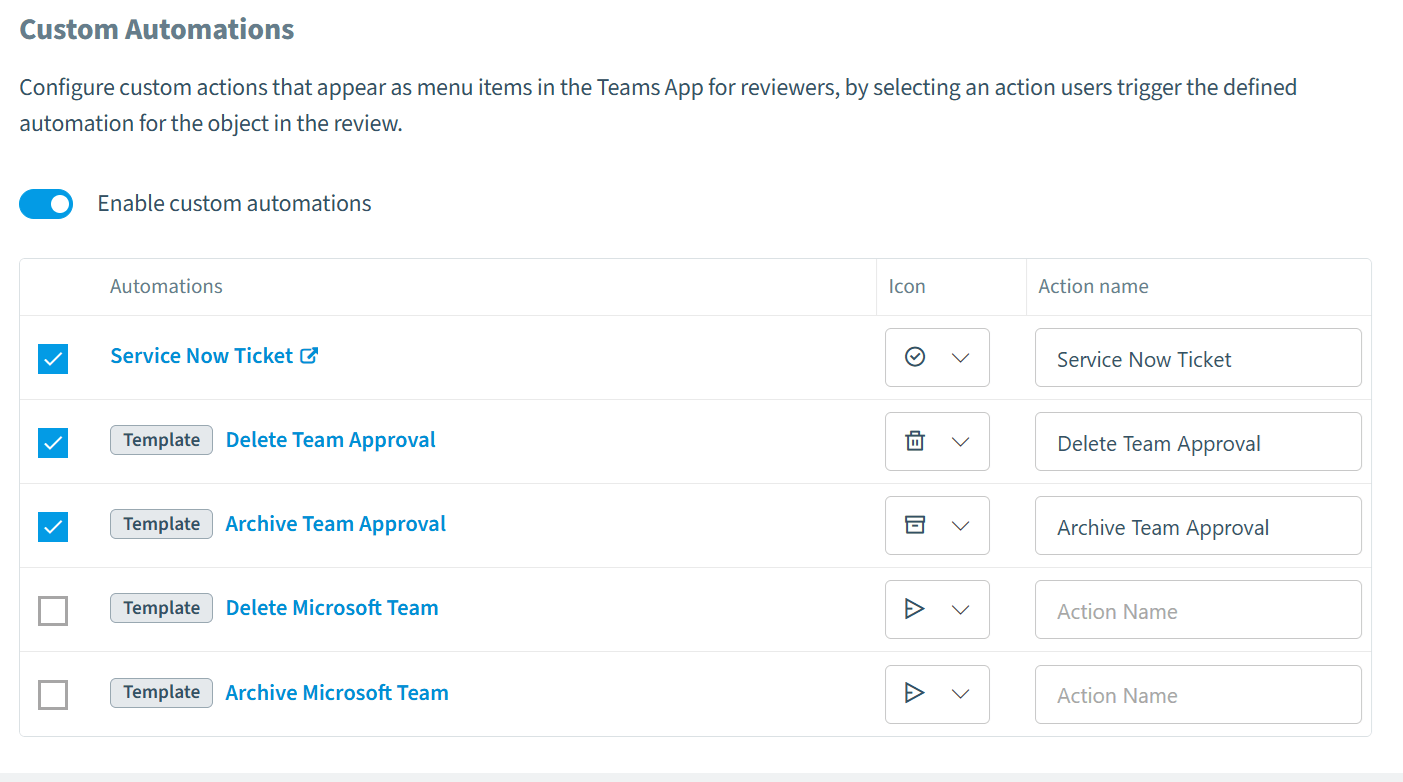
Toggle: Enable custom automations
When enabled, a grid shows all available automation templates for the selected service type.
Configuring custom automations
Each row in the grid represents an available automation. Configure each one with:
Column | Description |
|---|---|
Checkbox | Enable or disable this automation for the current review. Only checked automations appear to reviewers. |
Automation | The automation template name (predefined in your Automations configuration) |
Icon | Select an icon from the library. This icon is shown to reviewers next to the action. |
Action name | The label reviewers see (max 25 characters). For example: "Delete", "Archive", "Escalate", "Flag". |
How custom automations appear to reviewers
In the Rencore Teams App, enabled custom automations appear as dropdown options on the Complete button at the end of a review. Reviewers see the icon and action name you configured.
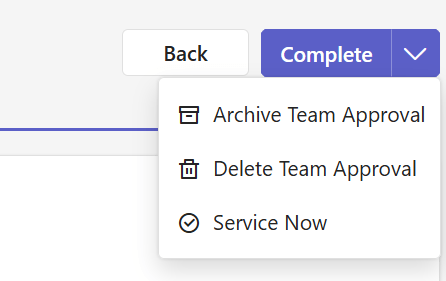
When a reviewer selects a custom action:
- They confirm their choice in a dialog
- The review changes are applied to the workspace
- The selected automation runs
The action name becomes the review’s Decision value, making it easy to track outcomes in the cycle details.
Example configurations
Automation | Icon | Action name | Use case |
|---|---|---|---|
Delete workspace | Trash icon | Delete | Reviewer confirms workspace should be removed |
Archive workspace | Archive icon | Archive | Reviewer confirms workspace is no longer active |
Escalate to security | Alert icon | Escalate | Reviewer flags the workspace for security review |
Ticket icon | ServiceNow | Reviewer triggers an ITSM workflow |
How automations are created
When you save a review schedule (either as a draft or enabled), the system creates automation instances for all selected templates. These instances are linked to your specific review schedule and can be further customized in the Automations feature of the User Portal.
Changes to automation selection (adding or removing) take effect the next time you save the review schedule.