Guide
Update Monthly License Costs
The introduction of editable columns allows you to edit the values shown in the columns. Currently, the available editable columns are:
- Monthly License Cost.
Update Editable Columns
Export an Editable Column
To update an editable column, you first have to export the column template.
-
Click on “Inventory” on the Nav Panel.
-
Navigate to the specific inventory. (e.g. Click on “Subscriptions” in “Microsoft M365”.)
-
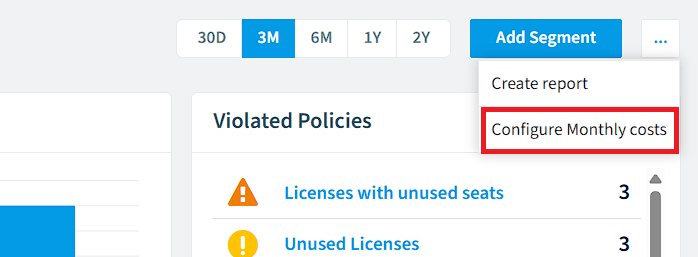
Click on the “Action Menu” in the upper right panel.
-
Click Configure <name of the overwritten column> (e.g. Configure Monthly costs).
-
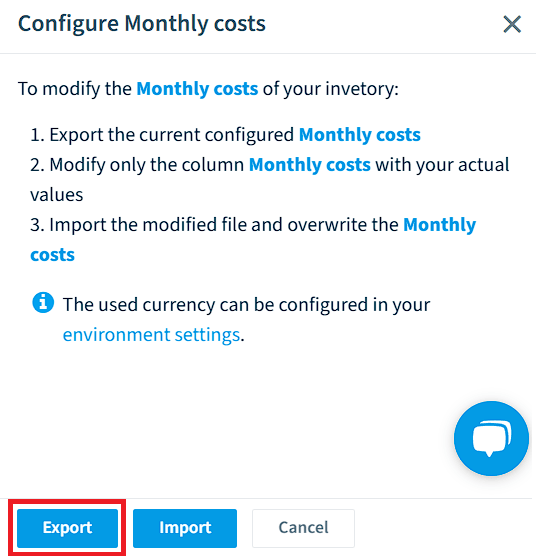
Click “Export” on the dialogue panel.
-
Navigate to the exported (.csv) file. As the dialog suggests, only modify the recommended column.

-
Import an Editable Column
Once the exported file has been edited, you must import the modified file into Rencore Governance. To do this:
-
Click on “Inventory” on the Nav Panel.
-
Navigate to the specific inventory. (e.g. Click on “Subscriptions” in “Microsoft M365”.)
-
Click on the “Action Menu” in the upper right panel.
-
Click Configure <name of the overwritten column> (e.g. Configure Monthly costs).
-
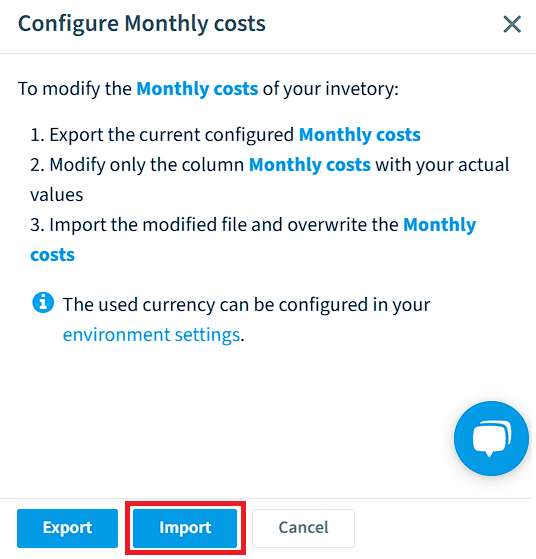
Click “Import” on the dialogue panel.
-
Click “Browse” on the dialogue and navigate to the edited file (.csv).
- Click “Open” on the file browser selection.
-
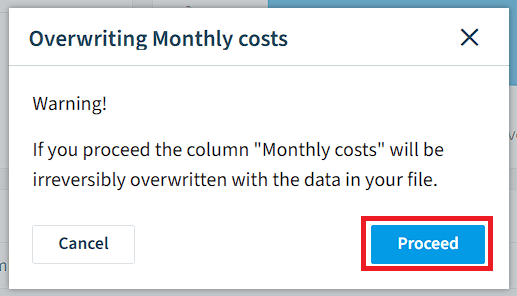
A warning dialogue will appear explaining that if you proceed, the data in the editable column will be lost and cannot be retrieved. Click “Proceed” to import the values.
-
-
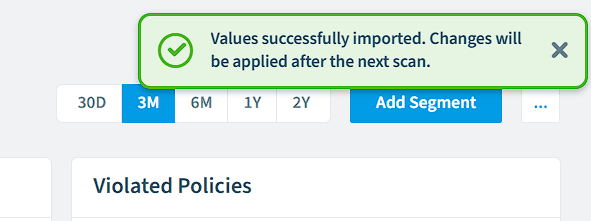
A confirmation prompt will appear stating that changes will be applied after the next scan for the corresponding service.
Reset an Editable Column
In the event, you need to reset the editable column back to the default, you will need to:
-
Click on “Inventory” on the Nav Panel.
-
Navigate to the specific inventory. (e.g. Click on “Subscriptions” in “Microsoft M365”.)
-
Click on the “Action Menu” in the upper right panel.
-
Click Configure <name of the overwritten column> (e.g. Configure Monthly costs).
-
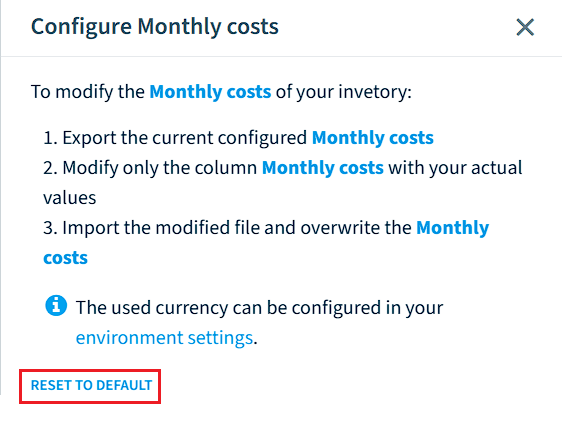
Click “RESET TO DEFAULT” on the dialogue panel.
-
-
A confirmation prompt will appear stating that the column detail will be restored after the next scan for the corresponding service.