Guide
Request Provision of a Workspace
Info: Rencore Teams App is currently in a Closed Preview. If you are not currently part of the closed preview and are interested, please reach out to your Customer Success Manager to be kept informed when it moves to open preview.
To create a Provisioning Request for a workspace (M365 Group, Team, SharePoint Site) in the Rencore Teams App, you need to:
-
Click on “Requests” on the Navbar or click ”+ New Request”. Alternatively, you could click on one of the three frequently used Smart Templates on the homepage. The Templates tab shows all templates available to you.
-
Filtering and searching
- Service filter chips at the top let you filter templates by service type (e.g., only Teams templates, or only SharePoint templates). An All option shows templates across all services.
- Search by template name to find a specific template quickly.
Note: You only see templates that your admin has made available. If you cannot find a suitable template, contact your IT team.-
Click on the desired Template. Each template card shows:
- Template name
- Description of what the template is for
- Service type icon (Teams, SharePoint, or Viva Engage)
- A Request button to start the workflow
-
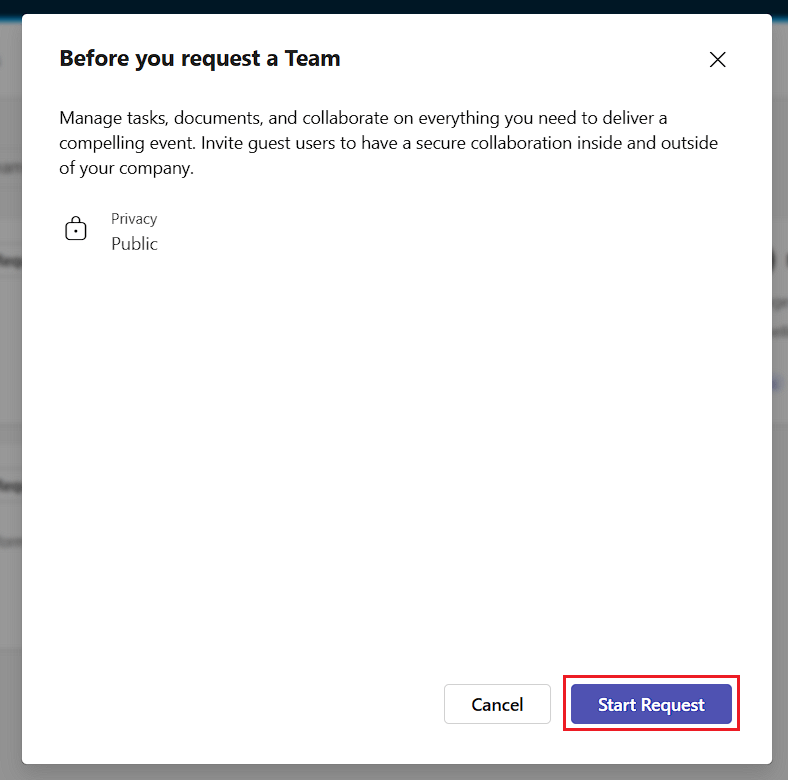
On the Template Brief page, click “Start Request”.
-
Populate the Team name and Description fields. If the template permits, select the visibility of the Team, and if required, assign a sensitivity label.
- Once complete, click “Next”.
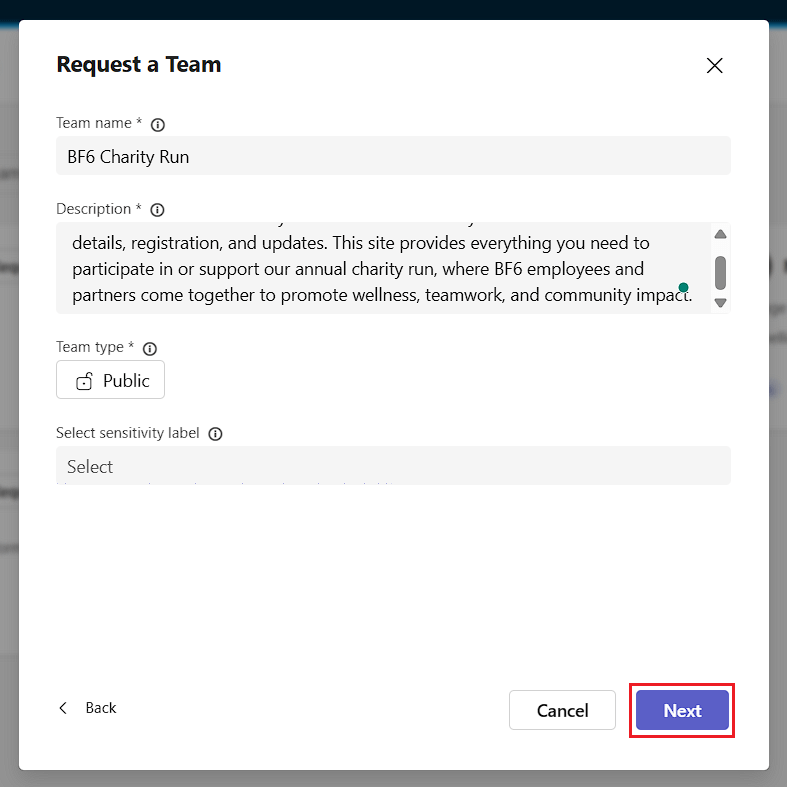
- Once complete, click “Next”.
-
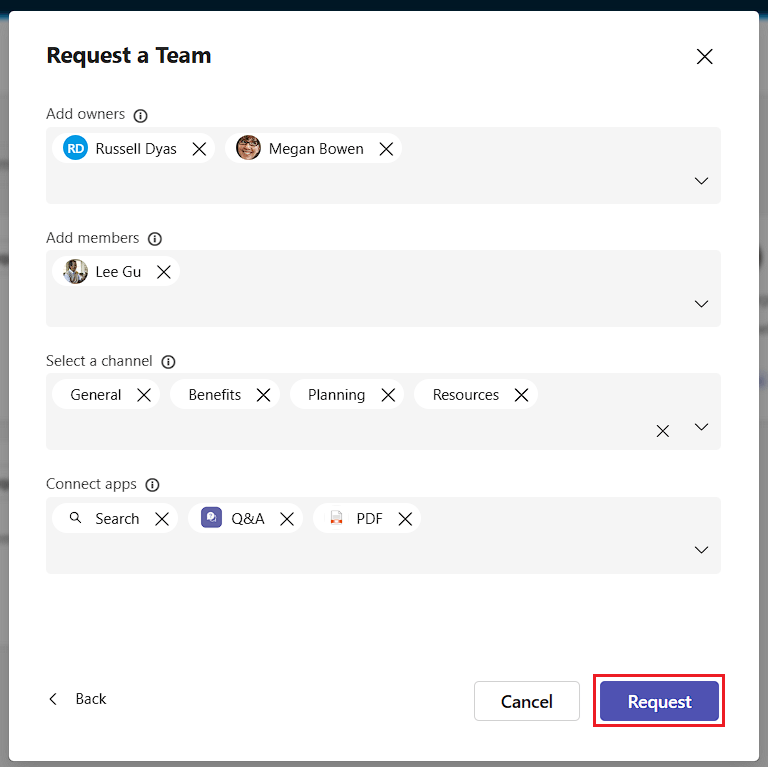
On the next screen, if the template permits, assign Owners, Members, Channels, and Apps using the picker boxes.
- Once complete, click “Request”.
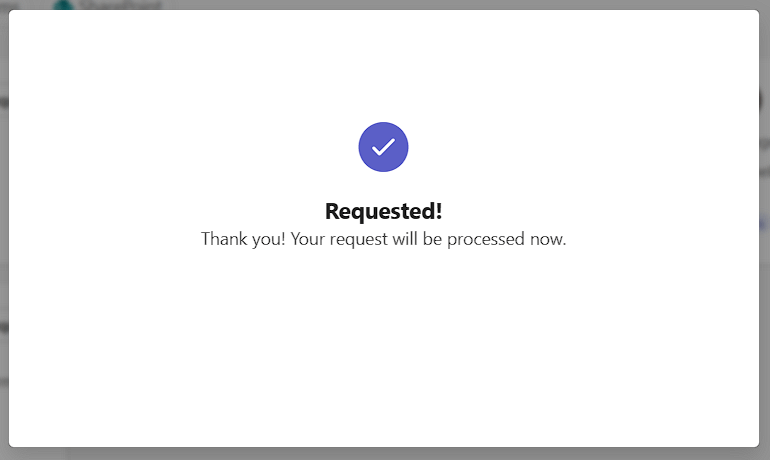
- A dialogue confirmation will appear acknowledging the request.
- Once complete, click “Request”.
See Also: Performing a Request