Guide
Power Platform with Admin Consent Workflow
This method is to be used when your tenant has Admin Consent Workflow Enabled and can be broken down into three steps:
Requesting Admin Consent
The first step is to request the consent of an Administrator for a given service. This is performed in Rencore Governance.
-
Click on “Settings”.
-
Click on “Workspace Settings”.
-
On the left navigation, click “Environments”.
-
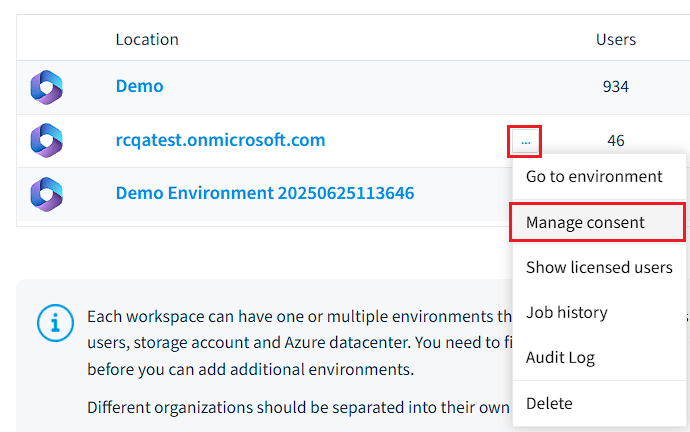
Against the desired Environment, click the “Action Menu” and select “Complete Consent”.
-
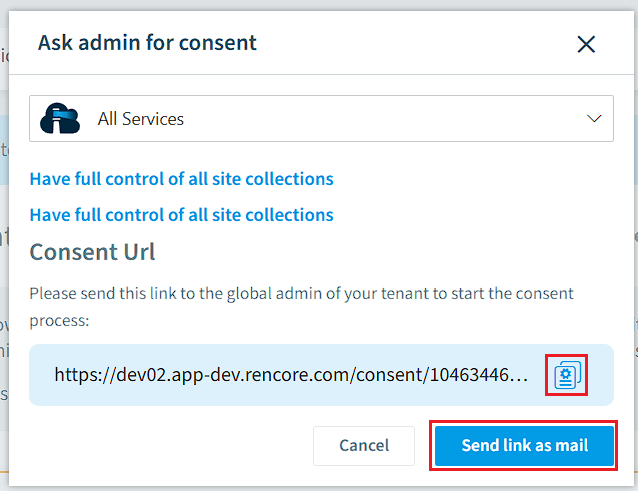
Against the Service, click “Ask admin for consent”.
-
On the dialog that opens, copy the “Consent URL” and provide this to your Administrator or click “Send link as mail”.
-
In an “Incognito” browser window, the administrator will need to paste the URL.
-
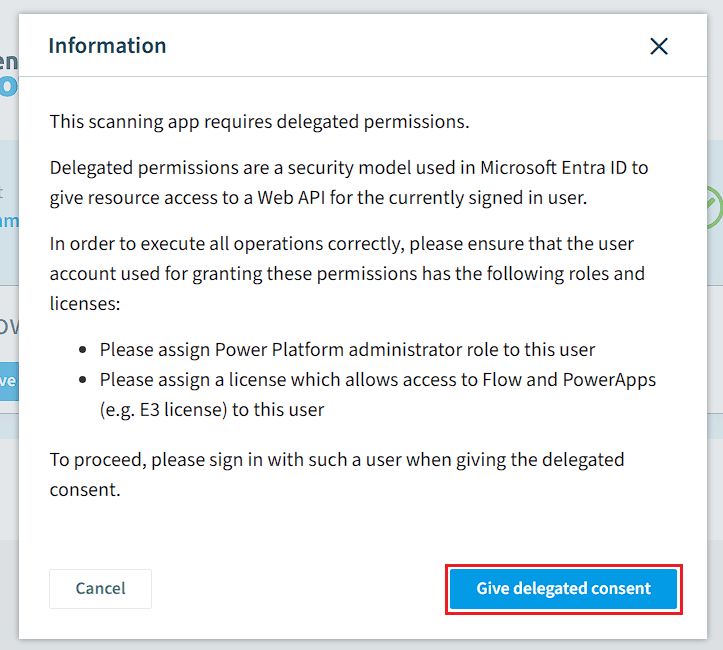
Click “Give delegated consent”.
-
Sign in with a Power Platform Administrator.
-
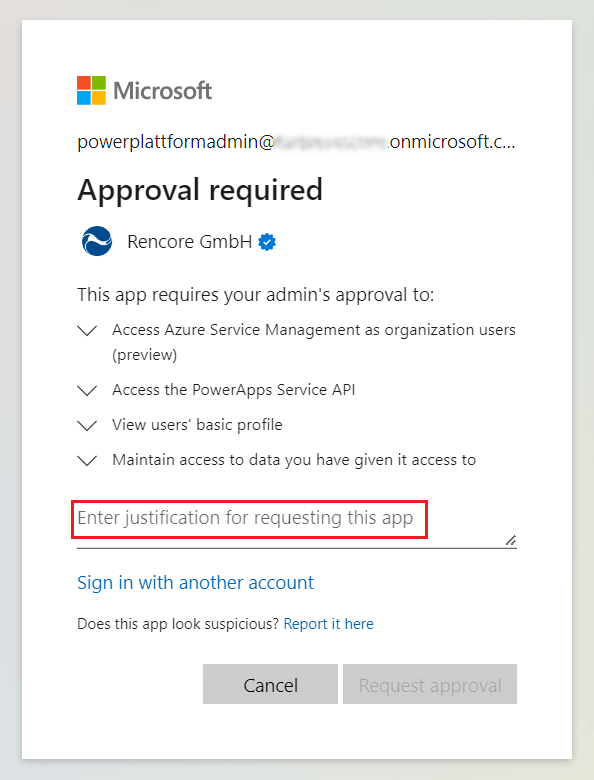
On the dialog, enter a justification for the permission (e.g. This app consent is necessary to run the Governance Tool: Rencore Governance).
-
Click “Request approval”.
-
A Dialog will confirm that your admin has been notified of your request to access this app. Once your admin reviews the request, you will be notified via email.
Approving the Application
The second step is to approve the application request. This is performed in Azure Active Directory Admin Portal by a registered reviewer of the admin consent workflow.
-
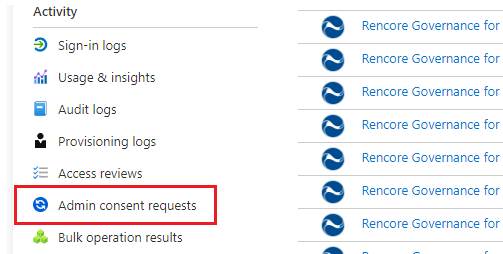
Click on “Enterprise applications”.
-
Click on “Admin consent requests”.
-
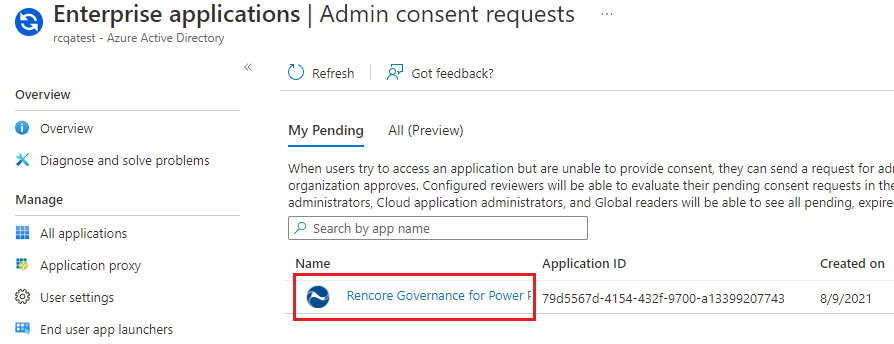
Click on the application “Rencore Governance for Power Platform”.
-
On the “Details” dialog click “Review permissions and consent”.
-
Login with the admin user.
-
Review the permissions and click “Accept” a notification prompt will appear confirming the app has been approved.
Completing the Consent for a Service
The third and final step is to complete the consent.
- After the “Registered reviewer of the admin consent workflow” confirms the app has been approved.
- The Power Platform Administrator will once again need to open the “Consent URL” in an incognito browser window.
- Microsoft will know the app has been allowed on the tenant they will need to click “Grant consent”.
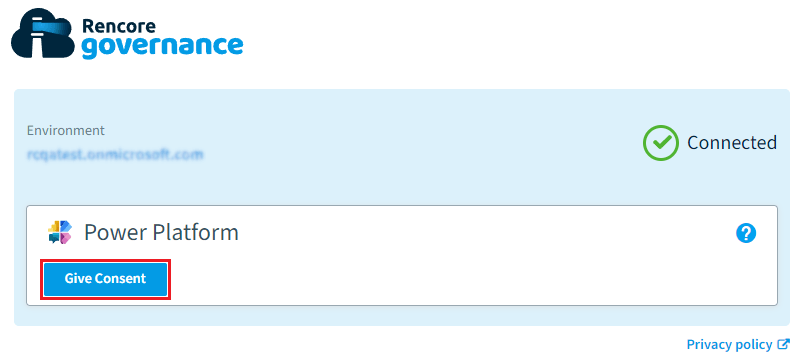
- Click “Give delegated consent” and sign with the same Power Admin User used in step 1.
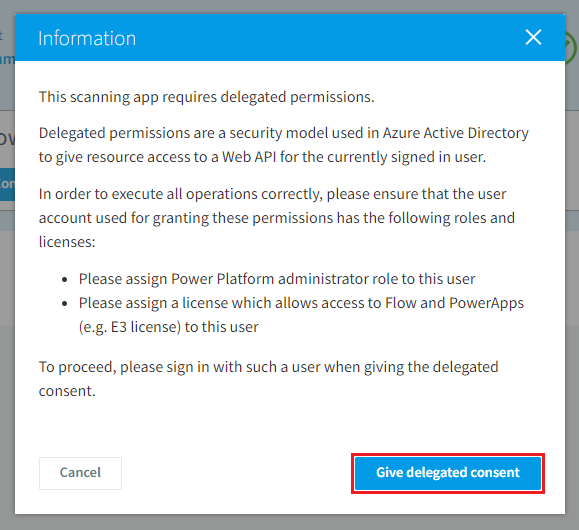
- Once complete the following dialog will appear.
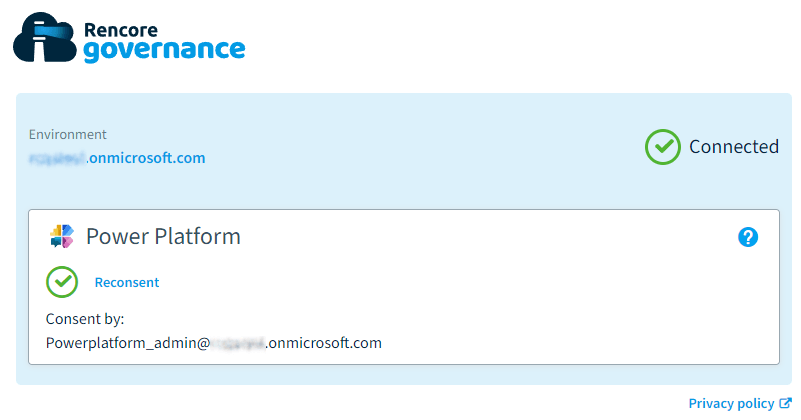
- Close down the incognito browser.
- Return to Rencore Governance and the Power Platform scan will be scheduled to start.