Guide
Create a Segment
To add an Inventory segment to your governance, you need to:
-
Click on “Inventory” on the Nav Panel.
-
Either hover over the desired Service and click “Go to Inventory” or click “Inventory Options”([…]), then select “Go to Inventory”.
-
Click on the “Object Menu” ([…]).
-
Click “Add Segment”. This will take you to the “Segment Builder”.
-
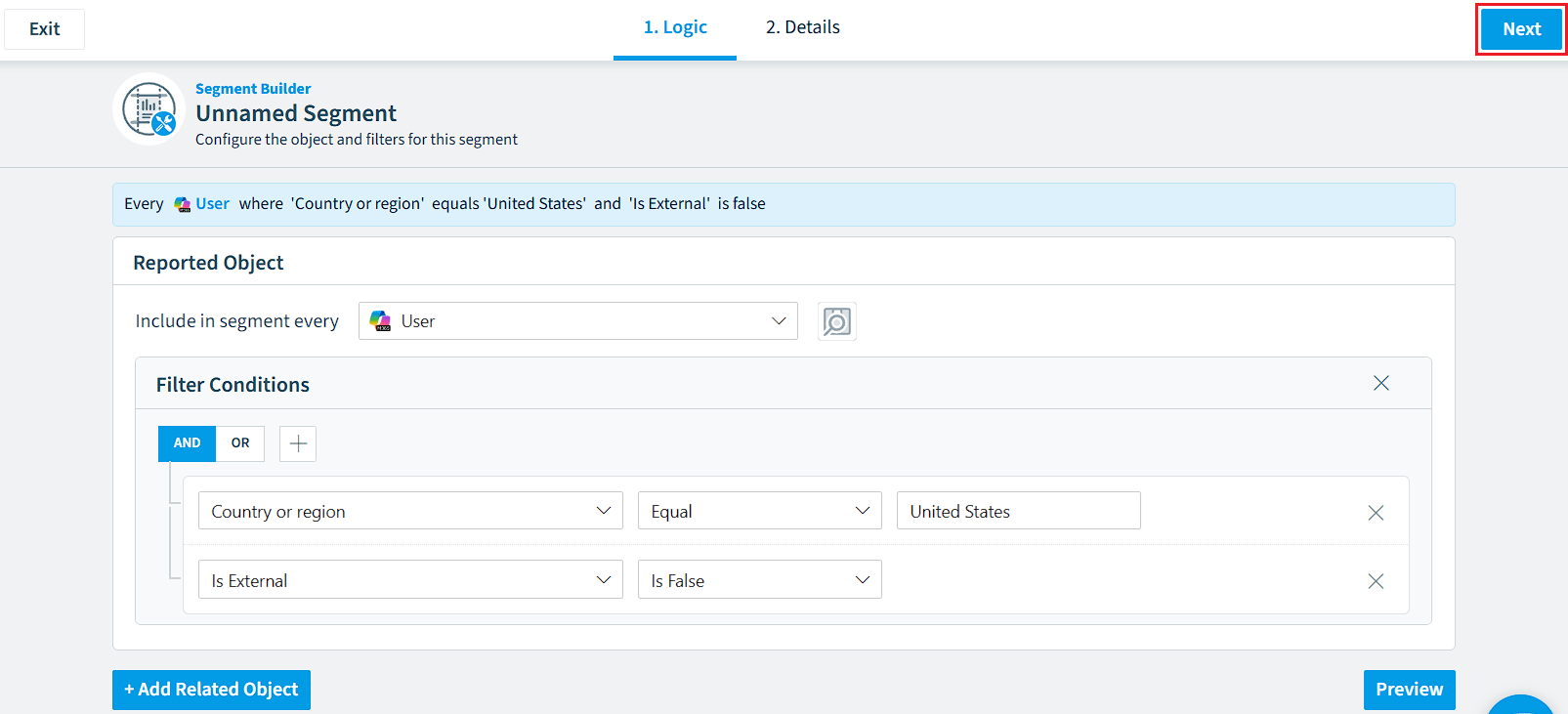
On the Logic Screen:
-
On “Segment of”, choose the object that you want to create a segment for (e.g. User)
-
To narrow down the object, click “Add Filter”.
-
Select the Property you want to use in the filter (e.g. Country or Region).
-
Select the desired Logic (e.g. Equal).
-
Enter the Value for the filter (e.g. United States).
-
Repeat this process for additional Filters. It is also possible to add related objects by clicking “Add Related Object” and repeating the steps for filtering the related objects.
At any time, you can preview the results by clicking "Preview" at the bottom of the screen.
-
-
Once happy with the logic, click “Next” in the top-right of the screen.
-
-
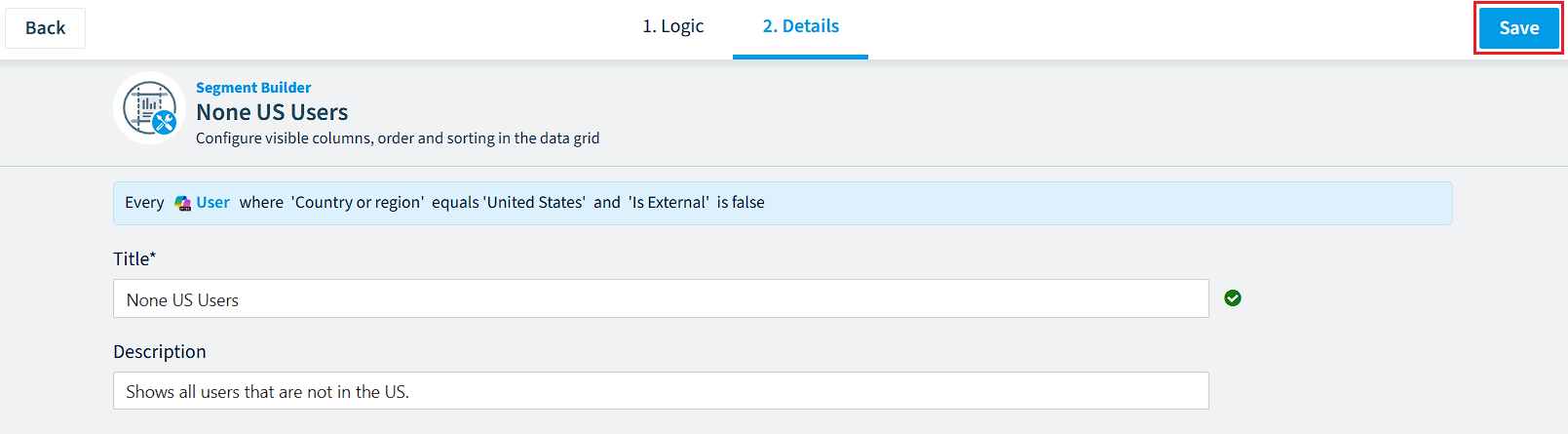
On the Details Screen:
- In “Title”, enter a name for the segment.
- In “Description”, enter a description of the segment.
- Once happy with the details, click “Save” in the top-right of the screen.