Guide
Review Dashboard
The Reviews dashboard is your central hub for managing all review schedules. It shows every review you have created, lets you enable or disable them, and provides quick access to configuration and monitoring.
Navigation: Open the User Portal and select Reviews from the sidebar.
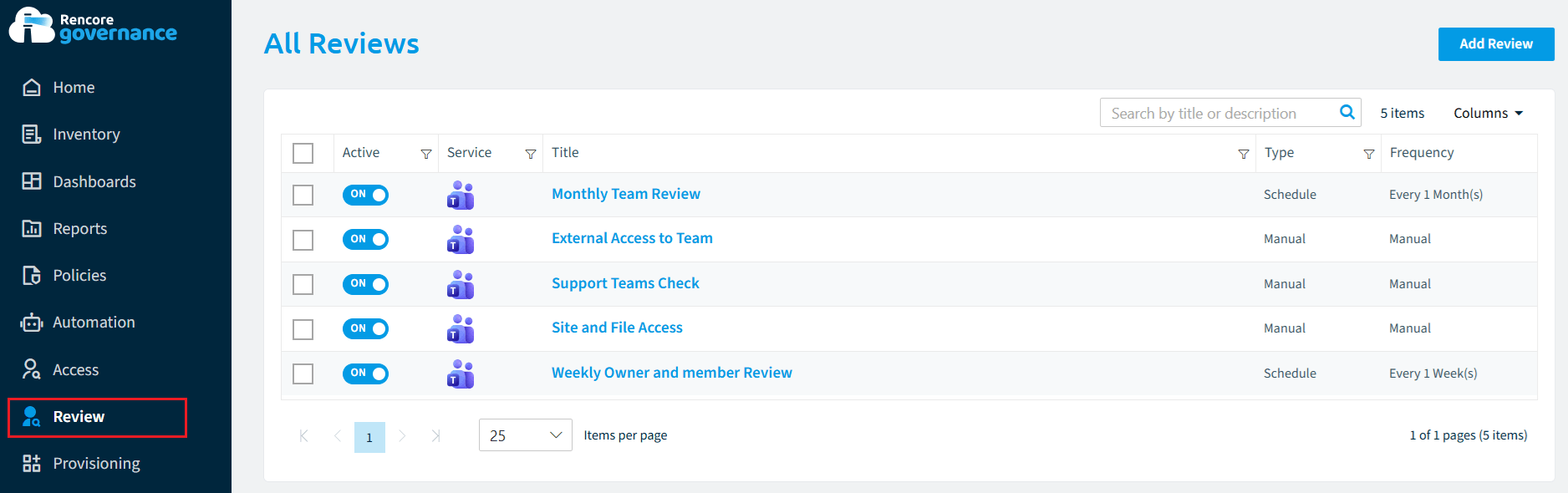
The review schedule list
The page shows a data grid with all your review schedules. Each row represents one review schedule and shows:
Column | Description |
|---|---|
Active | Toggle switch to enable or disable the schedule |
Service | Service type icon (Teams, SharePoint, etc.) |
Title | Schedule name (click to open the schedule detail page). Description shown as a subtitle. |
Type | Manual or Schedule |
Frequency | How often the review runs (e.g., "Monthly", "Every 3 months") or "Manual". |
Use the search bar to filter by title or description.
Click Columns to show or hide grid columns.

Enabling and disabling reviews
Use the Active toggle in the grid to control whether a review schedule is running.
For scheduled reviews:
- Toggling on enables the schedule. The next cycle will start on the scheduled date.
- Toggling off disables the schedule. No new cycles are created, but any ongoing cycle continues to its due date.
For manual reviews:
- Toggling on immediately starts a new cycle - data aggregation begins, and reviewers are notified.
- The toggle is disabled (non-interactive) while a cycle is actively running.
- The schedule auto-disables when the cycle finishes or is canceled.
A confirmation dialog appears before each toggle change, explaining what will happen.
Row actions
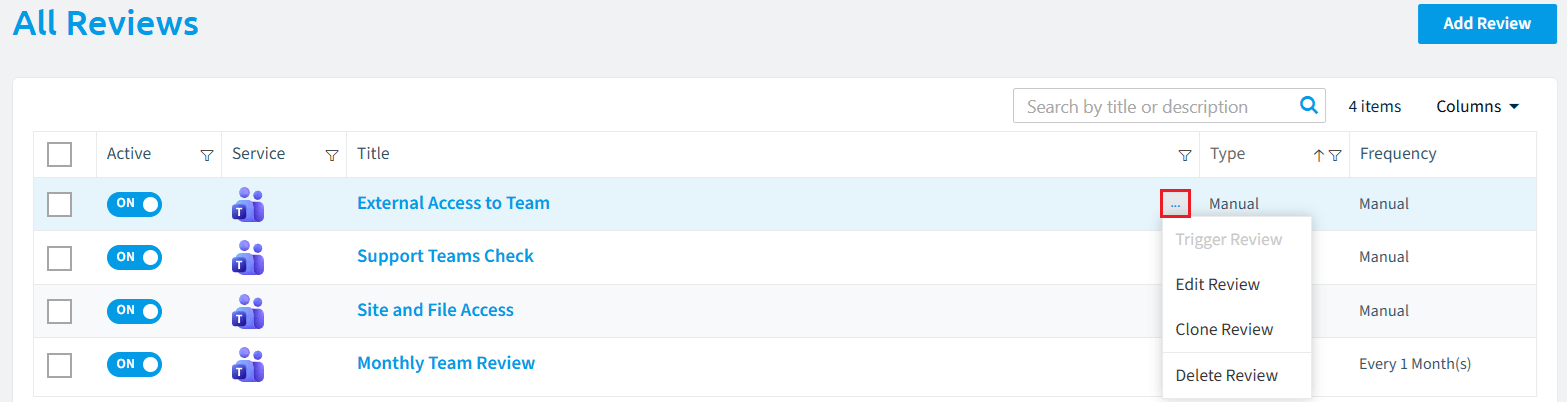
Hover over a row and click the ellipsis menu to access actions:
Action | Description | Availability |
|---|---|---|
Edit Review | Open the review schedule in the builder to change its configuration | Always |
Clone Review | Create a copy of the schedule as a new draft in the builder | Always |
Trigger Review | Start a new cycle immediately | Manual reviews only (when no cycle is active) |
Export Review | Export the schedule configuration | Always |
Delete Review | Permanently delete the schedule (confirmation required) | Always |
Bulk actions
Select multiple rows using the checkboxes to perform bulk actions:
- Delete - Delete all selected schedules (confirmation required)
- Export - Export selected schedules
- Select all - Extend selection across all pages
Creating a new review
Click the Add Review button in the top-right corner to open the review schedule builder. See the Creating a review section for the full walkthrough.
Empty state
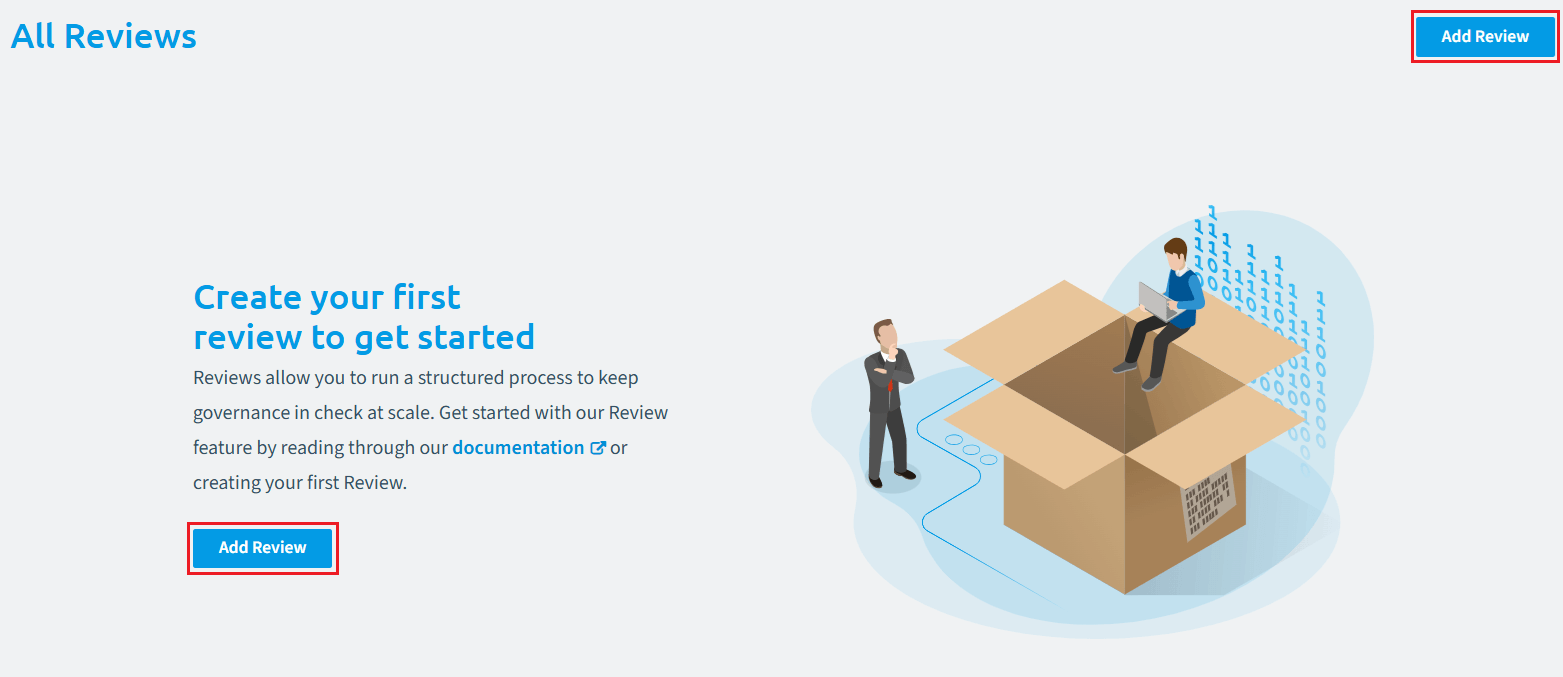
If you have not created any reviews yet, the page shows an onboarding panel with guidance on getting started and an Add Review button.