Getting started
Quick start
Before you can use Rencore Governance, you will need to get set up. Below you will find the quick-start setup process.
Sign In
In order to stay in control of Microsoft 365 with Rencore Governance, you will first need to sign in.
-
Go to app.rencore.com.
-
Sign in with your Microsoft or work account. This will only be used for authentication to Rencore Governance. No permissions to your tenant are required to try out the demo data.
- A consent dialog will appear after clicking “Work or school account”. Review the permissions requested, enable “Consent on behalf of your organization,” and click “Accept”.
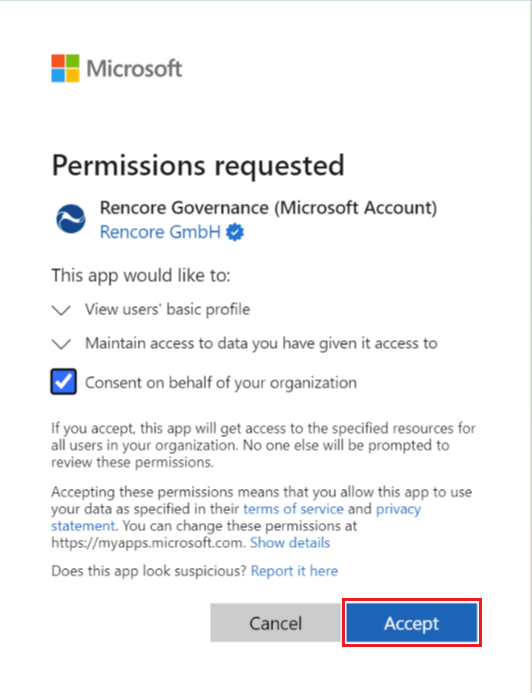
- A consent dialog will appear after clicking “Work or school account”. Review the permissions requested, enable “Consent on behalf of your organization,” and click “Accept”.
Creating a Workspace
The first time you sign into Rencore Governance, you will need to provision a Workspace, which is done in 3 easy steps
-
Profile
We will start by getting to know you.
Here, you will need to enter your Company, select the Industry, specify your location (this helps for setting localizations), and tell us the best description for your role. Once done, click “Continue” in the top right.
-
Monitored Services
What services do you want to govern?
In this section, you will need to enable the services you are interested in governing right now. By default, all services are enabled. If you do not want to govern a service, simply toggle that service off.
We are frequently updating the Microsoft services that are available to govern so do not worry if the one you are interested in is not present now, you could always contact us and let us know what you desire.Once you have chosen the desired services, click “Continue” in the top right.
-
Data Location
Where should your data and governance portal be hosted?
Rencore Governance is hosted on Microsoft Azure in your chosen data center. You can choose among the currently supported Azure data centers.
Rencore will become available in additional regions over time, based on customer demand. -
Once you have chosen your desired data center, click “Finish setup”.
Connecting a Tenant to a Workspace
Although Rencore Governance includes demo data by default, you can also try the product with your own data. After creating a workspace, you’ll need to connect your tenant to start governing it. To do this, you will need to:
-
Connect to your Microsoft 365 tenant to allow Rencore Governance to retrieve the metadata and the current consent status. You can use any ordinary user account with access to the tenant.
-
Stage 2 - Consent
Consent to allow Rencore Governance to scan your Microsoft 365 tenant, giving you the ability to build policies, reports, and automations. You require an administrator account to grant the Rencore Governance app the necessary access. -
Scan your tenant to create the initial inventory as a baseline for building your governance policies, reports, and automations.
Depending on the size of your tenant, this may take up to 24 hours until the first data is displayed.