Guide
Change the Appearance of the Rencore Teams App
Info: All images other than "Colour icon" need to have a transparent background.
To change the look and feel of the Rencore Teams App, you will need to:
- Click on “Settings”.
- Click on “Teams App Settings”.
- Click on “Setup”.
Deployment Branding
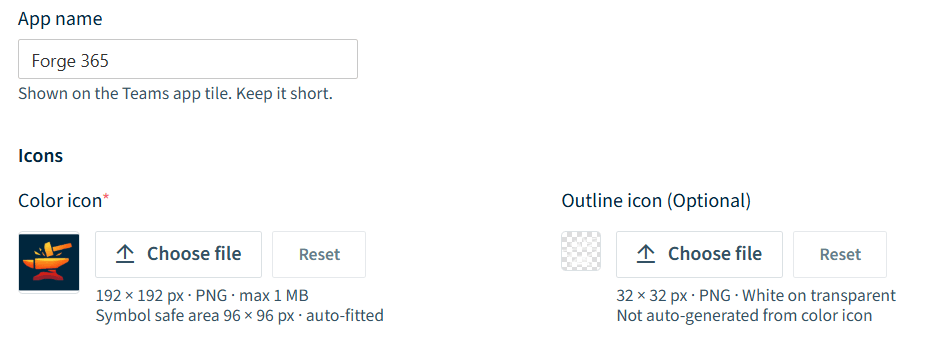
To change the branding of the Teams app, you will need to:
-
Click on the field below “App name”, enter the desired name for the app.
-
To change the image/icon for the Teams App in the Teams Admin Center, and when selecting the app in Teams, you will need to:
- Click on “Choose file” under “Color icon” and select the image file you want to use (SVG or a 192px X 192px .png max 1MB with a safe area of 96px X 96px).
- Click “Open”. This will show the image uploaded.
-
To change the logo of the Rencore Teams App in the Teams App Navigation
- Click “Choose file” under “Outline icon (Optional)” and select the image file you want to use (SVG or 32px X 32px .png).
- Click “Open”. This will show the image uploaded.
-
Once the desired branding has been applied, click “Save” at the top of the page.
In-app logo
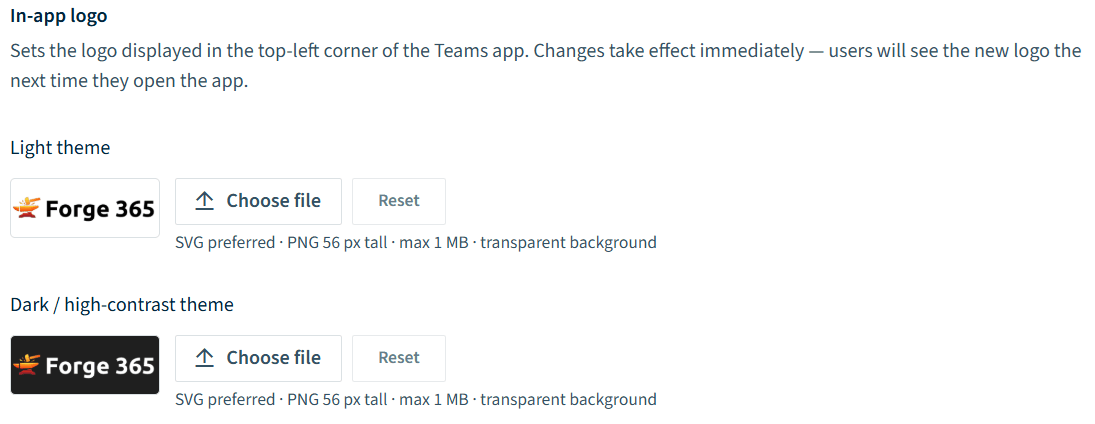
To change the Logo that is displayed in the top-left of the Teams app, whether or not you use the “Light theme” or “Dark/high-contrast theme”, the process is the same.
- Click on “Choose file” under either “Light theme” or “Dark/high-contrast theme” and select the image file you want to use (SVG or a .png file that is a maximum of 56x high, max 1MB).
- Click “Open”. This will show the image uploaded.
- Once the desired logos have been uploaded, click “Save” at the top of the page. The changes will take effect immediately and the users will see the change next time they log in.