Guide
Trigger a Manual Automation
To trigger an Automation from Rencore Governance that has been configured with a “Manually” trigger, you will need to:
-
Click on “Inventory” on the Nav Panel.
-
Either hover over the desired Service and click “Go to Inventory” or click “Inventory Options”([…]), then select “Go to Inventory”.
-
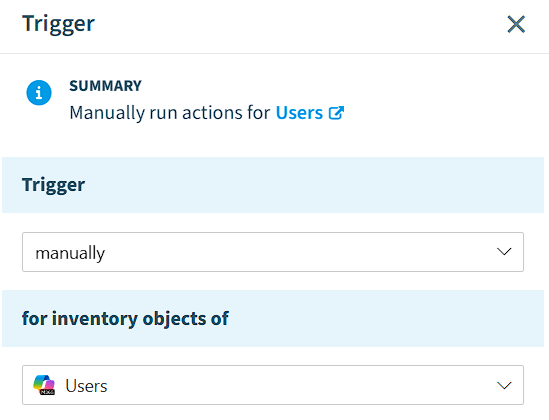
Navigate to the corresponding object configured in the automation. (e.g. Users, Teams,..).
-
To trigger the automation, either;
-
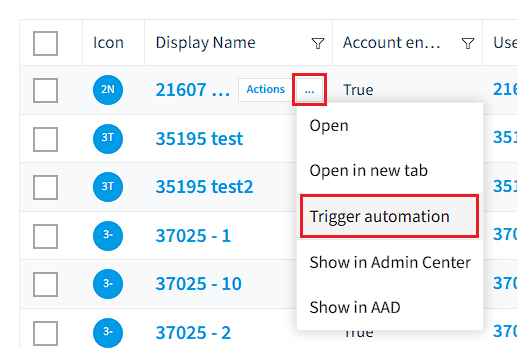
Click the “Ellipses Menu” […] next to the object.
- Select “Trigger Automation” and then choose the automation.
- Select the desired automation from the drop-down.
- Click “Trigger”.
- Select “Trigger Automation” and then choose the automation.
-
Or, click on the object.
-
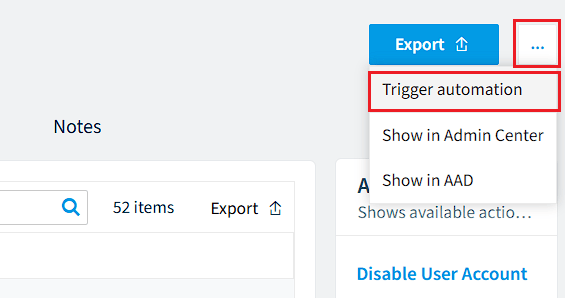
Click on the “Ellipses Menu” […].
-
Click “Trigger automation”.
-
Select the desired automation from the drop-down.
-
Click “Trigger”.
-
-