Guide
Managing Workspaces
Enabling Management of Workspaces
If you want workspace owners to manage workspaces in the Rencore Teams app, you will need to enable this feature for each workspace type.
-
In Rencore Governance, click “Settings”
-
Click on “Teams App Settings”.
-
Click on “Workspaces”.
-
Select “Enable Management” against the workspaces you want owners to manage.
-
Click “Save”.

Managing Workspaces
Once you have enabled the management facility for workspaces, the owners of a workspace will be able to manage it directly in the app.
Owners & Members
An owner of a workspace can either add or remove Owners.
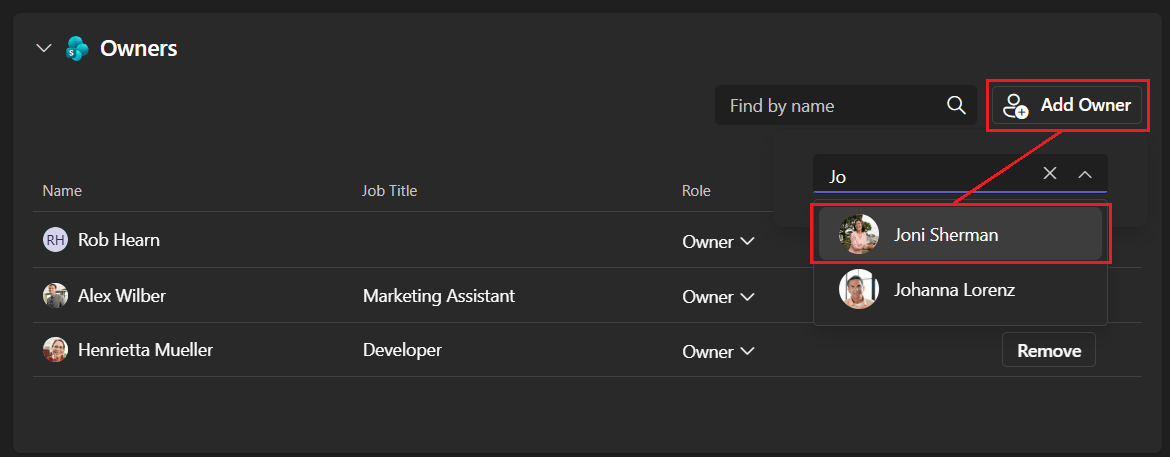
Add an Owner or Member
-
Click either “Add Owner” or “Add Member”.
-
Type the name of the user you want to add.
-
Click on the desired user.
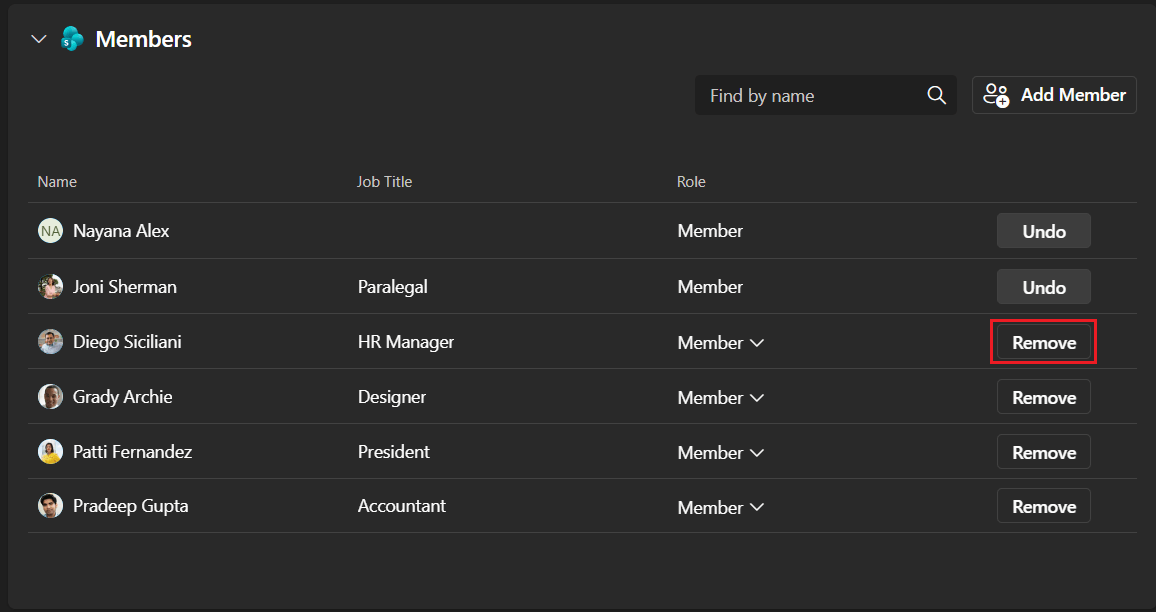
Remove an Owner or Member
-
Click “Remove” against the owner or member to be removed.
Visitors, Site Access, and File Access
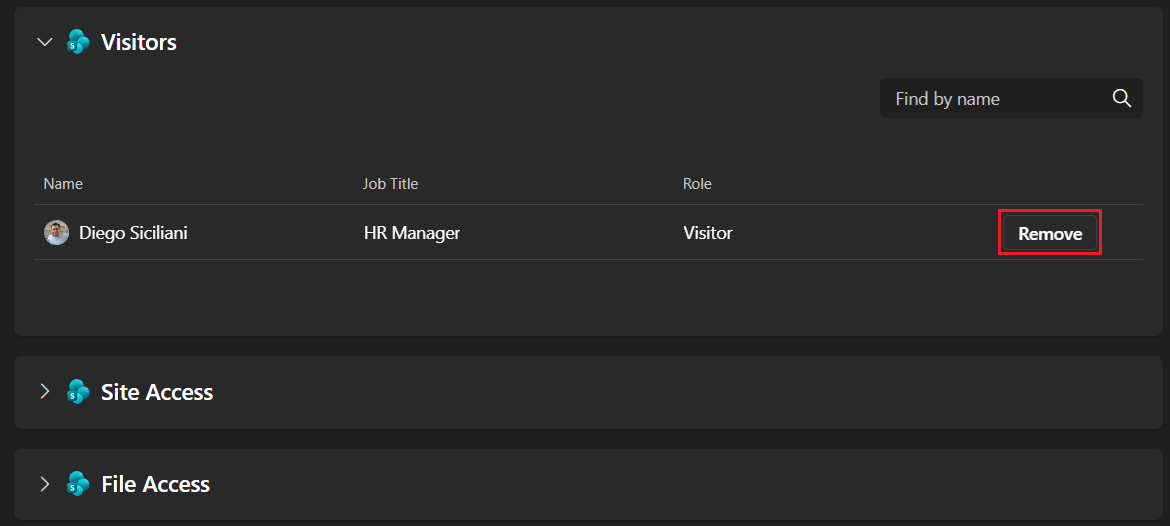
An owner of a workspace can only remove Visitors, Site Access, and File Access.
Remove a Visitor, Site Access, or File Access.
-
Click “Remove” against the user you want to remove.
Cancelling or Saving Changes Made
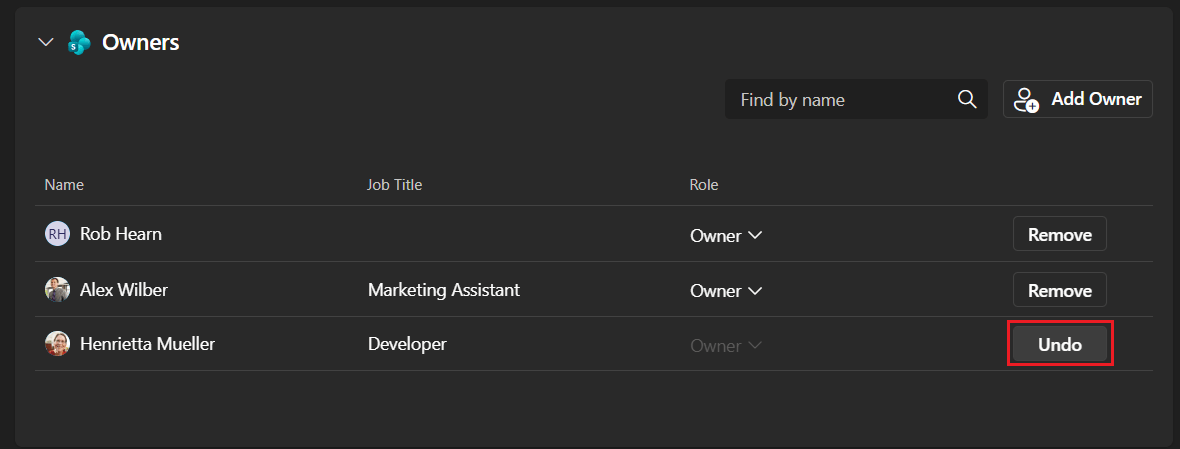
Once a Workspace Owner has made changes to a workspace, they have the option to either save or undo those changes.
-
Undo: If the Workspace Owner wishes to revert a specific modification before saving, they can click the “Undo” button located next to the corresponding change. This will restore the setting to its previous state.
-
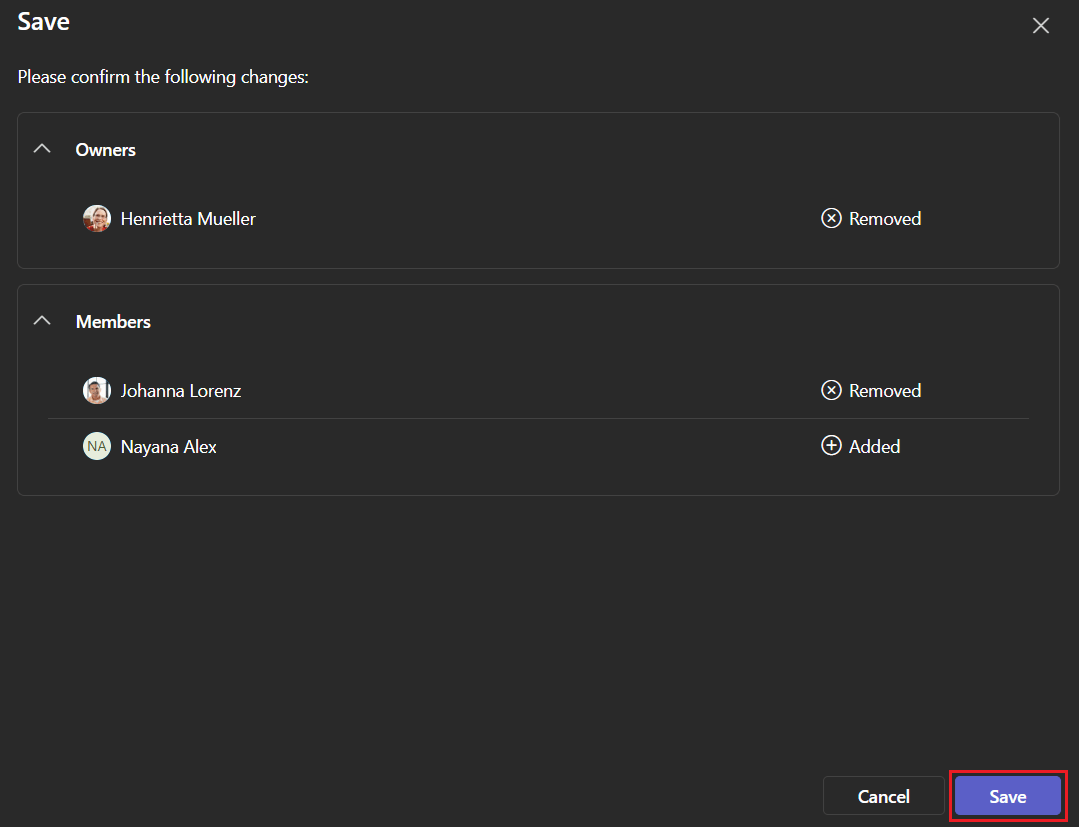
Save: Clicking “Save” will summarise the modifications to the workspace.
-
Clicking “Save” on the new Dialog window will implement the changes.
-