Reference
Power BI Consent
Authentication for Power BI in Rencore Governance operates differently from other services. Instead of an automated setup, the Entra ID application must be manually created within the specific tenant designated for scanning. This manual process ensures proper integration and allows Rencore Governance to access the necessary resources securely.
Enabling the Service
- Click on “Settings” and then”Environment Settings”.
- Click on “Manage Services”.
- Toggle the selector for “Power BI”.
- Click “Save”.
Consenting to the service.
Before you can provide consent for Power BI, you will need to manually create an Entra ID application as detailed in the Knowledge base article: Dataverse and Power BI.
Once you have set up the app and have the required details, you will need to:
-
Click on “Settings” and then “Environment Settings”.
-
On “General Settings”, click the ellipses menu ([…]) and select “Manage consent”.
-
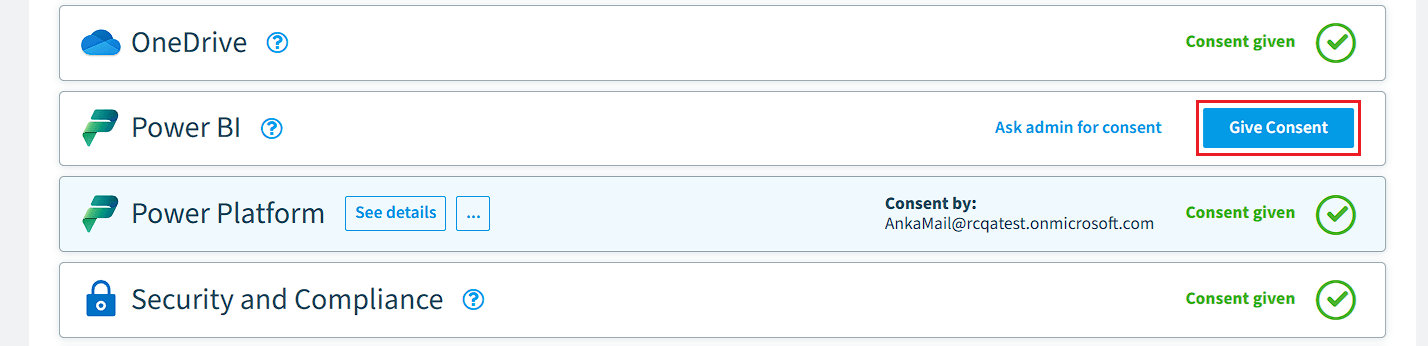
On “Scan”, click “Give Consent” on “Power BI”.
-
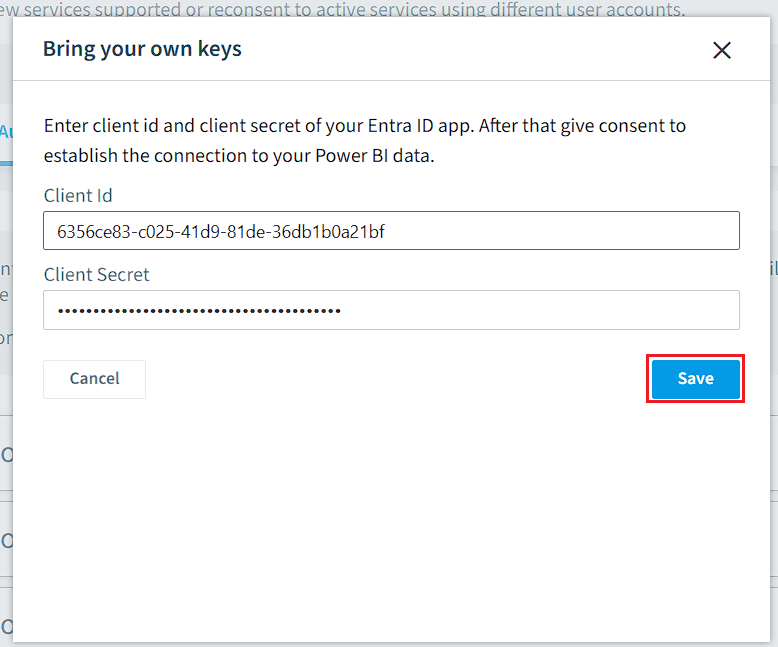
In the new Dialogue, enter the following details:
- Client ID: Enter the application client’s ID.
- Client Secret: Enter the Value that you copied when creating the Client Secret.
-
Click “Save”.
-
Sign in with your user credentials. The user must meet these requirements:
- Must have the Fabric Administrator.
- Must have any Power BI (e.g., Pro or Free) app assigned by any license.
-
Once consent is complete, it returns to the “Service consent” page. Power BI will show as “Consent given”.
