Guide
Common Troubleshooting Issues
When I sign in to Rencore Governance I am asked for consent that I can not give
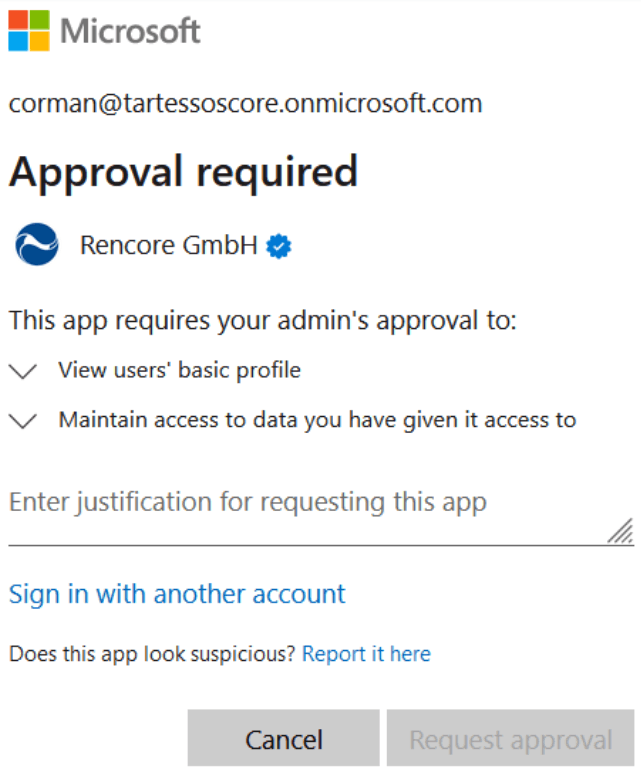
When I sign in to my tenant one of the following messages shows up:
-
The App requires your admin’s approval
-
The application needs permission to access resources in your organization that only an admin can grant. Please ask an admin to grant permission to this app before you can use it.
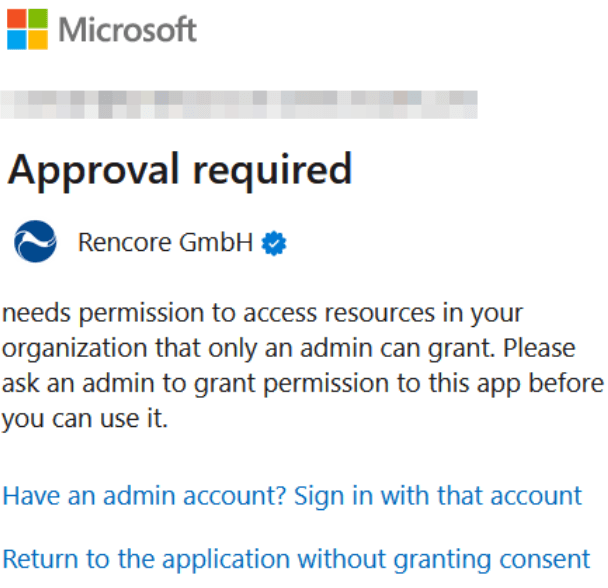
Both messages mean that the so-called “Admin Consent Workflow is enabled” for your tenant.
Therefore only administrators can give access to any apps. This means a global administrator needs to execute the following steps to enable the login:
- Sign to https://app.rencore.com/ with a global admin account.
- Check “Consent on behalf of your organization”
- Click “Accept”
Afterward, users will be able to sign in to Rencore Governance and access demo data.
The app used for sign-in uses the following permissions:
Name | Description |
|---|---|
View users' basic profile | Allows the app to see your users' basic profile (name, picture, user name) |
Maintain access to data you have given it access to | Allows the app to see and update the data you gave it access to, even when users are not currently using the app. This does not give the app any additional permissions. |
Automation Error: Template are not configured properly
When you go to Automations and view the details of the “Error” by clicking on the “Actions Menu” the error shows as “Template are not configured properly.” All you need to do to fix this error is:
- Click “Edit Automation” in the top right.
- Click on “2. Automation”.
- Check or change the value for the template; this can be “None”, “Rencore Governance default”, or a custom template that you have created.

Find Missing Permissions
From time to time, Permission requirements may change, and this will result in missing permissions. If the system detects that there is a missing permission, it will show a banner as indicated in the image below:
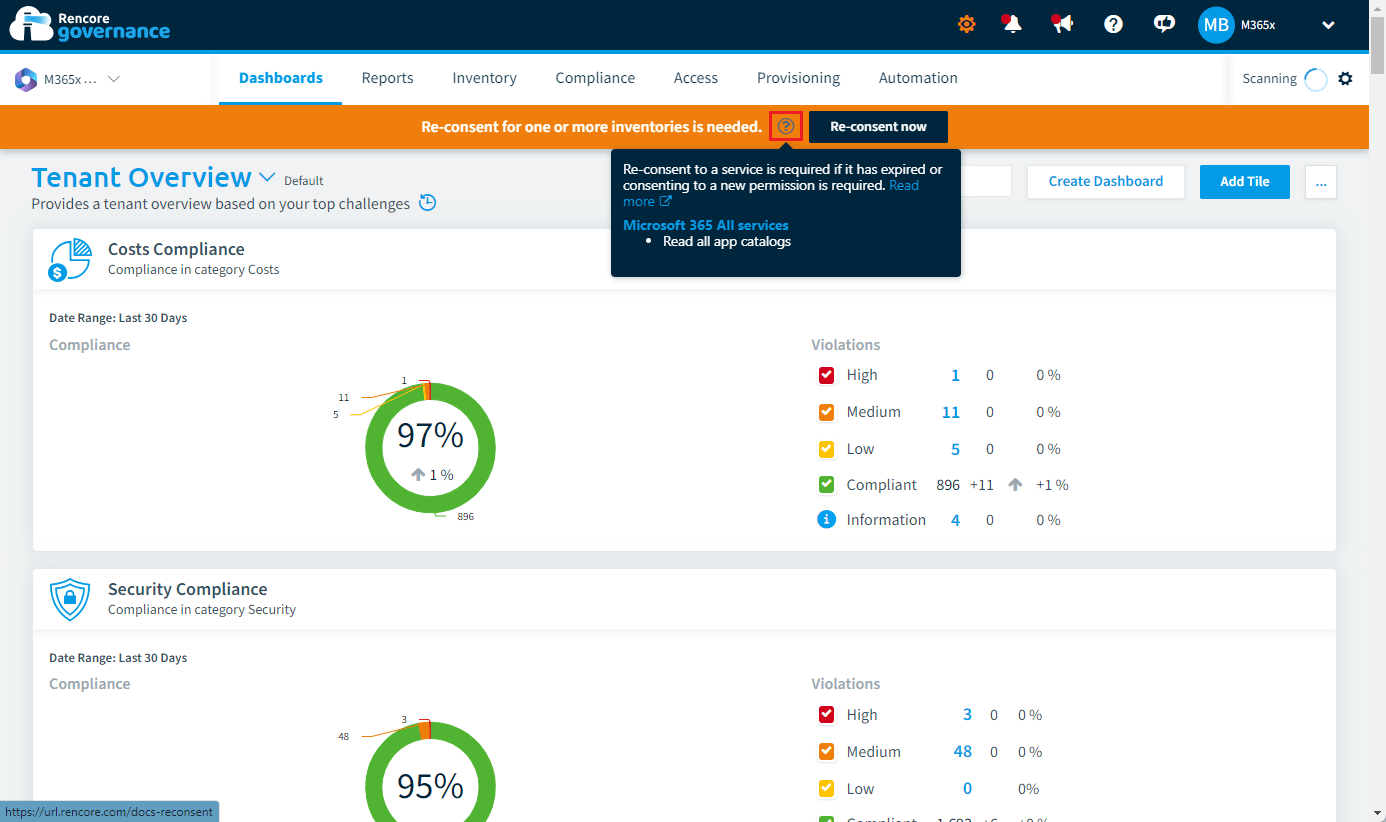
- Click on the ”?” on the banner.
- A Dialogue box will appear below the banner stating what permission needs reconsenting.