Guide
Remove SharePoint File Versions
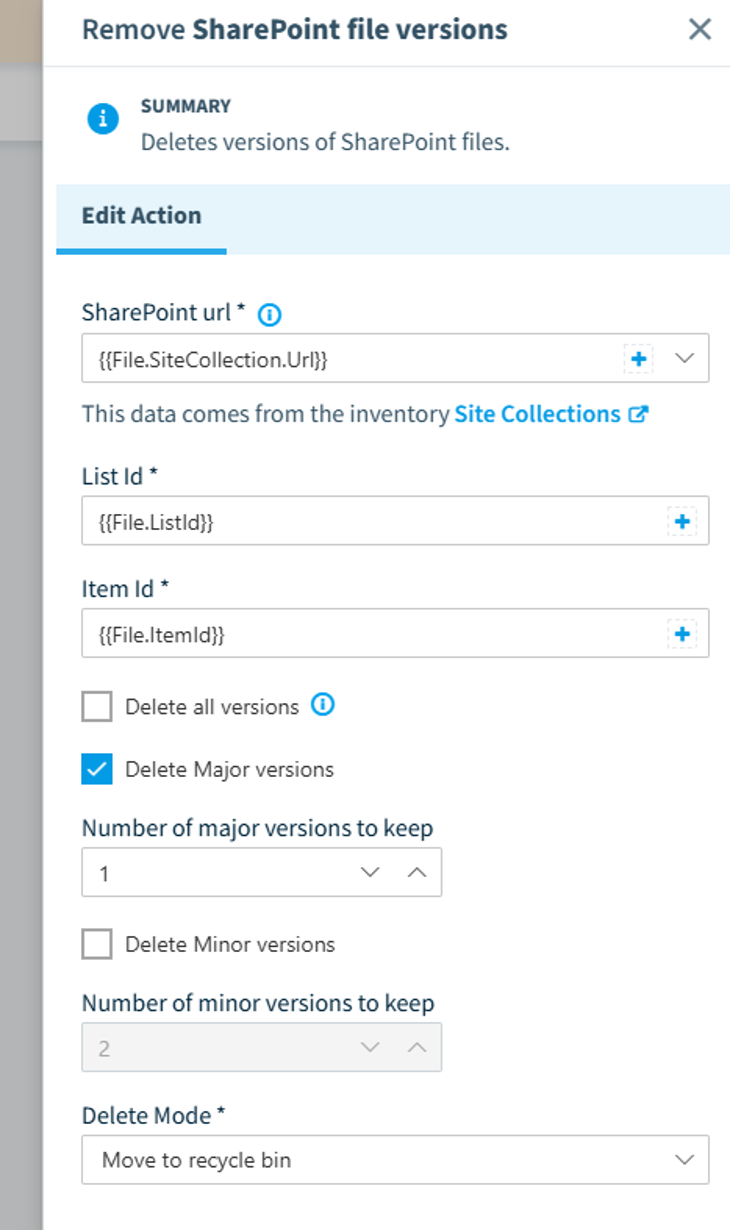
This automation action deletes older versions of a SharePoint file. You choose how many major and minor versions to keep below the current one, and whether the removed versions move to the recycle bin or are deleted completely.
Once you select this action, you will need to complete the following:
- SharePoint url: The URL of the site collection the file is in, prefilled from the inventory Site Collections object (e.g. {{File.SiteCollection.Url}}).
- List Id: The ID of the list or library that holds the file (e.g. {{File.ListId}}).
- Item Id: The ID of the file (e.g. {{File.ItemId}}).
- Delete all versions: Removes every version of the file instead of trimming by the counts below.
- Delete Major versions and Number of major versions to keep: Deletes major versions beyond the number you keep.
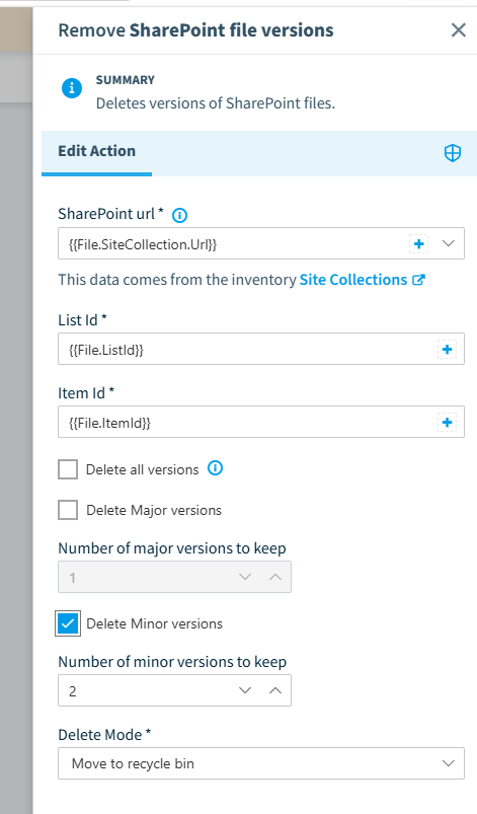
- Delete Minor versions and Number of minor versions to keep: Deletes minor versions beyond the number you keep.
- Delete Mode: Choose “Move to recycle bin” (recoverable) or “Delete completely” (permanent).
How Many Versions Are Kept
For example, to keep the current version plus the last 5, set “Number of major versions to keep” to 5. You end up with 6 versions in total.
Reading the Version Label and File Size
In the inventory, each file is a single row. Two fields are easy to misread:
- The version label (for example 100, or 12.3) is the number of the current version. Before any cleanup has run, it is a good indicator of version bloat: if versions have never been trimmed, a label of 100 means about 100 versions are stored. The label only counts up and is never lowered by a cleanup, so once a cleanup has run, it no longer reflects how many versions actually remain. A file can show 100 while holding only a handful.
- The file size shown is the latest version only, not the sum of all versions, so deleting old versions does not change it.
After the first cleanup, the reliable measure is the drop in site collection storage used, not the version label or the file size.
Seen in the Product
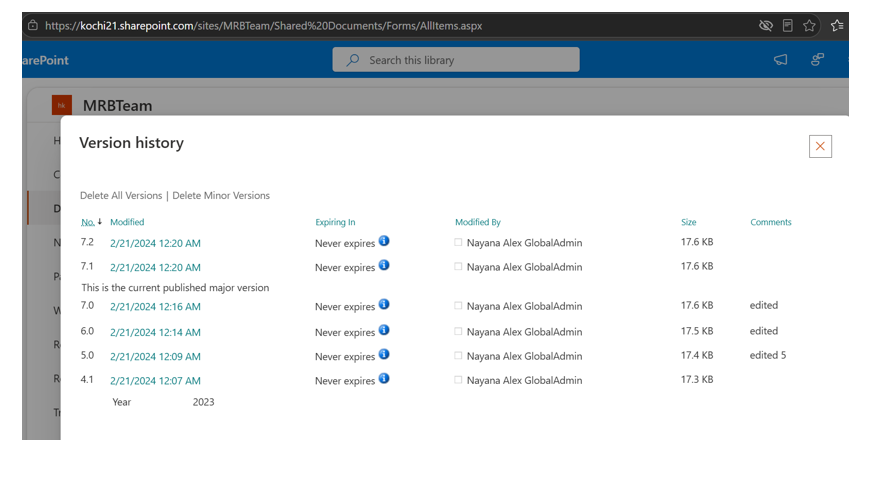
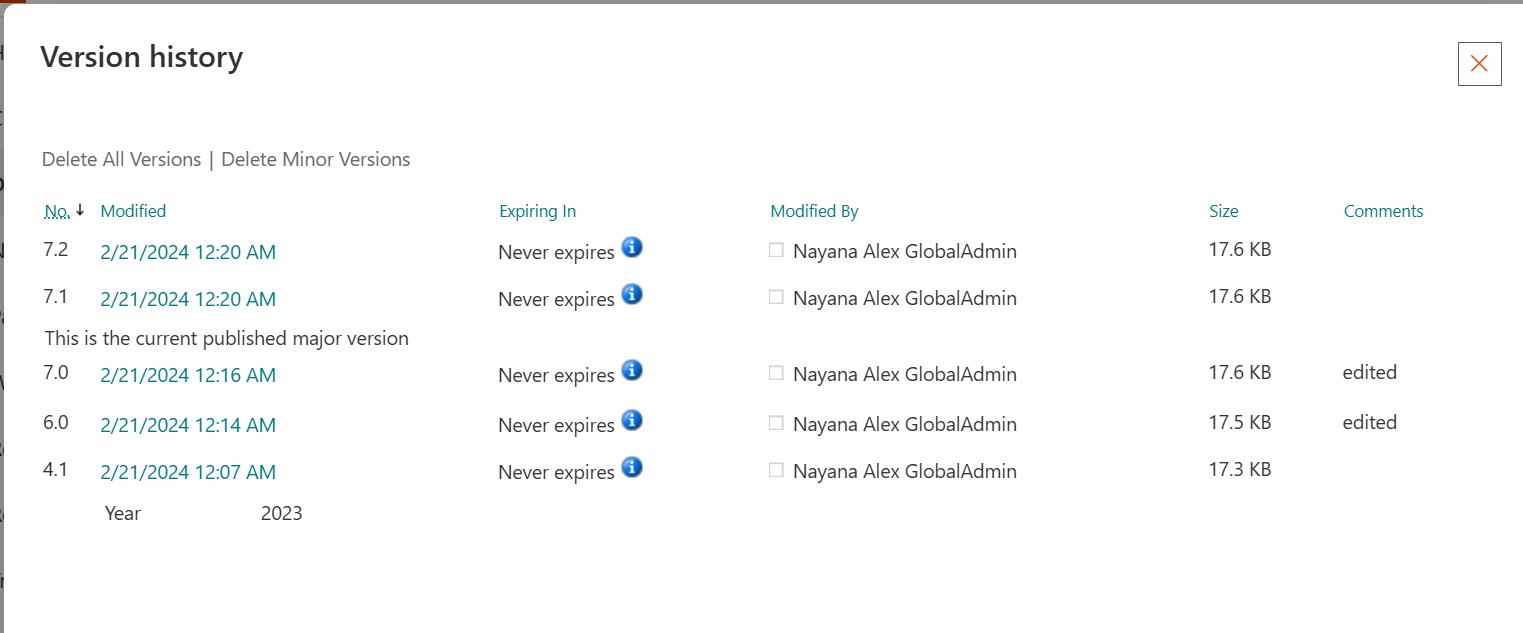
Run 1: Delete Major Versions, Keep 1
A file with major versions 7.0, 6.0, and 5.0 present. “Delete Minor versions” was off, so minor versions are left untouched.
Before, the file had 6 versions:
After running the automation, 5 versions remain:
Run 2: Delete Minor Versions, Keep 2
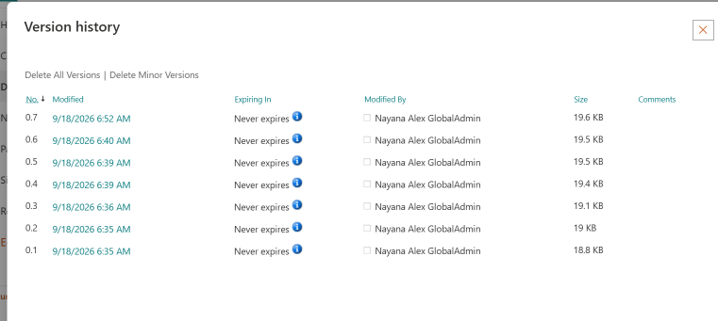
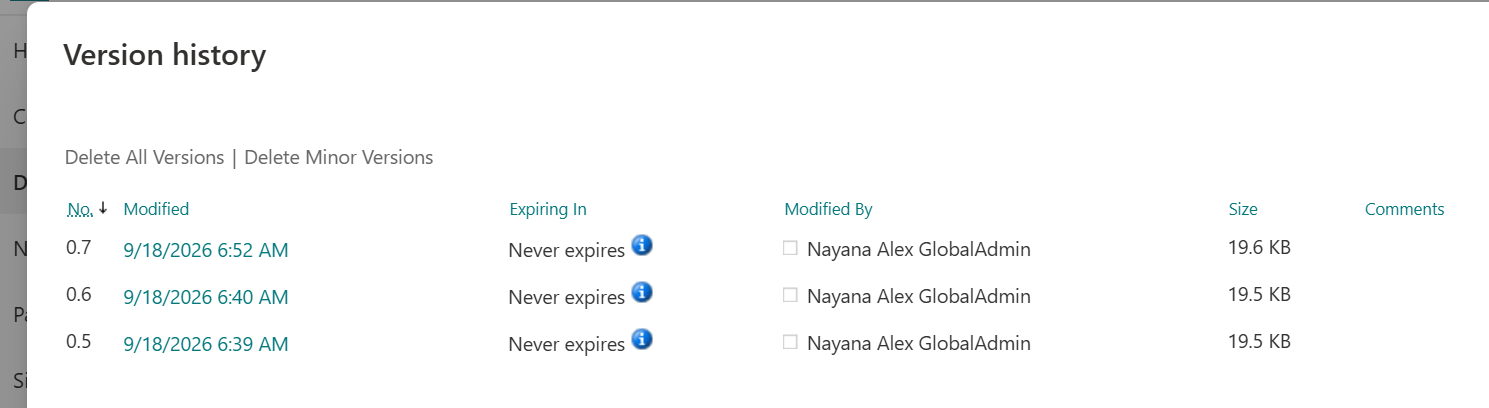
A draft file with minor versioning on, holding 7 minor versions from 0.1 to 0.7.
Before, the file had 7 versions:
After running the automation, 3 versions remain:
What You See Afterward
After a run, the version label and the latest file size stay the same. The current version is untouched. The reclaimed space shows only as a lower site collection storage used. Measure the effect there, before and after the run.
Recommended Way to Run It
- Trigger the cleanup on a policy violation (for example, excessive version storage), with a threshold so each run is bounded.
- Work in batches, highest storage first. Order site collections by storage used, and narrow further by department or owner if needed.
- Test on around 10 items before running across production. Limit the results in the policy that triggers the automation to do this.
- Measure success by the drop in site collection storage used, before versus after.
A Follow-Up Policy for Later Cleanups
After the first broad cleanup, keep storage in check with a policy that flags files which have built up many versions again. There is no per-file total version count field yet, so combine two signals you already have:
- The version label band surfaces files that have accumulated many versions.
- The storage signal keeps the focus on the site collections that consume the most space.
Point the “Remove SharePoint file versions” action at that filtered set to trim the high-version files driving storage consumption. Because the label keeps counting up and is never lowered by a cleanup, treat the band as a helpful pointer rather than an exact count. Confirm the result by the drop in site collection storage used.