Guide
Create a Review
The review schedule builder guides you through three steps to set up a review: configuring the trigger, defining review settings, and adding details.
To create a Review:
- Click “Review”.
- Click “Add Review”.
Step 1: Trigger
Define when and what gets reviewed.
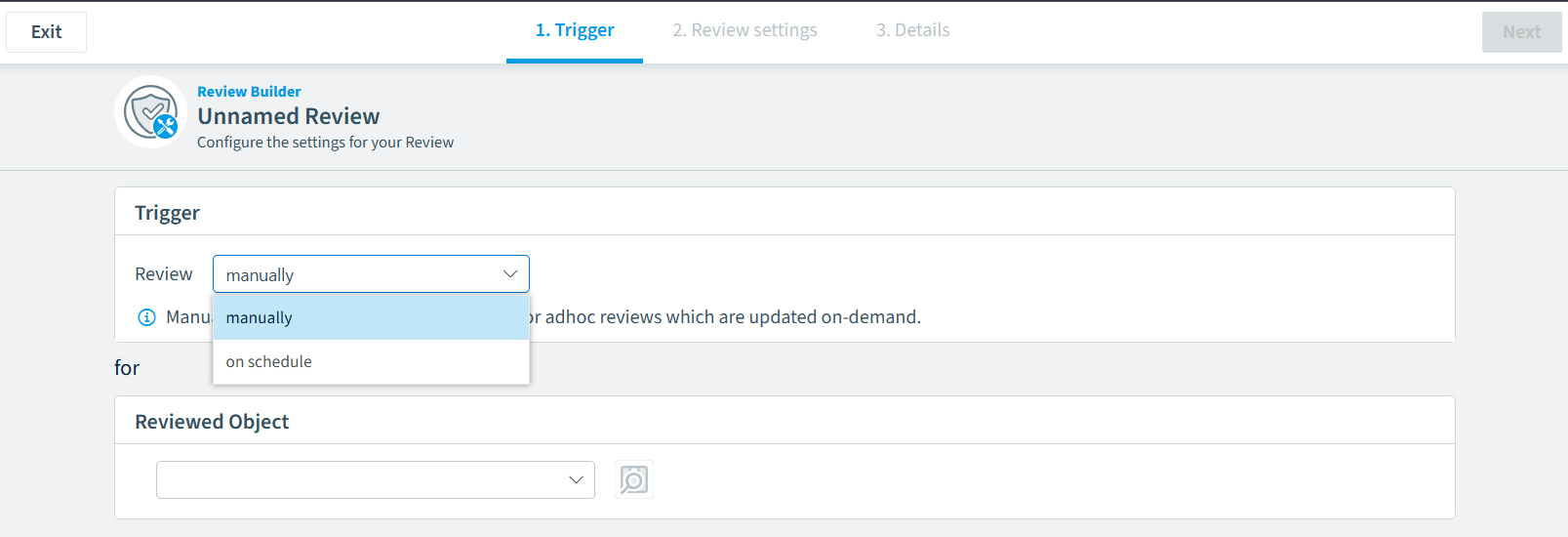
Trigger type
Choose how the review is started:
- Manual - You trigger each cycle explicitly from the dashboard. Best for one-time or ad-hoc reviews.
- Schedule - Cycles start automatically on a recurring schedule. Best for ongoing governance.
Schedule Configuration
When you select Schedule, additional fields appear:
Field | Description |
|---|---|
Frequency | How often: Every 1-99 Days, 1-4 weeks, 1-12 months, or 1-10 years |
Day selection | Choose one: a specific day of the month (1-28), or a positional day (e.g., "First Monday", "Third Friday") |
Start date | When the schedule begins (defaults to today) |
A summary line updates as you configure (e.g., “Trigger the Review every 1 month(s) on day 1 starting from 01/05/2026”)
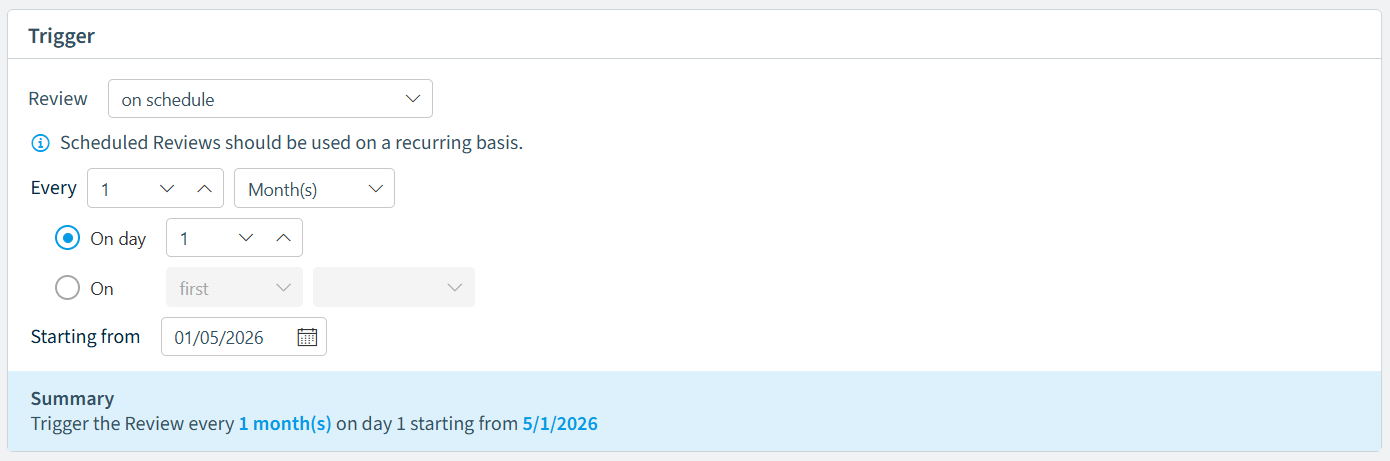
• For example, weekly could be every Monday, whereas monthly could be on the Positional day of that month (i.e., 3rd Tuesday).
Service type
Select which Microsoft 365 service to review:
- Teams
Object filters
Optionally narrow the scope by adding filters to target specific workspaces. Click ”+ Add Filter” to define filter criteria. Without filters, all workspaces of the selected service type are included.
Click “Next” once you have configured the Logic Text
Step 2: Review settings
Step 2 has four tabs: Review Settings, Communication, Guidelines, and Automations.
Review Settings
Reviewer assignment
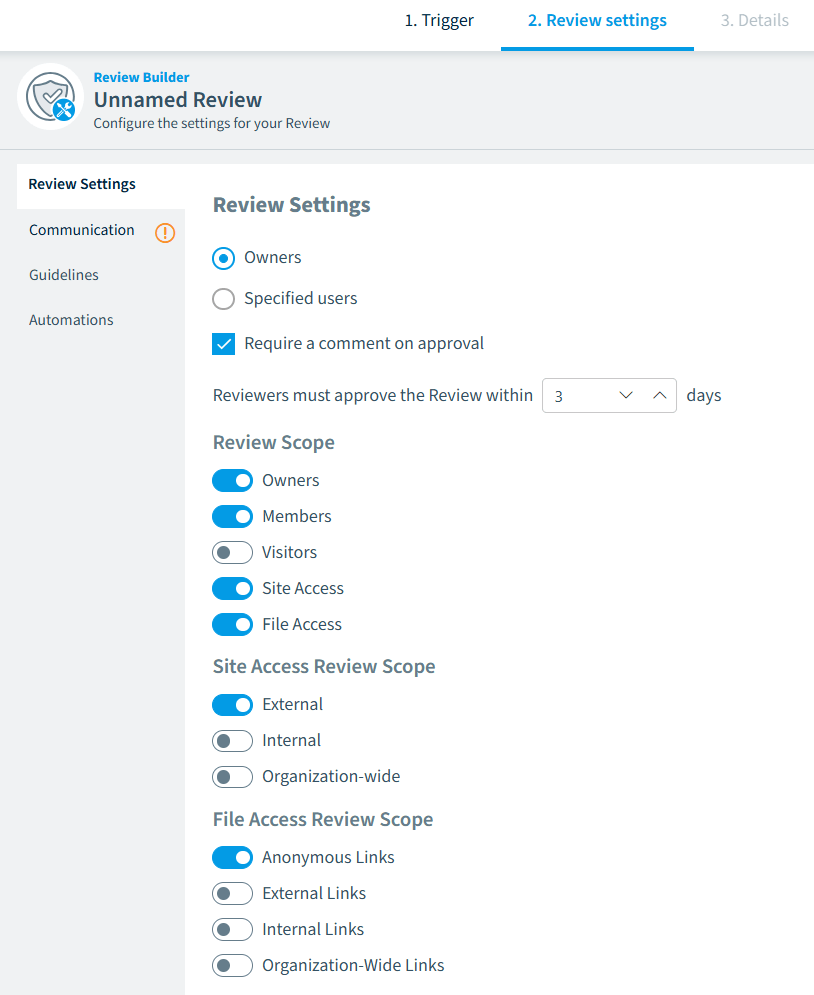
Choose who reviews the workspaces:
Option | Description |
|---|---|
Owners (default) | Workspace owners are automatically assigned as reviewers |
Specified users | You select individual users via search. Only internal users can be assigned. |
Require a comment on completion
When enabled, reviewers must enter a comment when completing their review in the Rencore Teams App.
Review duration
Set how many days reviewers have to complete their reviews (1-30 days, default: 30).
Review scope
Toggle which review steps are shown to reviewers. Enable at least one:
Scope | What reviewers see |
|---|---|
Owners | List of workspace owners - reviewers can add, remove, or change roles |
Members | List of workspace members - reviewers can add, remove, or promote to owner |
Visitors | Visitors with site access (SharePoint only) - reviewers can remove |
Site Access | Groups and users with site permissions (SharePoint only) - organized by type |
File Access | File and folder sharing links and direct access permissions |
When Site Access or Files Access is enabled, additional sub-toggles let you control the scope:
-
Site Access Scope
- External.
- Internal.
- Organization-wide.
-
File Access Review Scope
- Anonymous Links.
- External Links.
- Organization-wide Links.
- Internal Links.
Communication
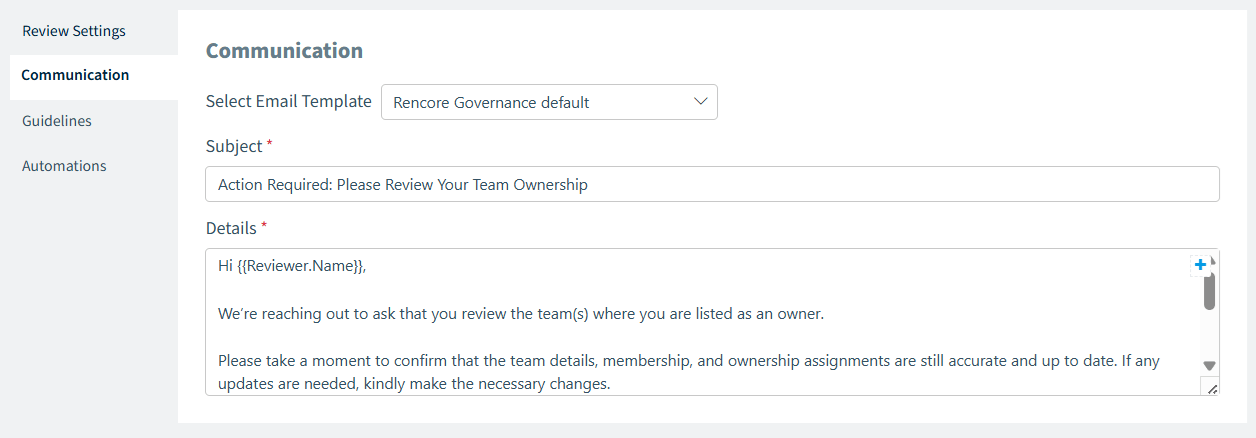
Configure the notification email sent to reviewers when a cycle starts.
Field | Description |
|---|---|
Email template | Select a predefined email template from the dropdown |
Subject | The email subject line (required) |
Details | The email body content (required). Supports dynamic placeholders like {{reviewers.names}} for personalization. |
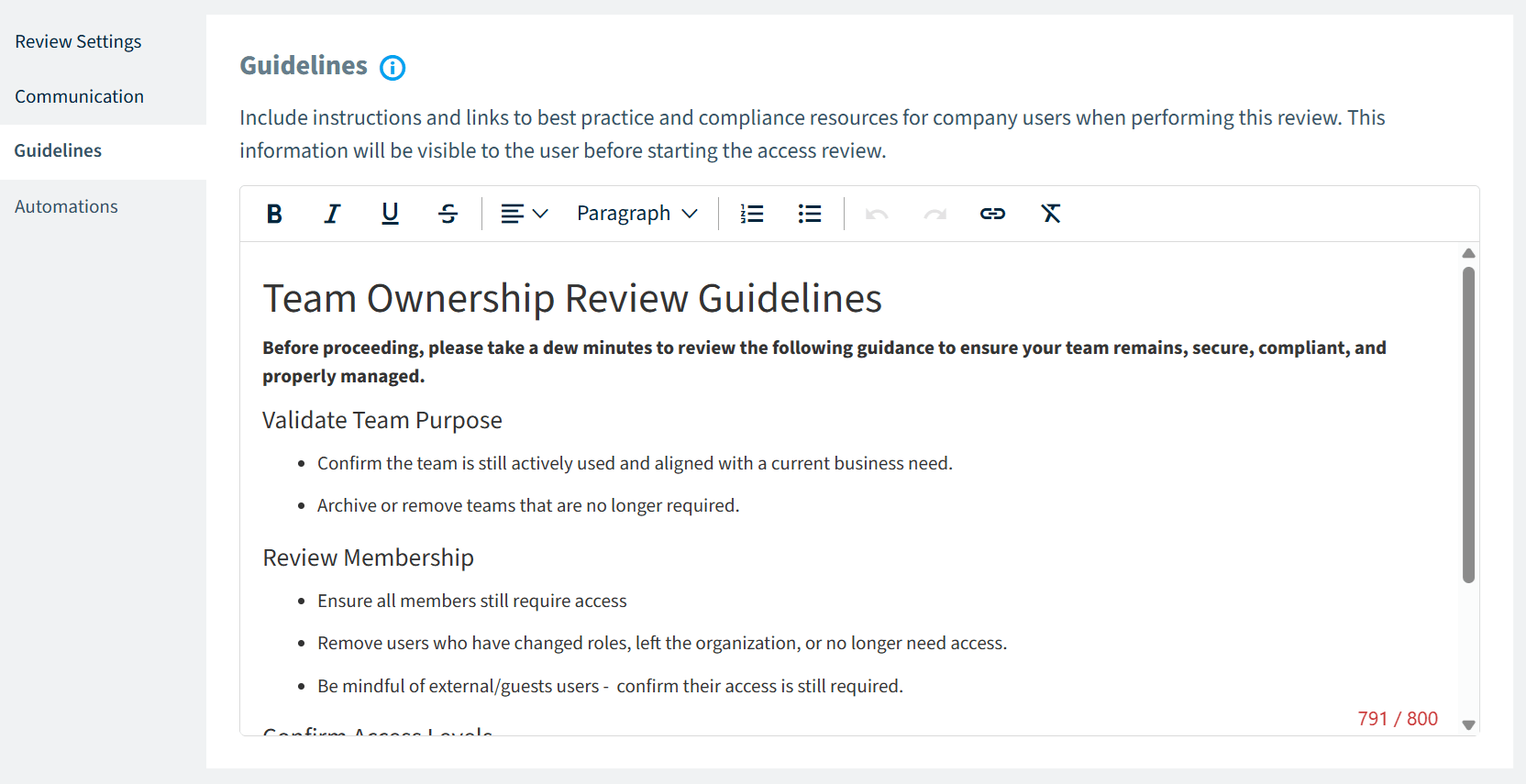
Guidelines
Provide instructions that reviewers see in the Rencore Teams App before starting their review. Use this to communicate your organization’s governance policies, compliance requirements, or review best practices.
The guidelines field supports rich text formatting: bold, italic, underline, alignment, block type (Headings, Paragraph, Quote, and Code), lists, and links.
Automations
Configure what happens automatically during and after reviews. See the Automations section for the full walkthrough.
Click “Next” once the configuration for Review is complete.
Step 3: Details
Provide identifying information for the review schedule.
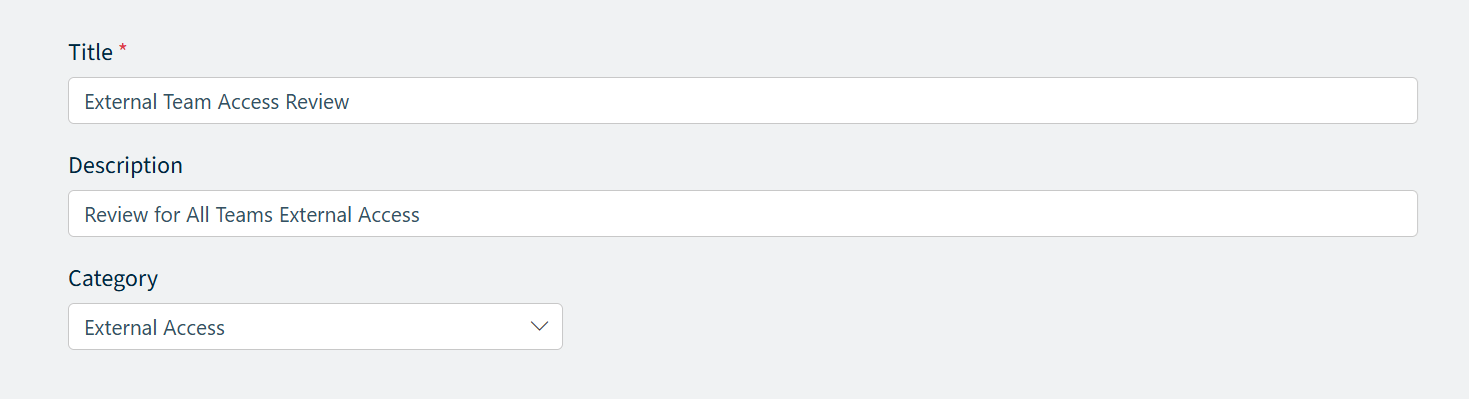
Field | Required | Description |
|---|---|---|
Title | Yes | A descriptive name for the review schedule (max 50 characters) |
Description | No | Additional context about the review's purpose (max 250 characters) |
Category | Yes | Organizational category for grouping reviews |
Click “Save”. A dialog asks how you want to proceed:
Option | What happens |
|---|---|
Save as draft | The schedule is saved in a disabled state. No cycle is triggered, and no notifications are sent. You can enable it later from the dashboard. |
Save and enable | The schedule is saved and enabled. For scheduled reviews, the first cycle starts on the next scheduled date. For manual reviews, a cycle starts immediately. |