FAQ
What does Rencore consider a Microsoft 365 user?
A user in the connected Microsoft 365 tenant needs to be licensed for Rencore Governance if all of the following conditions are met:
A user in the connected Microsoft 365 tenant needs to be licensed for Rencore Governance if all of the following conditions are met:
- The user account is active/enabled.
- The user account is not External.
- The user account has a license assigned, regardless of whether it is a free license.
Obtaining the value outside of Rencore Governance
The users that we count are Users whose accounts are enabled, have any type of license (including Free), and are internal (Creation Type that is not Invitation). This can be achieved in different ways.
PowerShell Script
-
Download the PowerShell Script: Get-RencoreLicensedUsers
-
Run the script in PowerShell 7.
-
Once prompted, sign in with your tenant account.
- This needs to have the “User.Read.All” permission at a minimum.
-
After the PowerShell script completes, it will show the value on the tenant and produce a .csv of the results:
-
Values shown:
- Total unique licensed users
- Teams Rooms device accounts
- Graph total (consistency)
-
Link to the Rencore Licensed Users_Summary.csv
-
Graph API Call
-
Sign in with your tenant account
- This needs to have the “User.Read.All” permission at a minimum.
-
Set the “Request type” to “Get”.
-
In the URL, enter:
https://graph.microsoft.com/v1.0/users/$count?$filter=assignedLicenses/$count ne 0 and accountEnabled eq true and creationType ne 'Invitation' -
Click on “Request Headers” and enter the following key and value.
- Key: ConsistencyLevel
- Value: eventual
-
Click “Run Query”.
Tip: Ensure that the "User.Read.All" permission has been granted. This is located in the "Modify Permissions" section.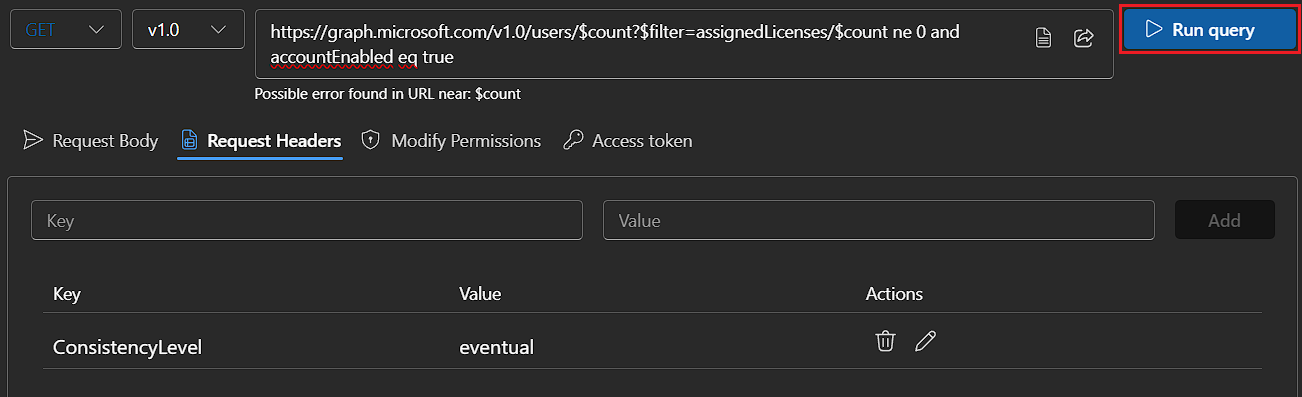
The count will show in the “Response Preview”.
- Alternatively, if you would like to have a count of the users that make up the count and the assigned licenses, then use the URL:
https://graph.microsoft.com/v1.0/users?$filter=assignedLicenses/$count ne 0 and accountEnabled eq true and creationType ne 'Invitation'&$count=true&$select=id,displayName,mail,assignedLicenses - Additionally, if you would like to get the license SKU, name, consumed units, and prepaid units (enabled), then use the URL:
https://graph.microsoft.com/v1.0/subscribedSkus?$select=skuId,skuPartNumber,consumedUnits,prepaidUnits
- Alternatively, if you would like to have a count of the users that make up the count and the assigned licenses, then use the URL: