Add a report as a tile to a dashboard
AI summary
Add a report to your dashboard as a tile so its results display alongside your other tiles. You will need the Edit Dashboard permission and an existing report.
Add a report to a DashboardDashboardA dashboard groups reports, policies and KPIs on one page as tiles, so each stakeholder sees the governance data that matters to them.Read more as a tile, so its results show next to your other tiles.
Before you begin
- Your Rencore role includes the Edit Dashboard permission. Owner, Admin and Contributor have it. See Rencore roles.
- The report exists. See Create a report from a template.
Steps
-
Click Reports.
-
Find the report you want to add as a tile.
-
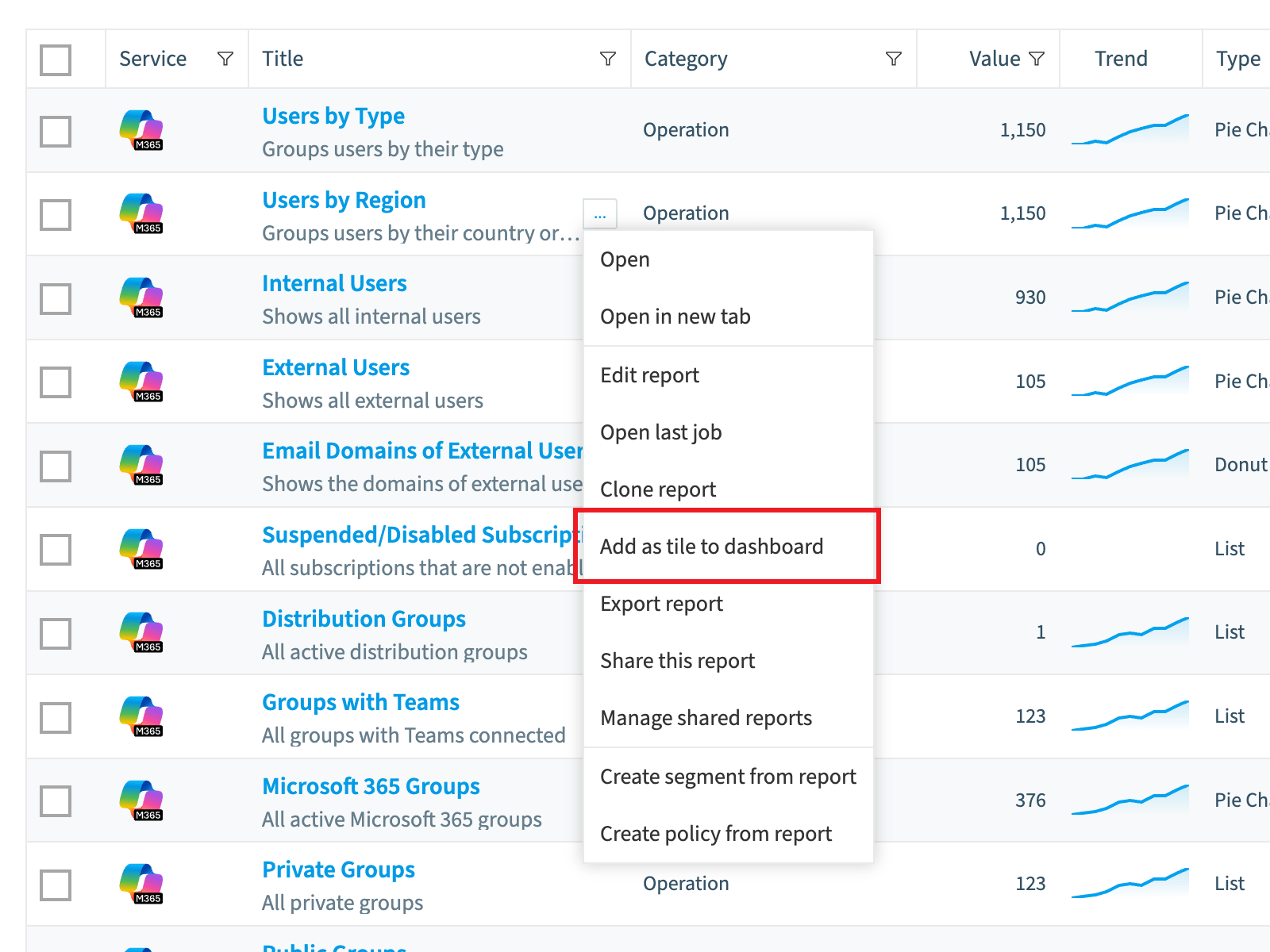
Hover over the report and click the action menu to the right of its title.
-
Click Add as tile to dashboard.
-
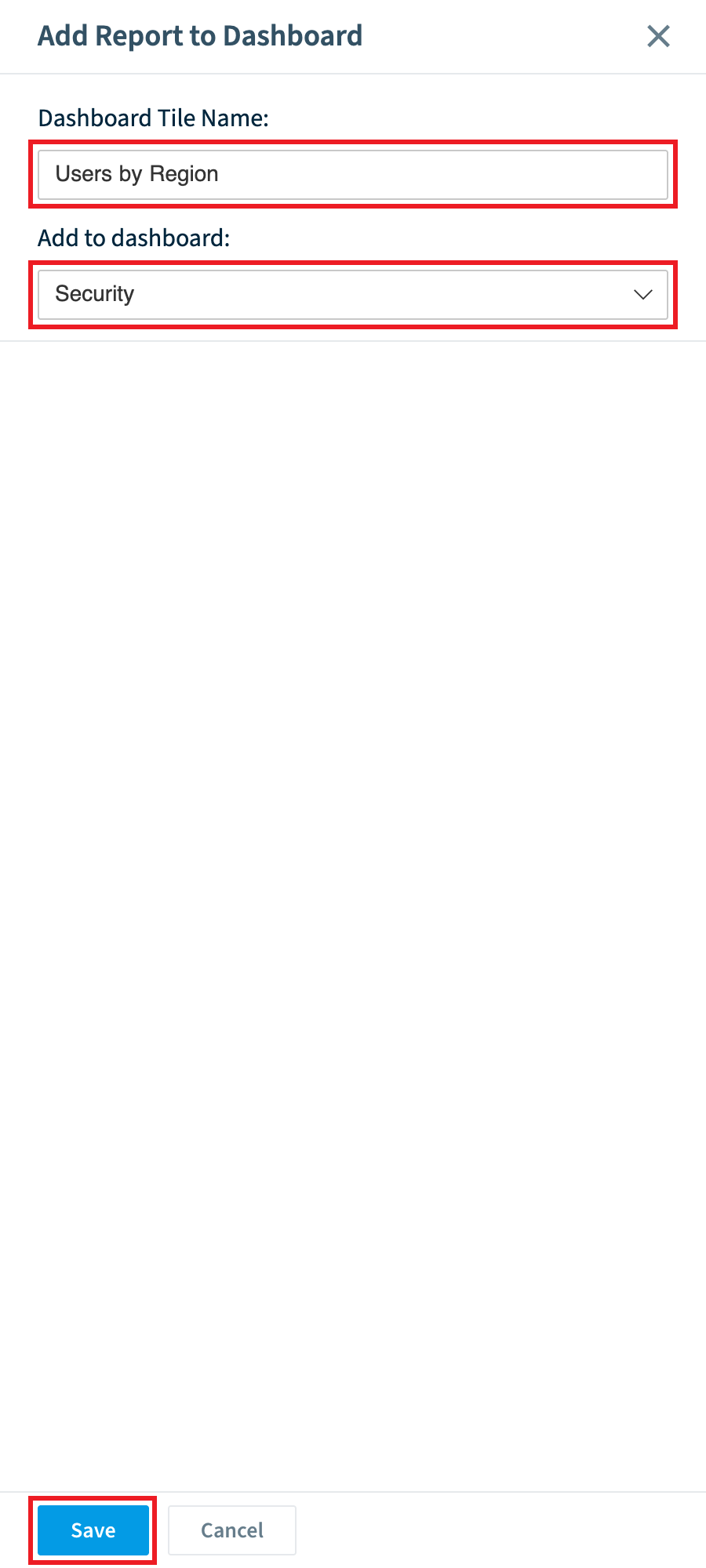
Enter a name for the tile (by default, the name of the report).
-
Select the Dashboard from the drop-down.
-
Click Save.
Frequently asked questions
Which permission do I need to add a report as a tile to a dashboard?
You need a Rencore role that includes the Edit Dashboard permission. Owner, Admin and Contributor have it.
How do I add an existing report to a dashboard as a tile?
Click Reports, hover over the report, and click the action menu to the right of its title. Then click Add as tile to dashboard, enter a tile name, select the Dashboard from the drop-down, and click Save.
What name does a report tile get by default when I add it to a dashboard?
The tile name defaults to the name of the report. You can enter a different name before you select the Dashboard and click Save.
Was this page helpful?
Thanks for the feedback.
Thanks. What was wrong?