Export a segment
AI summary
Export a segment as a .segment file to share it with another Workspace or Environment. From Inventory, find the segment, click its action menu, and select Export segment to download the file.
Export a SegmentSegmentA segment is a saved, rule-based filter over inventory objects, for example every user whose country is the United States.Read more to share it with another WorkspaceWorkspaceA Workspace is the top-level container in Rencore Governance. It holds the settings, users, roles and connected apps for exactly one Environment, the connected Microsoft 365 tenant.Read more or EnvironmentEnvironmentAn Environment is the connected Microsoft 365 tenant inside a Workspace.Read more. The export is a .segment file that you can import there.
Before you begin
- Your Rencore role includes the Export Segment Schema permission. Owner, Admin and Contributor have it. See Rencore roles.
Steps
-
Go to InventoryInventoryThe inventory is the record of every object Rencore Governance scans from your tenant, with their properties and the relations between them.Read more.
-
Hover over the Service and click Go to Inventory, or click Inventory Options ([…]) and select Go to Inventory.
-
Find the Segment you want to export.
-
Click the Action Menu ([…]) next to the Segment.
-
Select Export segment.
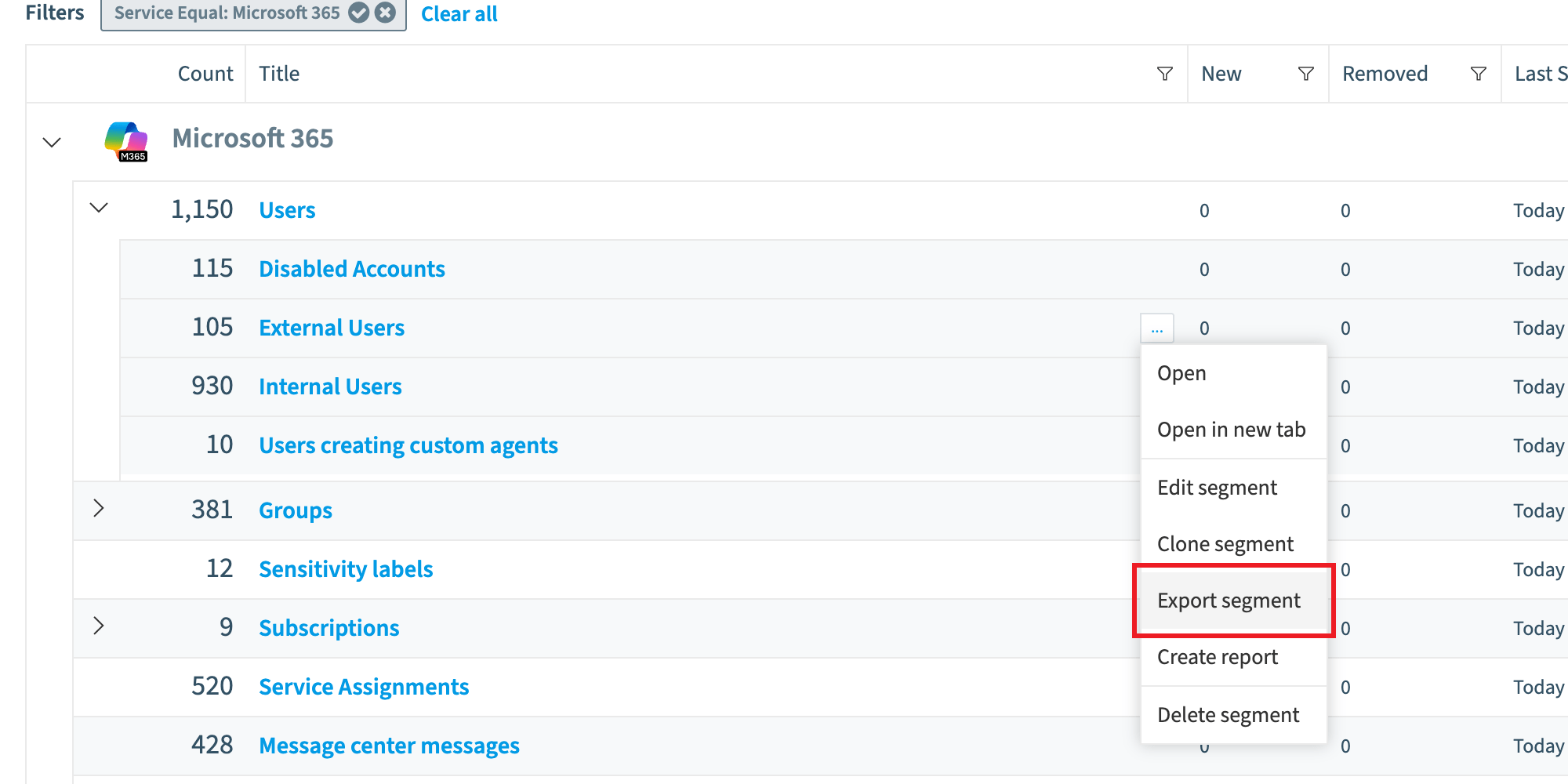
What you see
Your browser downloads the .segment file (a .json file). You can share it and import it into Rencore Governance.
Frequently asked questions
Which Rencore roles can export a segment?
Owner, Admin and Contributor can export a Segment. Your Rencore role must include the Export Segment Schema permission, and these three roles have it.
How do I export a segment from inventory?
Go to Inventory, find the Segment, and click the Action Menu ([…]) next to it. Then select Export segment. To reach Inventory, hover over the Service and click Go to Inventory, or click Inventory Options ([…]) and select Go to Inventory.
What file do I get when I export a segment, and what can I do with it?
Your browser downloads a .segment file, which is a .json file. You can share it and import it into Rencore Governance in another Workspace or Environment.
Was this page helpful?
Thanks for the feedback.
Thanks. What was wrong?