Export a provisioning template
AI summary
Export provisioning templates as .provisioning files to share with other Workspaces or Environments in Rencore Governance. You need the Export Provisioning Schema permission, which Owner, Admin, and Contributor roles have.
Export a Provisioning TemplateProvisioning templateA provisioning template defines how a new Microsoft 365 workspace is created through Rencore Governance.Read more to share it with another WorkspaceWorkspaceA Workspace is the top-level container in Rencore Governance. It holds the settings, users, roles and connected apps for exactly one Environment, the connected Microsoft 365 tenant.Read more or EnvironmentEnvironmentAn Environment is the connected Microsoft 365 tenant inside a Workspace.Read more. The export is a .provisioning file (a .json file) that you can import back into Rencore Governance.
Before you begin
- Your Rencore role includes the Export Provisioning Schema permission. Owner, Admin and Contributor have it. See Rencore roles.
- Provisioning is part of the Premium and Enterprise PlansPlanA Plan is the edition of Rencore Governance in your Subscription: Professional, Premium or Enterprise.Read more.
Steps
- Click Provisioning.
- Click Manage Provisioning Templates.
- Export one template or several templates, as described below.
One template
-
Find the Provisioning Template you want to export.
-
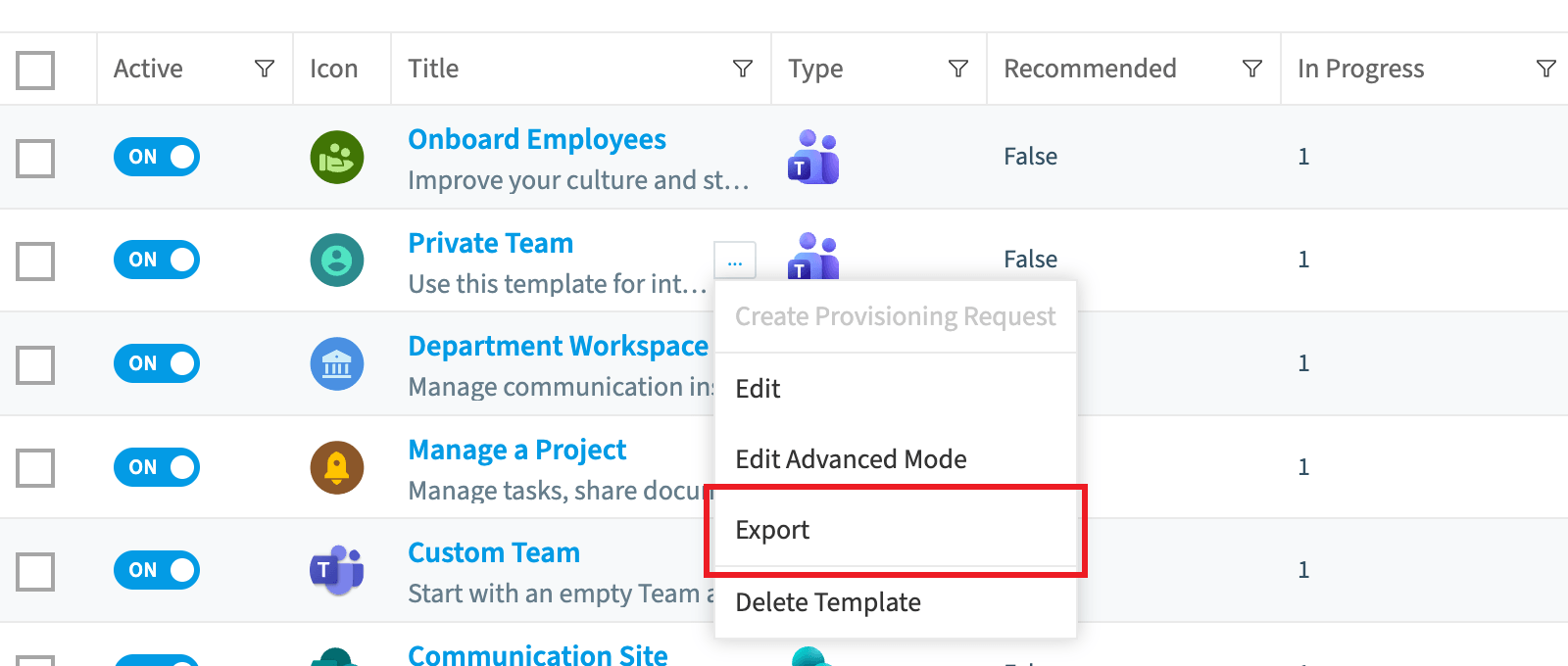
Highlight the template and click the Ellipses menu ([…]) to the right of the title.
-
Click Export.
Several templates
-
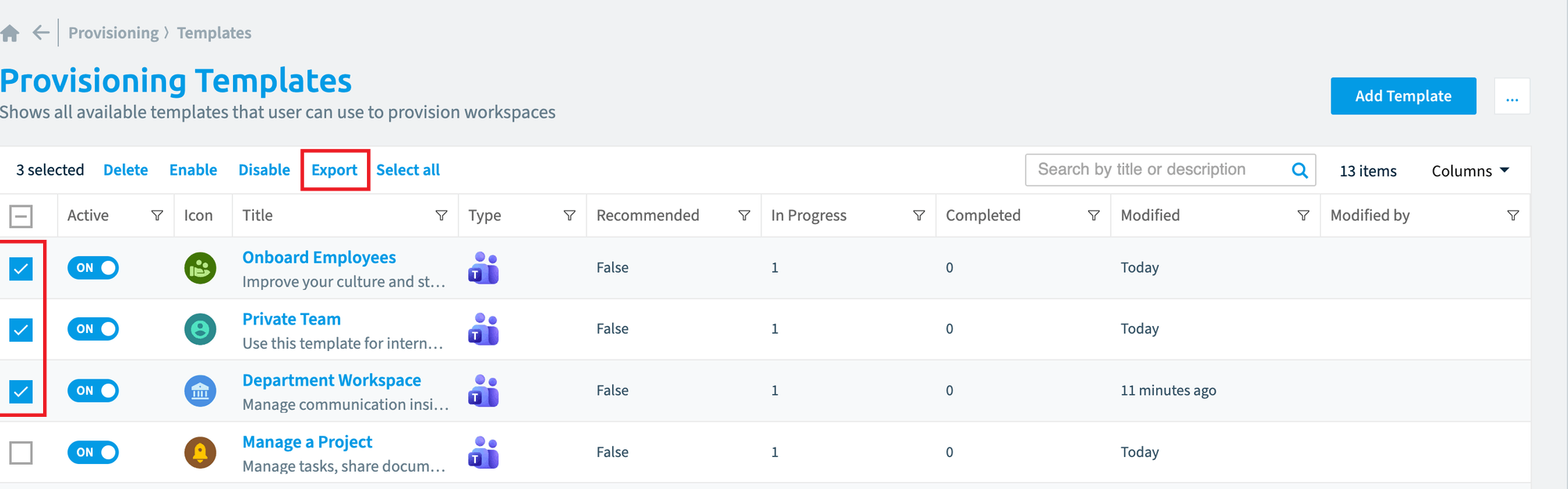
Tick the box on the left of each template.
-
Click Export at the top of the data gridDatagridA datagrid is the table view Rencore Governance uses for lists of items, such as the objects of an inventory or the violations of a policy.Read more.
What you see
Your browser downloads the .provisioning file. You can share it and import it into another Workspace or Environment.
Frequently asked questions
Which role permission do I need to export a provisioning template?
You need a Rencore role that includes the Export Provisioning Schema permission. Owner, Admin and Contributor have it.
How do I export several provisioning templates at once?
Click Provisioning, then Manage Provisioning Templates. Tick the box on the left of each template and click Export at the top of the data grid.
What file do I get when I export a provisioning template, and where can I use it?
Your browser downloads a .provisioning file, which is a .json file. You can share it and import it into another Workspace or Environment.
Was this page helpful?
Thanks for the feedback.
Thanks. What was wrong?