Configure the Rencore Teams App
AI summary
Turn on the Rencore Teams App, which replaces the deprecated Rencore Nova, for all users or selected users, and control which features appear by showing or hiding the Review, Requests, Approvals, and Workspaces tabs. You will need the Manage Teams App settings permission, available to Admins and Owners. The old Rencore Nova experience will shut down on December 31, 2026.
Turn on the Rencore Teams AppRencore Teams AppThe Rencore Teams App (formerly Rencore Nova) brings Rencore Governance into Microsoft Teams for the people who own and use workspaces.Read more, the new experience of the app formerly called Rencore NovaRencore NovaRencore Nova is a deprecated end-user app, replaced by the Rencore Teams App, that shuts down on 31 December 2026.Read more, for all users or for selected users first. You can also choose which features users can access in the app.
Before you begin
- Your Rencore Governance role needs the Manage Teams App settings permission. The Admin and Owner roles have it.
- The old Rencore Nova experience is deprecated and will be shut down on 31 December 2026.
Steps
-
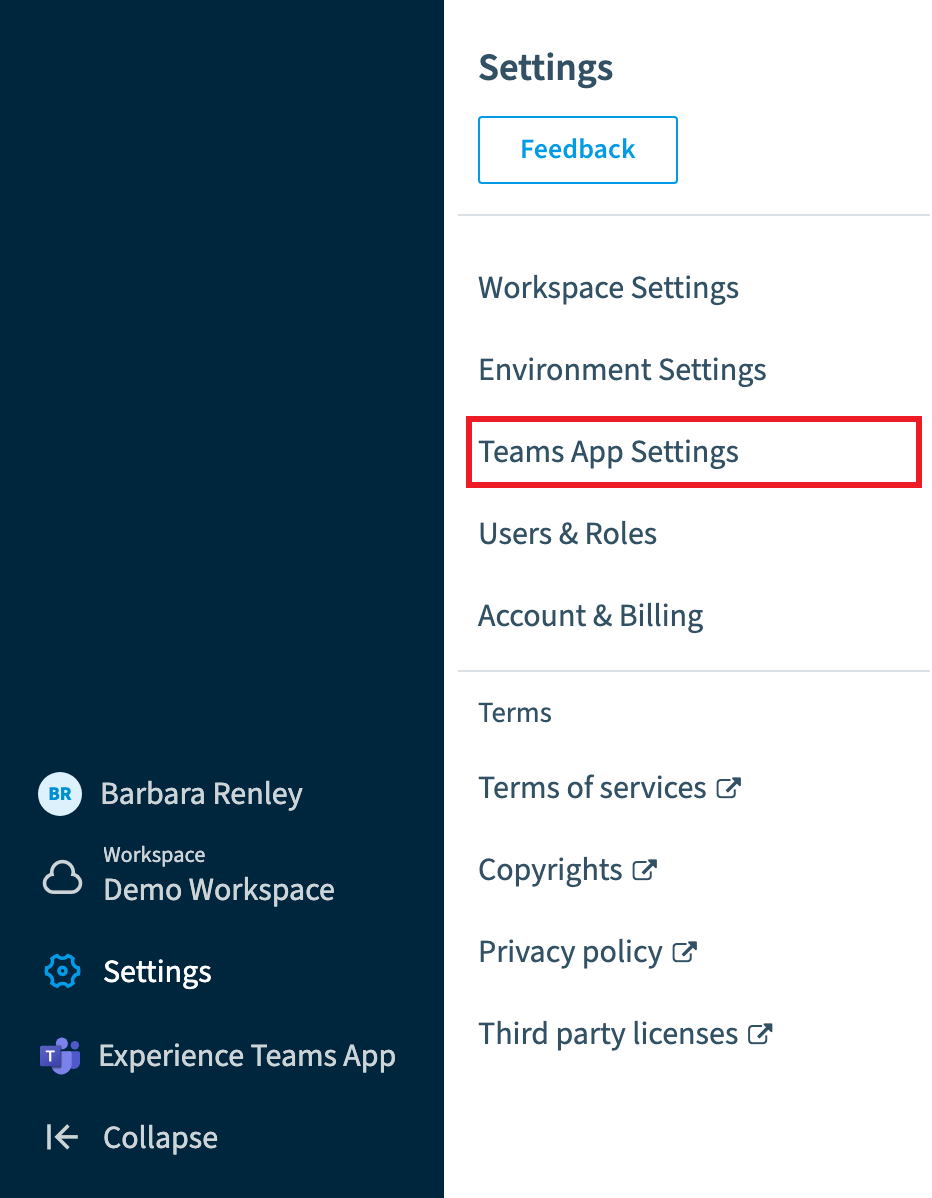
Go to Settings > Teams App Settings.
-
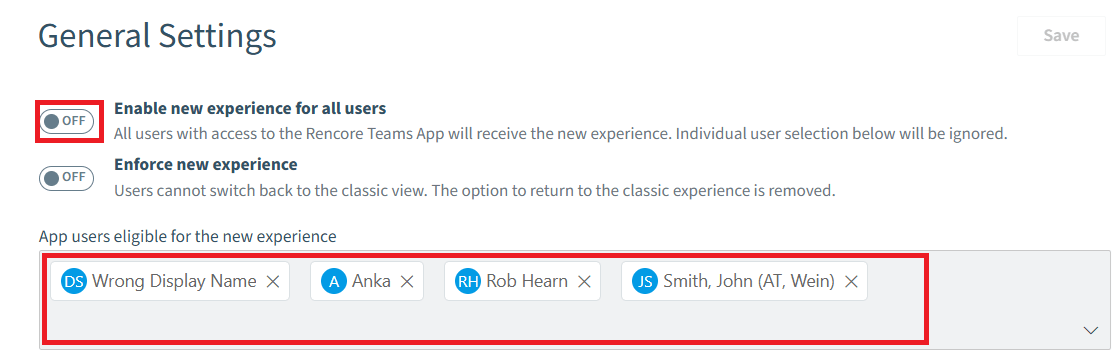
On the General Settings tab, choose how you turn on the experience for users:
- For all users: turn on Enabled new experience for all users.
- For selected users: turn off Enabled new experience for all users, and add the users who can access the Rencore Teams App in App users eligible for the new experience.
-
To keep users on the Rencore Teams App, turn on Enforce new experience. Until you enforce it, users can switch between the Rencore Teams App and the old Rencore Nova experience. Once it is enforced, they can no longer go back.
-
Click Save.
Set up what users can access in the Rencore Teams App
- In Rencore Governance, go to Settings > Teams App Settings > Setup.
- Turn the features below on or off:
- Review: when on, the Review tab is visible in the Rencore Teams App navigation.
- Requests: when on, the Requests tab is visible in the Rencore Teams App navigation.
- Approvals: when on, the Approvals tab is visible in the Rencore Teams App navigation.
- Workspaces: when on, the Workspaces tab is visible in the Rencore Teams App navigation. You can also decide which workspaces (TeamsMicrosoft TeamsMicrosoft Teams is the Microsoft 365 app for chat, meetings and team collaboration.Read more, SharePoint) are shown. See Enable services for Teams App workspaces.
Frequently asked questions
How do I turn on the Rencore Teams App for only some users first?
Go to Settings > Teams App Settings and open the General Settings tab. Turn off Enabled new experience for all users, then add the users who can access the app in App users eligible for the new experience. Click Save.
What does enforce new experience do in the Rencore Teams App settings?
Enforce new experience keeps users on the Rencore Teams App. Until you enforce it, users can switch between the Rencore Teams App and the old Rencore Nova experience. Once it is enforced, they can no longer go back.
How do I choose which tabs users see in the Rencore Teams App?
Go to Settings > Teams App Settings > Setup and turn the features on or off. You can control the Review, Requests, Approvals and Workspaces tabs. When a feature is on, its tab is visible in the Rencore Teams App navigation.
Was this page helpful?
Thanks for the feedback.
Thanks. What was wrong?