Create an automation summarized by policy
AI summary
Run an automation once per related object instead of once per violation when using a summarized policy. For instance, send each Team owner one email listing all their Teams with too few owners, rather than separate emails for each violation. Add placeholders from the policy object to customize the automation action.
Run an automation once per related objectRelationA relation links one inventory object to another, such as a Team to its owners, members and channels.Read more instead of once per violation, for a policy that is summarized by that object. For example, send each Team ownerWorkspace ownerA workspace owner is an owner of a Microsoft 365 workspace, such as a Team, a SharePoint site or a group.Read more one email that lists all their TeamsMicrosoft TeamsMicrosoft Teams is the Microsoft 365 app for chat, meetings and team collaboration.Read more with too few owners.
Before you begin
- Your Rencore role includes the Create AutomationAutomationAn automation is a workflow Rencore Governance runs on inventory objects when a trigger fires.Read more permission. Owner, Admin and Contributor have it. See Rencore roles.
- The policy you use is summarized by a related object. See Summarize policy violations.
Steps
- Create an automation as usual, from a template or from scratch. See Create an automation from a template or Create a custom automation.
- Set the trigger to “On policy violation” or “On schedule” and select the summarized policy. Rencore Governance flags that the policy is summarized.
- Add the actions you want.
- In a field of the action, click +.
- Click the object, scroll to the bottom and select “
<Object>> Policy<Related Object>”.
The summary is built on the policy object, not on the related object you summarize by. Placeholders come from the properties of the policy object: in the example below, from the Team. The list itself is named after the related object: in the example, the owners.
 Example: email team owners about Teams with few owners
This automation sends each Team owner one email that lists all the Teams they own that have 2 owners or fewer.
-
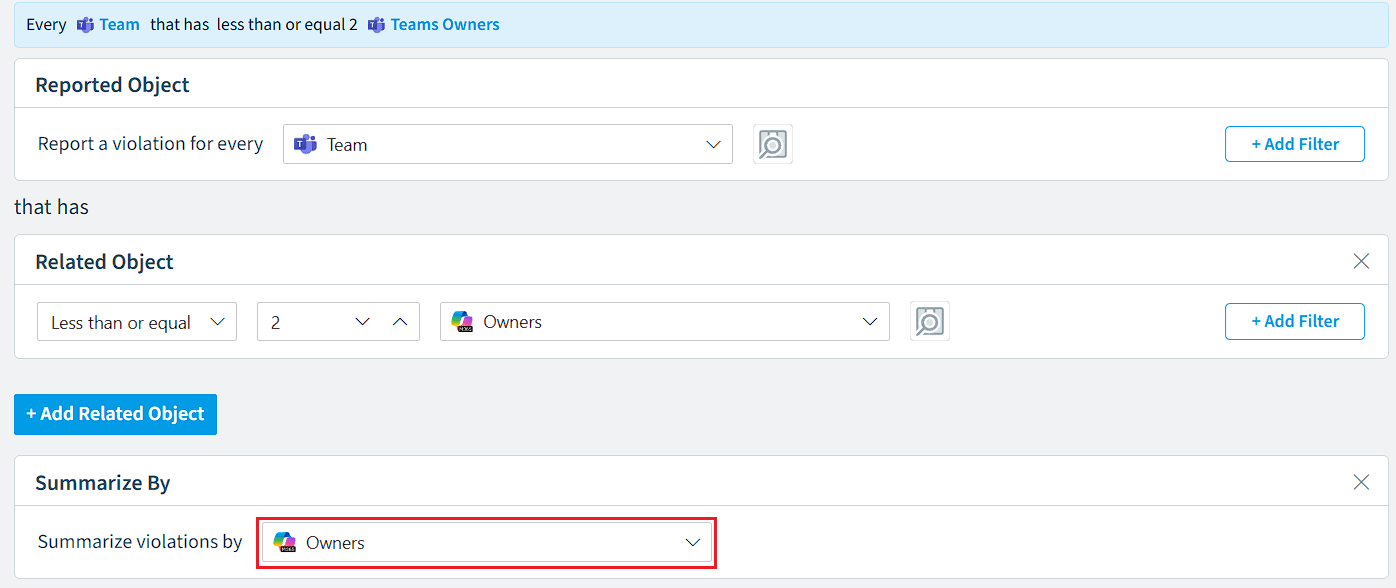
Create a policy “Teams with very few owners”.
-
Summarize the policy by the Owners.
-
Save the policy.
-
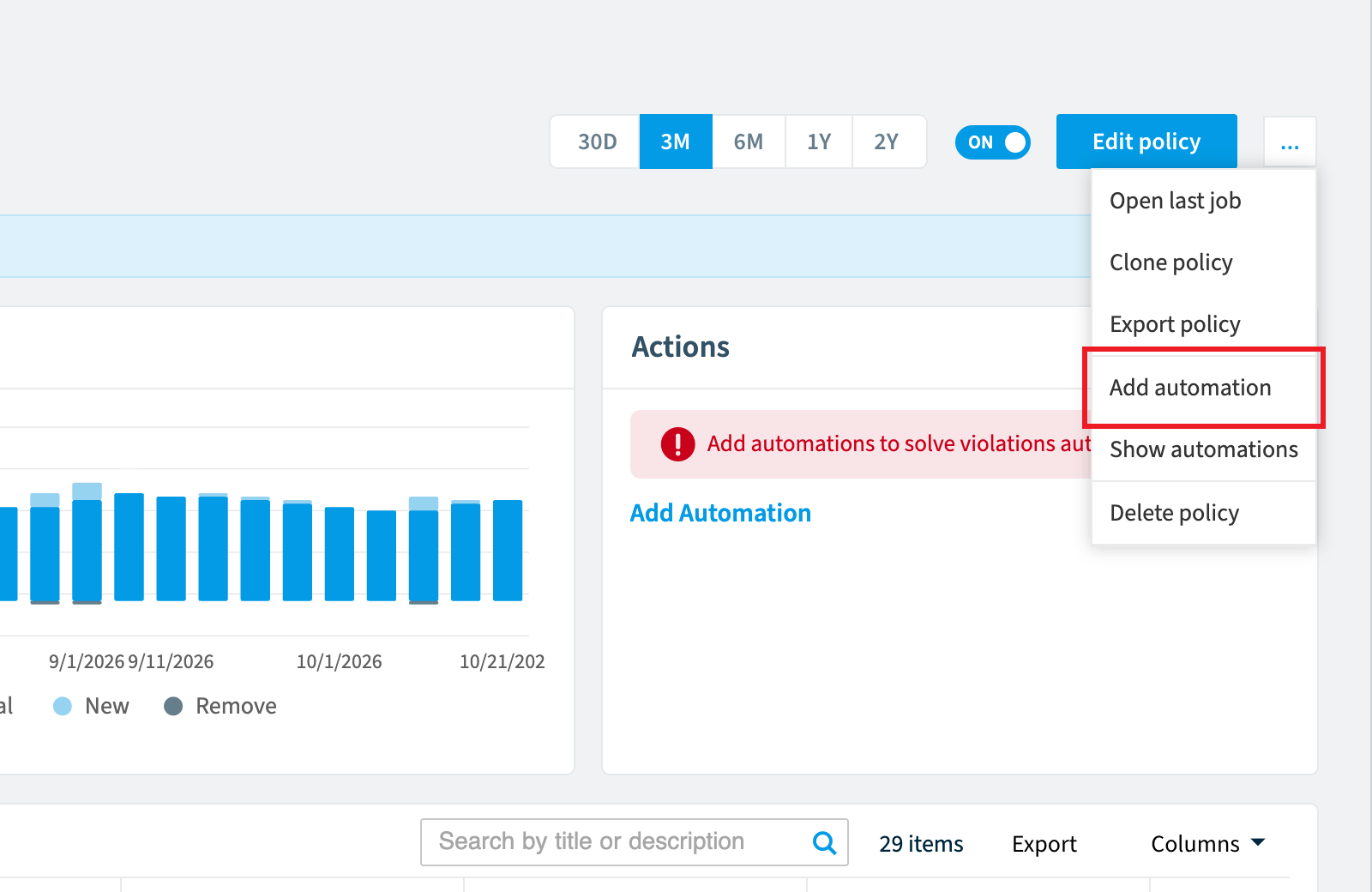
On the policy details page, click the ellipses and click Add automation.
-
Click + to add an action and select Send email.
-
In To *, press + and select User Email under User.
-
Enter a subject in Subject *.
-
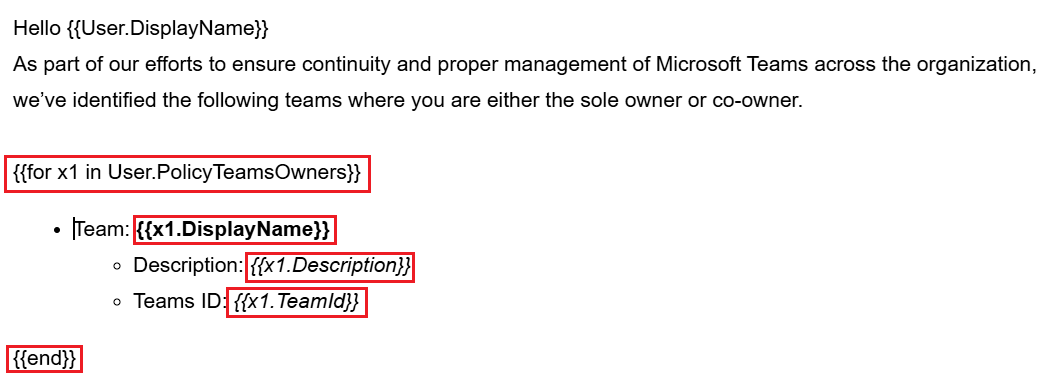
In Body *, enter the message to the Team owner.
-
To add placeholders from the summarized policy, click +, click the object, scroll to the bottom and select “User > Policy Teams Owners”. This adds the tokens {{for x1 in User.PolicyTeamsOwners}} {{x1.
<element>}}{{end}}. -
Repeat for every detail you want to add. Keep the extra properties between the opening and closing tokens.
-
Click Save.
-
Click Next.
-
On the Details page, fill in the fields as usual and click Done.
Frequently asked questions
Which Rencore role permission do I need to create an automation for a summarized policy?
Your Rencore role must include the Create Automation permission. Owner, Admin and Contributor have it. The policy you use must also be summarized by a related object.
How do I set the trigger for an automation that uses a summarized policy?
Set the trigger to "On policy violation" or "On schedule" and select the summarized policy. Rencore Governance then flags that the policy is summarized.
How do I add the summarized list of related objects to an action field?
In a field of the action, click +, click the object and scroll to the bottom. Select the entry named Policy followed by the related object. In the Teams example, select the Policy Teams Owners entry under User. This adds the opening and closing tokens that loop over the list.
Where do placeholders come from in a summarized automation?
Placeholders come from the properties of the policy object, not from the related object you summarize by. In the example, they come from the Team. The list itself is named after the related object, which is the owners.
Where do I put extra properties in the email body of a summarized automation?
Keep the extra properties between the opening token {{for x1 in User.PolicyTeamsOwners}} and the closing token {{end}}. Repeat the steps for every detail you want to add.
Was this page helpful?
Thanks for the feedback.
Thanks. What was wrong?