Monitor reviews
AI summary
Monitor active review schedules through their detail pages, where you can see cycle status, completion metrics, and automations. On each cycle detail page, view all workspaces being reviewed, filter the object review grid by status or decision, and export the data. Use the decision metrics and completion rates to understand how many reviewers participated, what decisions they made, and the governance impact of the reviews.
Once a review scheduleReviewA Review is a recurring or one-off check in which workspace owners confirm who has access to their Microsoft 365 workspaces, directly in the Rencore Teams App.Read more is active and its cycles are running, follow their progress, inspect single object reviews and take admin actions in Rencore Governance.
Before you begin
- Your Rencore role includes the Read Review permission. Owner, Admin, Contributor and Reader have it. Editing, cloning, triggering or deleting a schedule needs the matching Review permission, which Owner, Admin and Contributor have. See Rencore roles.
- Reviews are part of the Premium and Enterprise PlansPlanA Plan is the edition of Rencore Governance in your Subscription: Professional, Premium or Enterprise.Read more.
- You have an active review schedule. See Create a review.
Steps
-
Click Reviews in the navigation.
-
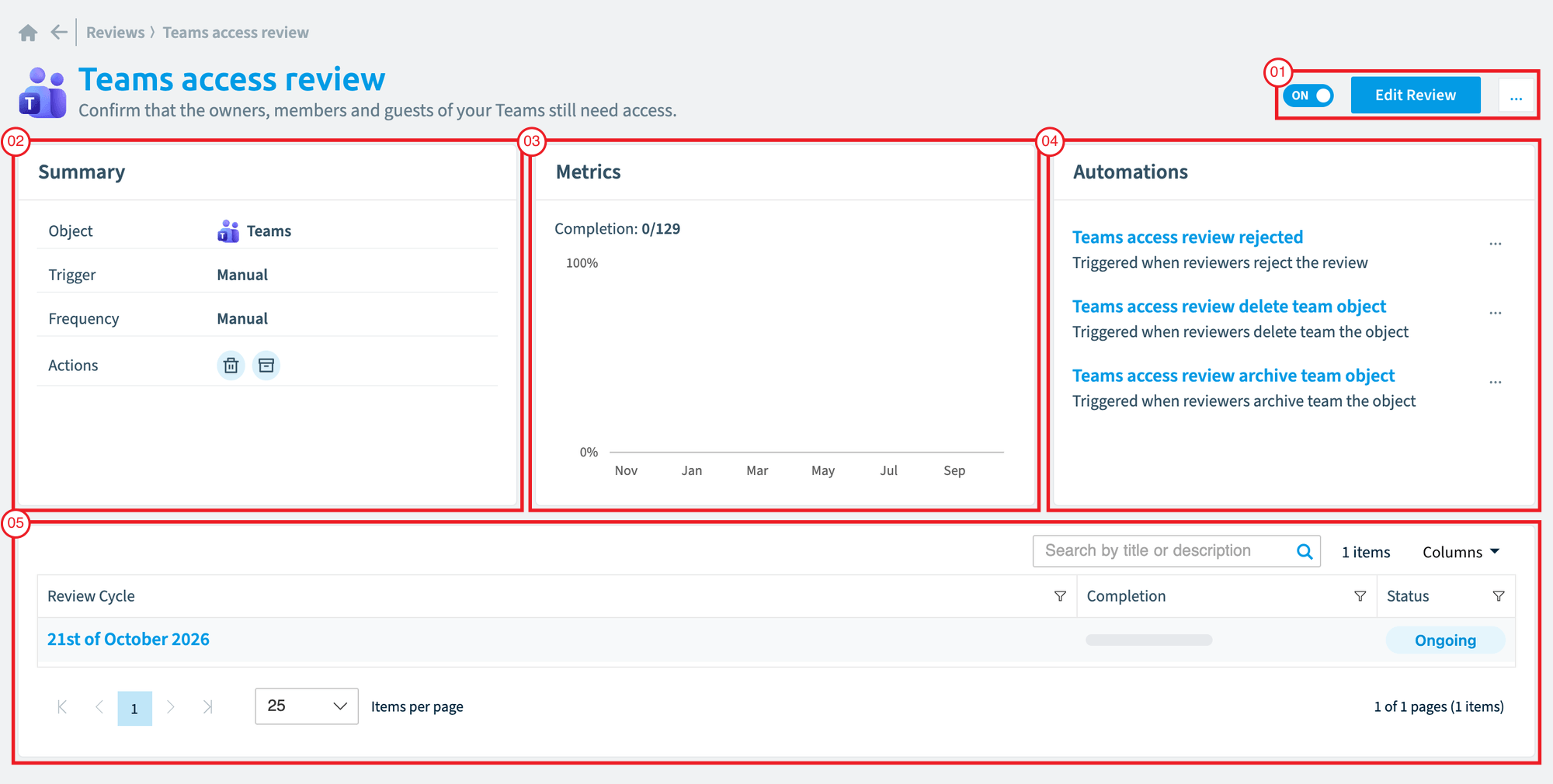
Click the title of a review schedule. Its detail page opens with the header controls (01), the Summary card (02), the Metrics card (03), the AutomationsAutomationAn automation is a workflow Rencore Governance runs on inventory objects when a trigger fires.Read more card (04) and the cycle grid (05).
-
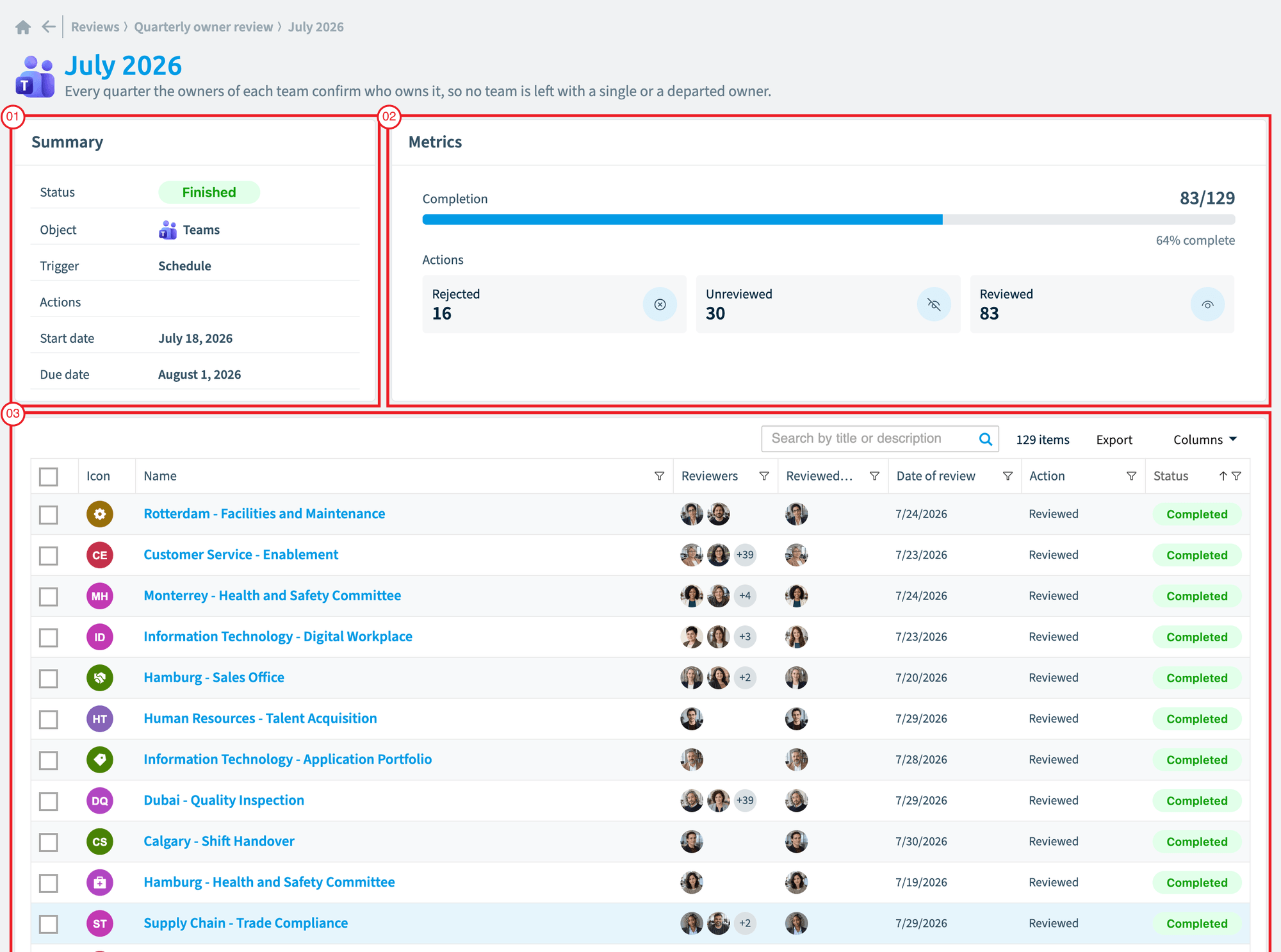
Click a cycle name in the cycle grid. The cycle detail page opens with its Summary card (01), the decision metrics (02) and the object review grid (03).
-
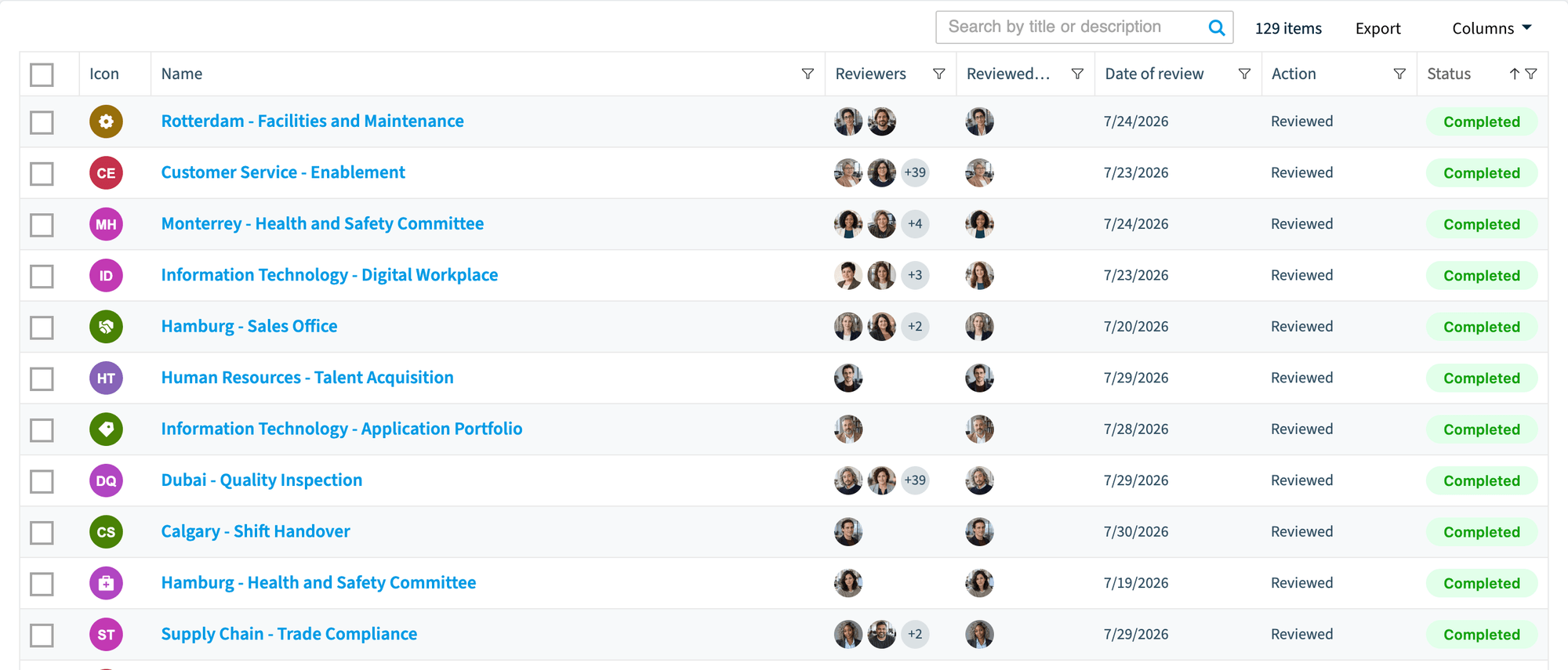
Use the column filters to narrow down the object review grid. For example, filter by Decision to find all workspaces marked for deletion, or by Status to see which reviews are still in progress.
-
To export object review data, select the rows with the checkboxes and export them.
What you see
Schedule summary card
The schedule’s core configuration at a glance:
Field | Description |
|---|---|
Object | Service type being reviewed (e.g., TeamsMicrosoft TeamsMicrosoft Teams is the Microsoft 365 app for chat, meetings and team collaboration.Read more) |
Trigger | Manual or Scheduled |
Frequency | How often (e.g., "Every 3 Month(s)") or "Manual" |
Actions | Icons for all enabled custom automations. Hover for the action name. |
Metrics card
How reviews are completed over time:
- Completion count: how many object reviews are completed out of the total for the current or most recent cycle (e.g. “12/83”).
- Completion chart: a 12-month bar chart of the completion rate for each month. The current month is highlighted.
For a new schedule with no cycles yet, the card shows when the first cycle will be created.
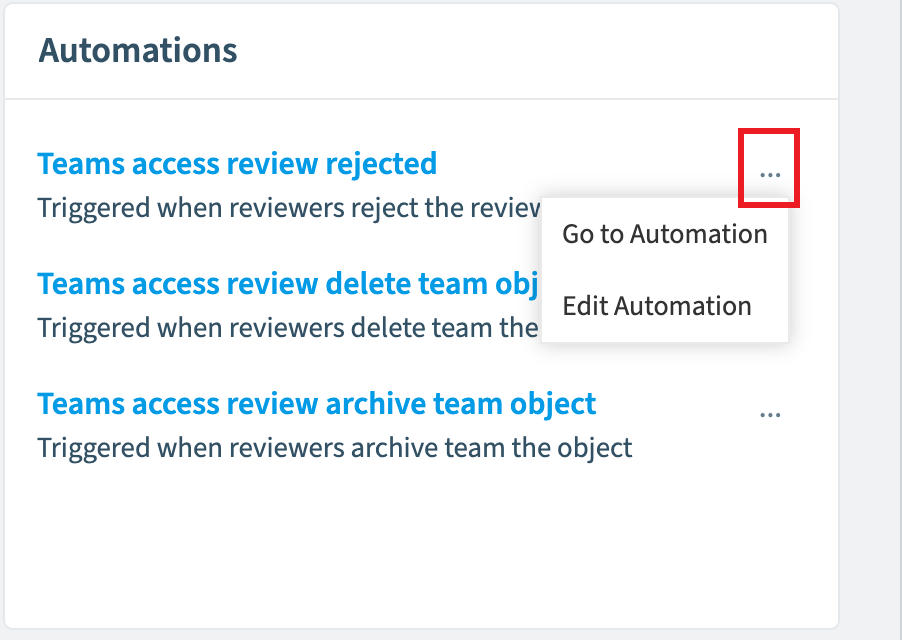
Automations card
All automations attached to the review schedule:
- The rejection automation (if configured)
- The expiry follow-up automation (if configured)
- Custom automations with their action names
Click an automation name to open it, or use the ellipsis menu to go to the automation or edit it.
Cycle grid
Below the cards, a grid lists all cycles of the schedule, most recent first:
Column | Description |
|---|---|
Review Cycle | Cycle name. Click to open the cycle detail page. |
Completion | Progress bar showing completed vs. total object reviews. Hover for exact numbers. |
Status | Current cycle status |
The cycle status is one of these:
Status | Meaning |
|---|---|
Aggregating | The system identifies matching workspaces and creates object reviews. This typically takes a few minutes. |
Ongoing | The cycle is active. Reviewers are working through their assigned reviews. |
Finished | The cycle due date has passed. All object reviews are closed. |
Canceled | An admin stopped the cycle before completion. |
Page actions
The page header has:
- The on/off toggle, which works the same as on the dashboard
- The Edit Review button, which opens the schedule in the builder
- The ellipsis menu: Edit, Clone, Trigger (manual reviews only) and Delete
Cycle summary card
The cycle’s configuration and timeline:
Field | Description |
|---|---|
Status | Current cycle status |
Object | Service type |
Trigger | Manual or Scheduled |
Actions | Enabled custom automation icons |
Start date | When the cycle started |
Due date | When the cycle is due |
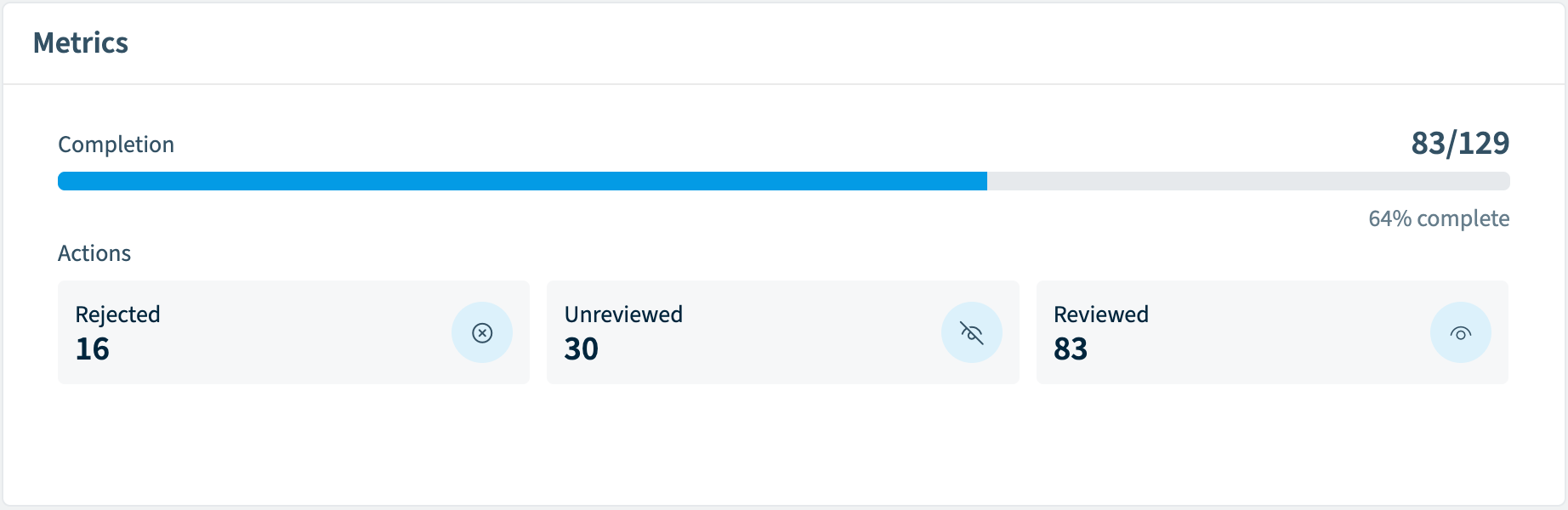
Decision metrics
Tiles that count how the object reviews were resolved:
Tile | Meaning |
|---|---|
Reviewed | The reviewer completed the review without selecting a custom action |
Rejected | All assigned reviewers declined the review |
Unreviewed | No reviewer completed the review (still pending, expired, or in progress) |
Custom action tiles | One tile per enabled custom automation, showing how many reviews used that action (e.g., "Archived: 15", "Deleted: 3") |
Object review grid
Every workspace included in the cycle:
Column | Description |
|---|---|
Name | WorkspaceWorkspaceA Workspace is the top-level container in Rencore Governance. It holds the settings, users, roles and connected apps for exactly one Environment, the connected Microsoft 365 tenant.Read more name with service icon |
Reviewers | All assigned reviewers (avatar stack) |
Reviewer | The reviewer who completed the review (empty if not yet reviewed) |
Date of review | When the review was completed |
Decision | The outcome: Reviewed, Archived, Deleted, Rejected, Unreviewed, or custom action name |
Status | Lifecycle state: Pending, In Progress, Completed, Expired, or Canceled |
Read the results
After a cycle finishes, use the decision metrics and the object review grid to assess the results:
- A high Unreviewed count means many reviewers did not act before the due date. Consider a longer review duration, better notification emails or reminder communications.
- A high Rejected count means reviewers decline because they feel they are not the right person. Check your reviewer assignment or the workspace ownership.
- Custom action usage shows how often reviewers use actions like Archive or Delete, which is the real governance impact of your reviews.
Frequently asked questions
Which permission do I need to monitor reviews in Rencore Governance?
You need the Read Review permission, which Owner, Admin, Contributor and Reader roles have. Editing, cloning, triggering or deleting a schedule needs the matching Review permission, which Owner, Admin and Contributor have.
What do the review cycle statuses aggregating, ongoing, finished and canceled mean?
Aggregating means the system is identifying matching workspaces and creating object reviews, which typically takes a few minutes. Ongoing means reviewers are working on their reviews. Finished means the due date has passed and all object reviews are closed. Canceled means an admin stopped the cycle.
How can I find all workspaces marked for deletion in a review cycle?
Open the cycle detail page and use the column filter on Decision in the object review grid. You can also filter by Status to see which reviews are still in progress.
What does a high unreviewed count in a finished cycle tell me?
A high Unreviewed count means many reviewers did not act before the due date. Consider a longer review duration, better notification emails or reminder communications.
Which actions are available in the ellipsis menu of a review schedule?
The ellipsis menu offers Edit, Clone, Trigger and Delete. Trigger is available for manual reviews only.
Was this page helpful?
Thanks for the feedback.
Thanks. What was wrong?