Create a report from a template
AI summary
You can create a report by selecting a template from the Report Template Library and customizing it through the Report Builder. The process involves three steps: checking the report logic and filters, selecting a visualization style and breakdown options, and providing details such as title and description. You will need the Create Report permission to proceed.
Add a report from the Report Template LibraryTemplate libraryA template library is the catalog of prebuilt items you start from when you add something new in Rencore Governance.Read more and adjust it before you save it. Use a template when one is close to what you need, or create a custom report instead.
Before you begin
- Your Rencore role includes the Create Report permission. Owner, Admin and Contributor have it. See Rencore roles.
Steps
-
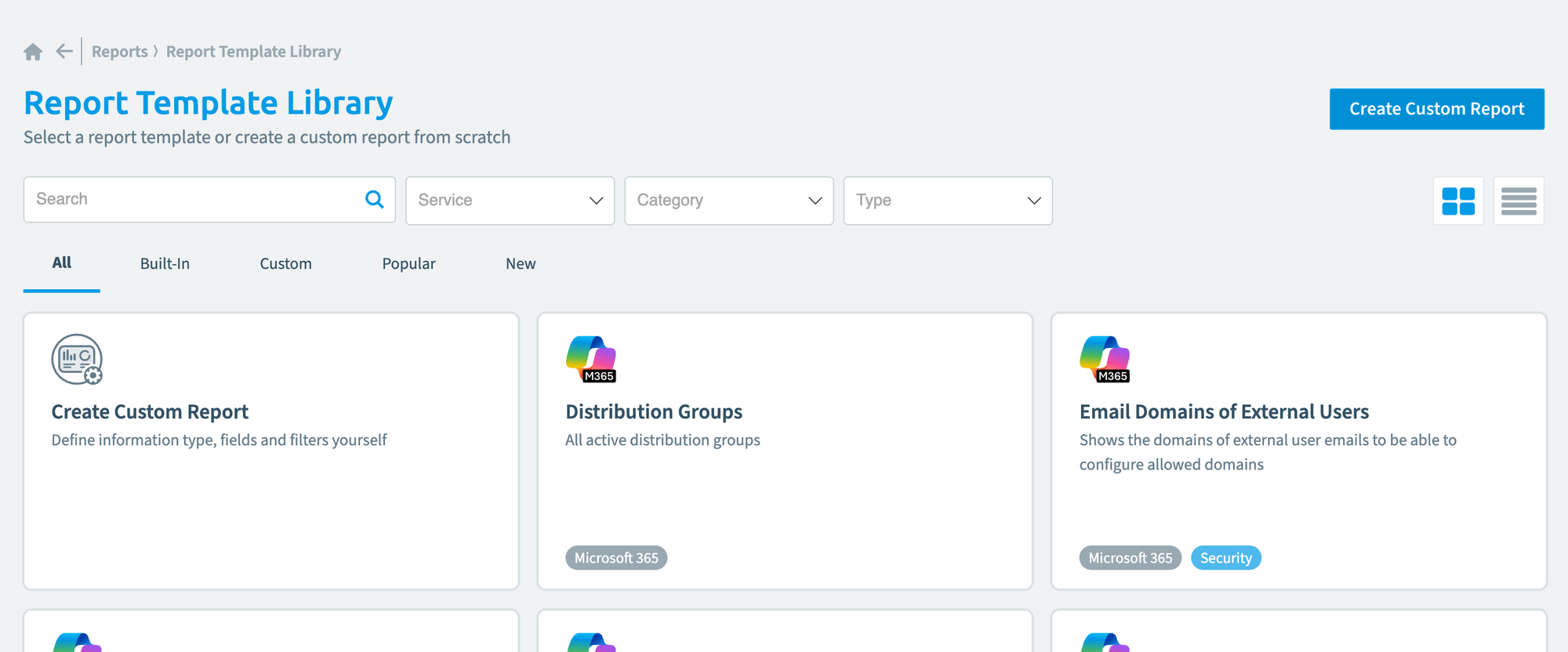
Go to Reports > Add Report. The Report Template Library opens.
-
Narrow down the list of templates by Service, Category and Type, or search for a template.
-
Choose the template you want to use. The Report BuilderReportA report is a saved query over the inventory that Rencore Governance shows as a chart, list, table or KPI, for example unused SharePoint site collections larger than 1 GB.Read more opens.
-
Check the logic, the visualization and the details on the three screens below.
Check the logic
-
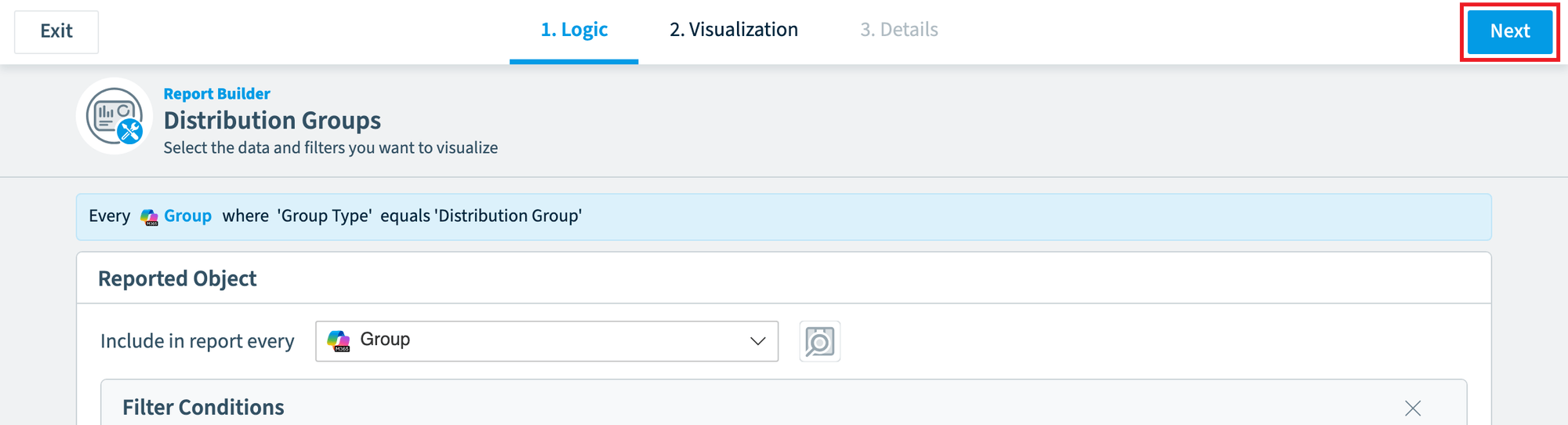
Check the object the report is focused on.
-
Review or edit the filter condition. You can add more parameters with the AND/OR attributes, and add more objects to the logic. The maximum number of group conditions is 10.
-
Click Preview to see a selection of the results.
-
Click Next in the top right corner.
Check the visualization
-
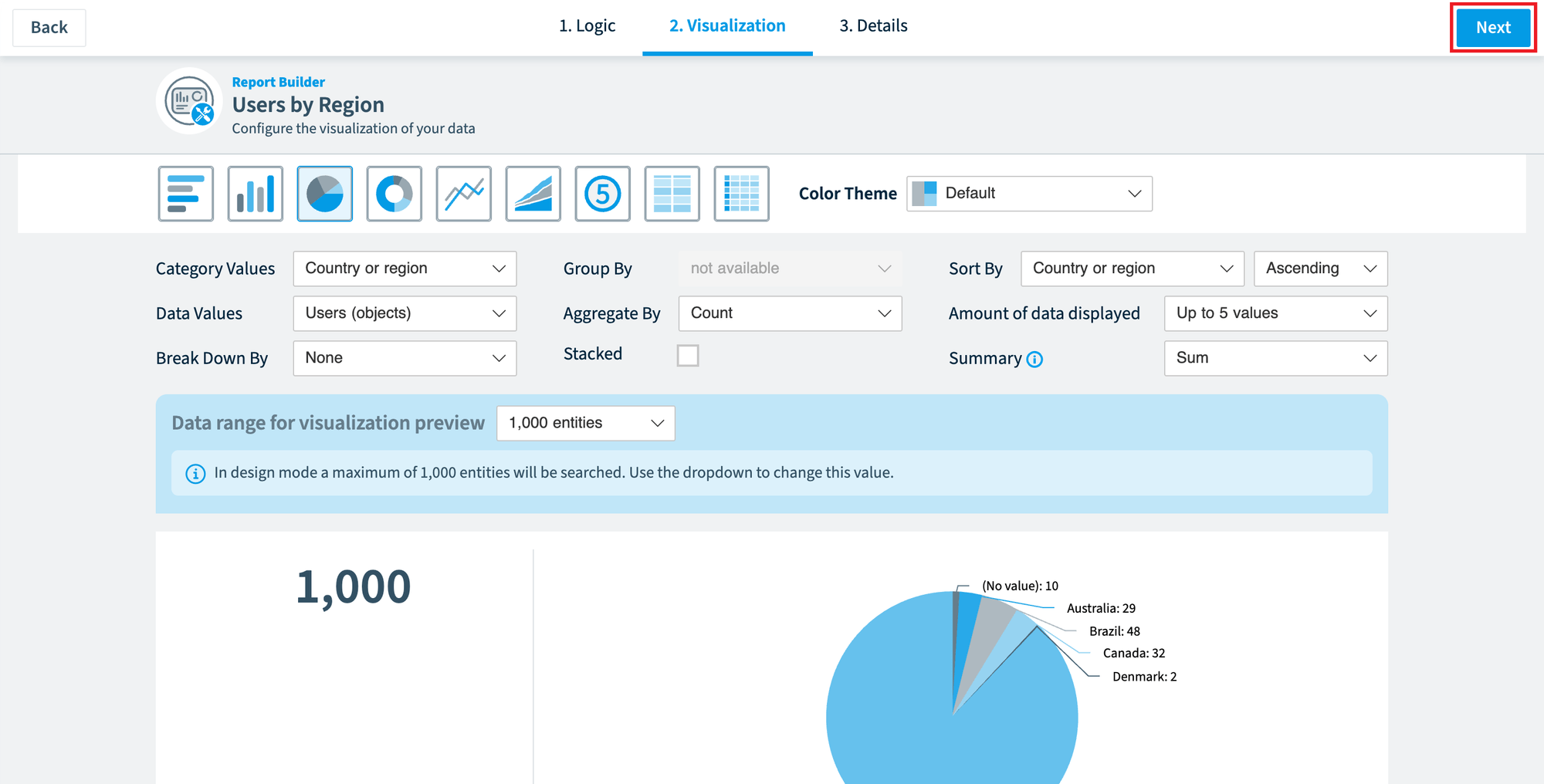
Select the chart style: Bar Chart, Column Chart, Pie Chart, Donut Chart, Line Chart, Area Chart, KPIs, Table or List.
-
Select the Color Theme: Default, SeveritySeveritySeverity is the impact level a policy assigns to its violations. A policy has one of five severities, from highest to lowest: Critical, High, Medium, Low and Information.Read more colors, Blue monotone, Grey monotone, Green monotone, Warm colors or High contrast.
-
Select how the report is broken down and shown. By default, Data Values show the object the report is focused on. You can also set Category Values, Break Down By, Group By and Aggregate By, how the report is sorted and how much data it shows.
-
Click Next in the top right corner.
Check the details
-
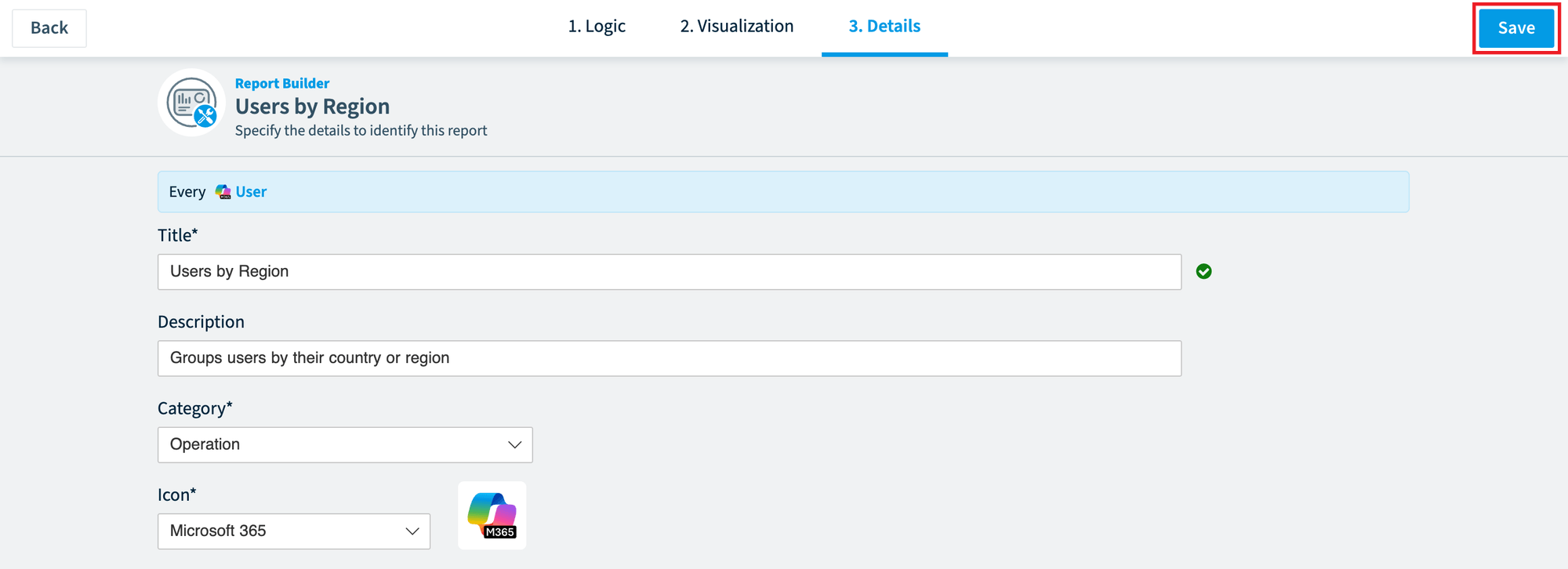
In the Title field, enter a unique name for the report. A green tick appears when the title is unique.
-
In the Description field, enter a description.
-
Review the Category or select a new one from the drop-down.
-
Review the Icon or select a new one from the drop-down. This is usually the connector the object belongs to.
-
Click Save in the top right corner.
What you see
The report starts gathering data and shows the results, based on the data from the last scan.
Frequently asked questions
Which Rencore roles can create a report from a template?
Owner, Admin and Contributor can create a report from a template, because their Rencore role includes the Create Report permission.
How do I find a template in the report template library?
Go to Reports > Add Report. In the Report Template Library, narrow down the list by Service, Category and Type, or search for a template.
How many group conditions can I use in the report filter?
The maximum number of group conditions is 10. You can add more parameters with the AND/OR attributes and add more objects to the logic.
Which chart styles and color themes can I choose for a report?
Chart styles are Bar Chart, Column Chart, Pie Chart, Donut Chart, Line Chart, Area Chart, KPIs, Table and List. Color themes are Default, Severity colors, Blue monotone, Grey monotone, Green monotone, Warm colors and High contrast.
What data does a new report show after I save it?
The report starts gathering data and shows results based on the data from the last scan.
Was this page helpful?
Thanks for the feedback.
Thanks. What was wrong?