Create a policy from a template
AI summary
Select a template from the Policy Template Library and customize it using the Policy Builder. Adjust the policy logic, filters, title, description, category, and severity, then preview the results to verify they are correct before saving. You need the Create Policy permission, which is available to Owners, Admins, and Contributors.
Add a policy from the Policy Template Library and adjust it before you save it. Use a template when one already checks what you need, and create a custom policy when none does.
Before you begin
- Your Rencore role includes the Create Policy permission. Owner, Admin and Contributor have it. See Rencore roles.
Steps
-
Click Policies on the Nav Panel.
-
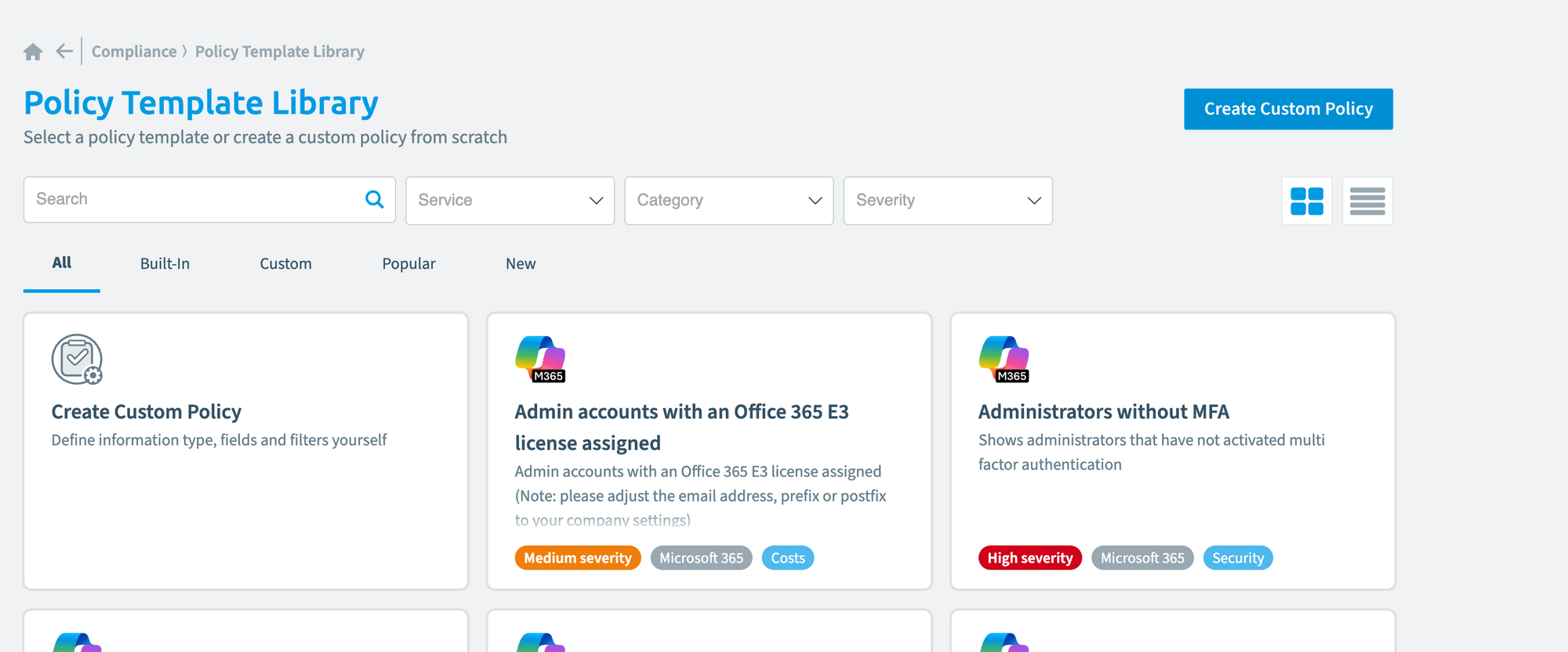
Click Policy Options ([…]) > Create Policy. The Policy Template LibraryTemplate libraryA template library is the catalog of prebuilt items you start from when you add something new in Rencore Governance.Read more opens.
-
Narrow down the list of templates by Service, Category and SeveritySeveritySeverity is the impact level a policy assigns to its violations. A policy has one of five severities, from highest to lowest: Critical, High, Medium, Low and Information.Read more.
-
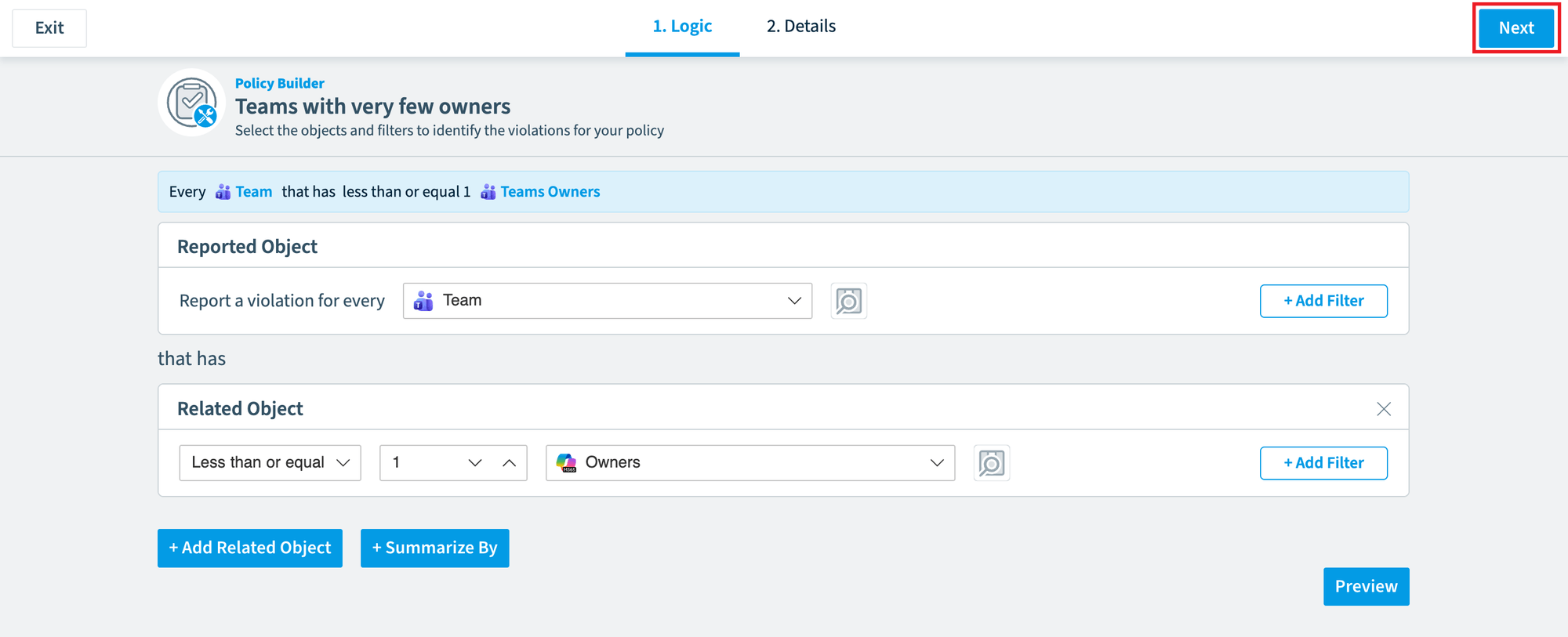
Choose the template you want to use. The Policy BuilderPolicyA policy is a governance rule that Rencore Governance checks against your inventory, for example Teams without owners.Read more opens on the Logic screen.
-
Check the object that the policy reports the violation on.
-
Review or edit the filter condition. You can add more parameters with the AND/OR attributes, and add related objectsRelationA relation links one inventory object to another, such as a Team to its owners, members and channels.Read more to the logic.
-
To group the violations around a related object, click + Summarize By, then select the object in the drop-down.
-
Click Preview to see a selection of the results from the logic.
Use Preview each time you add to the logic, to see how the results change as you build the policy. -
When the logic is right, click Next in the top right corner.
-
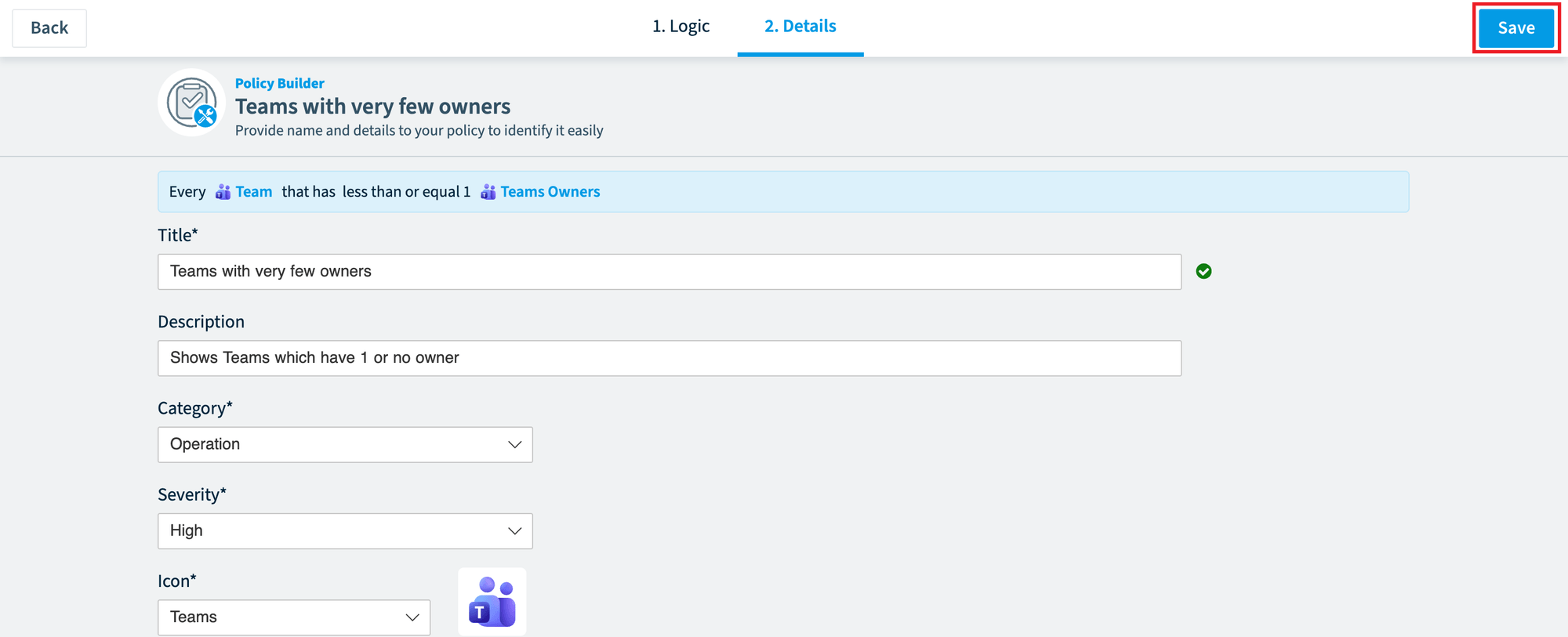
In the Title field, enter a unique name for the policy.
A green tick appears when the title is unique, and you can then save the policy. The title is limited to 50 characters and the description to 250 characters. -
In the Description field, enter a description for the policy.
-
Review the Category, or select another one from the drop-down. You can also type a new custom category in the field.
-
Select the severity of the violations: Information (lowest), Low, Medium, High or Critical (highest).
-
Review the Icon, or select another one from the drop-down. This is usually the connector the object belongs to.
-
Click Save in the top right corner.
-
Choose Save as draft or Save and enable.
What you see
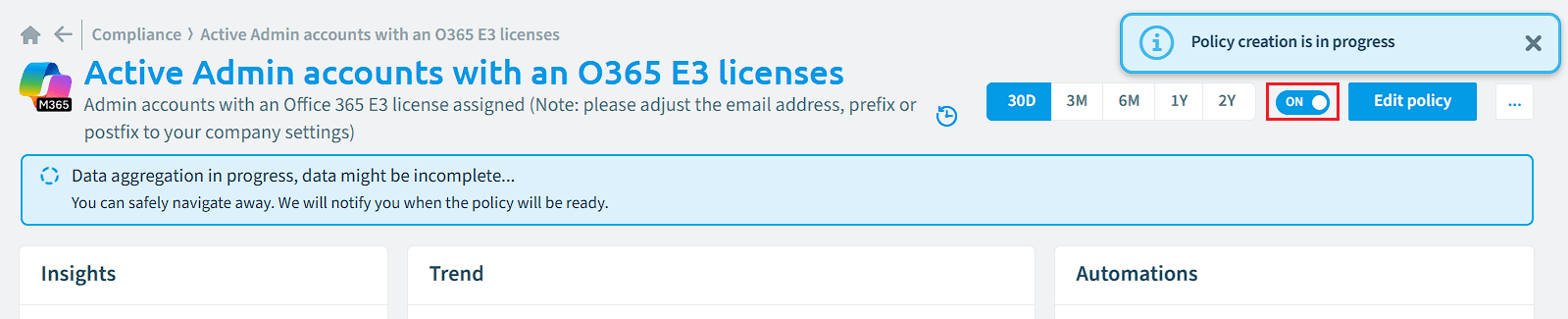
The policy gathers data and shows results based on the data from the last scan. If you do not want the policy to be enabled, toggle it off.
Frequently asked questions
Which Rencore roles can create a policy from a template?
Owner, Admin and Contributor can create a policy from a template. Your Rencore role must include the Create Policy permission, and these three roles have it.
How do I open the policy template library?
Click Policies on the Nav Panel, then click Policy Options ([…]) > Create Policy. The Policy Template Library opens, and you can narrow the list of templates by Service, Category and Severity.
How can I check the results while I edit the policy logic?
Click Preview in the Policy Builder to see a selection of the results from the logic. Use Preview each time you add to the logic, so you can see how the results change as you build the policy.
What are the length limits for a policy title and description?
The title is limited to 50 characters and the description to 250 characters. The title must also be unique; a green tick appears when it is, and you can then save the policy.
Can I save a new policy without turning it on?
Yes. Click Save in the top right corner and choose Save as draft. If you do not want the policy to be active, you can also toggle it off.
Was this page helpful?
Thanks for the feedback.
Thanks. What was wrong?