Configure the home page banner
AI summary
Set up a home page banner in Teams App Settings to share announcements, walkthroughs, or governance updates with your users. Each user sees the banner until they interact with it, then it stays hidden for that user until you show it to everyone again. The banner requires the Manage Teams App Settings permission and contains a headline, message, and optional link button.
The home page banner lets you show an announcement at the top of the Rencore Teams AppRencore Teams AppThe Rencore Teams App (formerly Rencore Nova) brings Rencore Governance into Microsoft Teams for the people who own and use workspaces.Read more home page. Use it to tell new users what the app is for, point them to a walkthrough, or share a governance update.
Each user sees the banner until they interact with it. After that, it stays hidden for them until you choose to show it to everyone again.
Before you begin
- You need the same permission that lets you change other Teams App Settings, Manage Teams App settings, which the Admin and Owner roles have. No extra role is required.
Steps
-
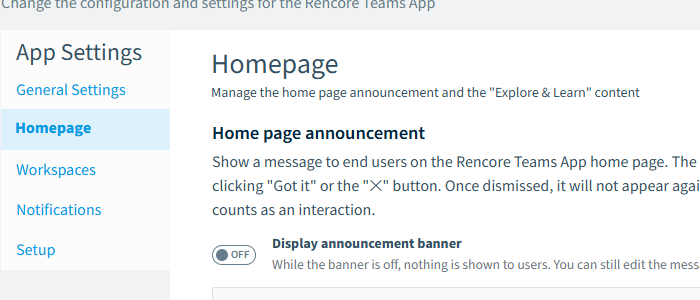
Go to Settings > Teams App Settings > Homepage.
-
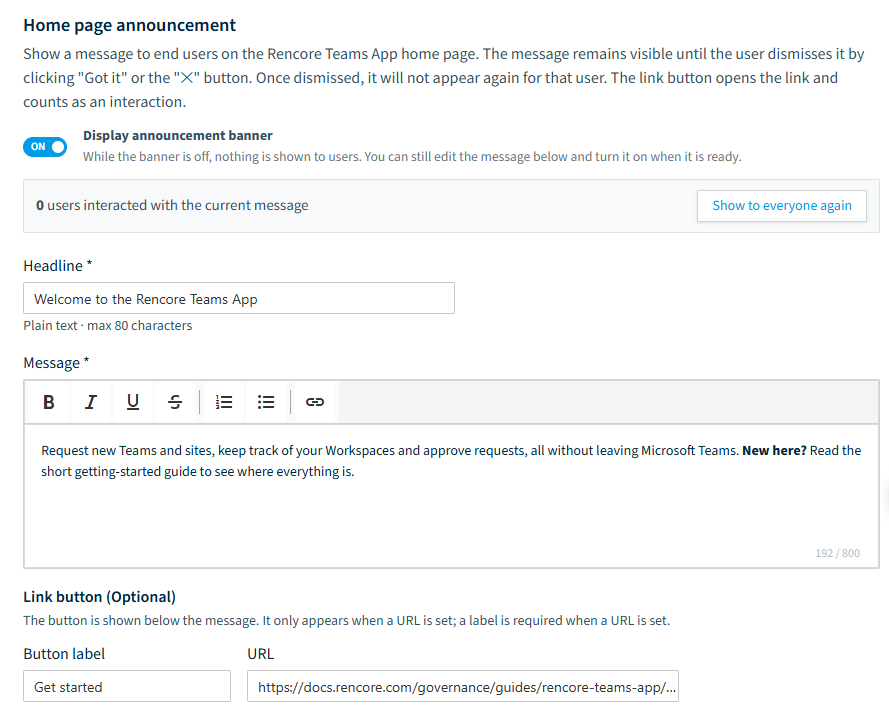
Turn on Display announcement banner.
-
Enter a Headline.
-
Enter a Message.
-
Optionally, enter a Button label and a URL for the link button.
-
Click Save. Saving the banner settings writes an entry to the audit log.
Show the banner to everyone again
Editing the Headline, Message or link button does not show the banner again to users who have already interacted with it. Turning the banner off and on again does not either. After you save a content change, a notice reminds you of this and offers Show to everyone again.
- Go to Settings > Teams App Settings > Homepage.
- Click Show to everyone again.
- Confirm the action.
This takes effect immediately and does not need Save. It resets every user’s interaction, so all users see the banner again on their next visit, and it sets the interaction count back to zero. It also writes an entry to the audit log.
Banner fields
| Field | Rules |
|---|---|
| Headline | Plain text, up to 80 characters. Required while the banner is turned on. |
| Message | Up to 800 characters, with a character count. Supports bold, italic, underline, strikethrough, lists and inline links. Text color, background and border formatting are not available. Required while the banner is turned on. |
| Button label | Up to 30 characters. Optional. |
| URL | Must start with http:// or https://. Optional. |
While the banner is turned off, you can save an incomplete draft. Headline and Message are only required once you turn it on.
The link button follows these rules:
- A URL without a label cannot be saved. Add a label or remove the URL.
- A label without a URL is saved, but no button is shown.
- Any URL that does not start with
http://orhttps://cannot be saved.
What you see
When the banner is turned on, users who have not interacted with it see it on the home page, below the greeting. When it is turned off, nobody sees it.
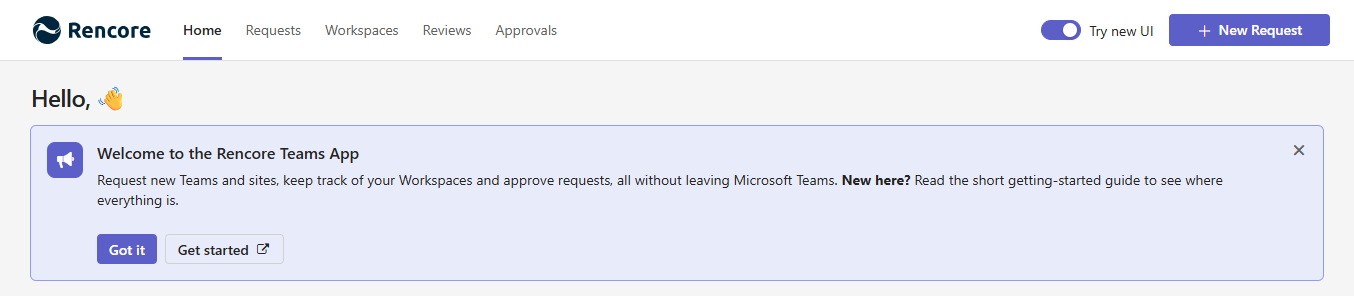
Users can interact with the banner in three ways:
- Got it hides the banner straight away.
- The X hides the banner straight away.
- The link button opens the URL in a new browser tab. The banner stays visible until the user clicks Got it or the X.
Any of the three counts as that user’s single interaction with the current banner. Once a user has clicked Got it or the X, the banner stays hidden for them across visits, sign-ins and app restarts. Other users are not affected.
The banner works in the light, dark and high-contrast TeamsMicrosoft TeamsMicrosoft Teams is the Microsoft 365 app for chat, meetings and team collaboration.Read more themes, on Teams mobile, and in a narrow window.
Interaction count
The interaction count is shown next to Show to everyone again, as “N users interacted with the current message”. It is the number of users who have clicked Got it, the X or the link button since the banner was last reset. The count may be approximate.
Frequently asked questions
Which permission do I need to configure the home page banner?
You need the Manage Teams App settings permission, the same one that lets you change other Teams App Settings. The Admin and Owner roles have it, and no extra role is required.
How do I show the home page banner again to users who already dismissed it?
Go to Settings > Teams App Settings > Homepage, click Show to everyone again, and confirm. This takes effect immediately without Save, resets every user's interaction, and sets the interaction count back to zero. The action is written to the audit log.
Does editing the banner message show it again to users who already clicked got it?
No. Editing the Headline, Message or link button does not show the banner again to users who have interacted with it. Turning the banner off and on again does not either. Use Show to everyone again instead.
What are the length limits for the banner headline, message and button label?
The Headline allows up to 80 characters of plain text. The Message allows up to 800 characters, and the Button label allows up to 30 characters. Headline and Message are required while the banner is turned on.
Why can I not save the banner with a link URL?
A URL cannot be saved without a button label, so add a label or remove the URL. The URL must also start with http:// or https://. A label without a URL does save, but no button is shown.
Was this page helpful?
Thanks for the feedback.
Thanks. What was wrong?