Review
AI summary
A review asks workspace owners to verify who has access to their Microsoft 365 workspace, remove people who no longer need it, and confirm sharing permissions are appropriate. When you are assigned a review, you can view it in the Active tab of the Rencore Teams App, which shows workspace details, due date, and any other reviewers.
Reviews help keep your Microsoft 365 workspaces secure and well-managed. When your organization schedules a review, workspace ownersWorkspace ownerA workspace owner is an owner of a Microsoft 365 workspace, such as a Team, a SharePoint site or a group.Read more are asked to verify who has access, remove people who no longer need it, and confirm that sharing permissions are appropriate.
If you own a workspace that is included in a review, you will receive a review assignment in the Rencore Teams AppRencore Teams AppThe Rencore Teams App (formerly Rencore Nova) brings Rencore Governance into Microsoft Teams for the people who own and use workspaces.Read more.
Your active reviews
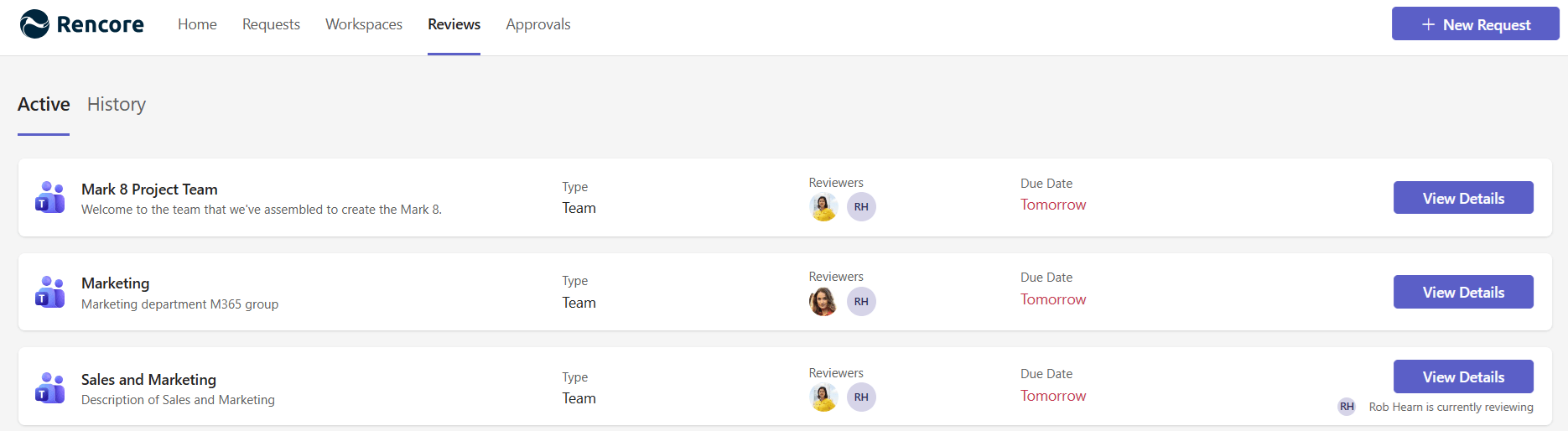
The Active tab shows all reviews currently assigned to you. Each card displays:
- Service type icon (TeamsMicrosoft TeamsMicrosoft Teams is the Microsoft 365 app for chat, meetings and team collaboration.Read more, SharePoint, or other)
- Workspace name and description
- Workspace type (Team, Site, or Community)
- Other reviewers (if multiple people are assigned)
- Due date - shown as relative time (e.g., “Today”, “In 3 days”)
- A Review button to start
Reviews are sorted by urgency - those due soonest appear first.
When you have no pending reviews, the page shows a message confirming you are all caught up.
When multiple reviewers are assigned
If a workspace has more than one reviewer, you will see the other reviewers’ profile pictures on the card. When another reviewer is currently working on the same review, an indicator shows that someone has started. The first reviewer to complete the review submits the final result.
Start with
All guides in review
-
Open a review assigned to you and work through its steps.
Before you begin: No Rencore Governance role is needed: you can start reviews that are assigned to you as a reviewer. (+1 more)
-
The History tab shows all your past reviews.
Before you begin: No Rencore Governance role is needed: you see the reviews that were assigned to you as a reviewer.
-
Reject a review you cannot complete.
Before you begin: No Rencore Governance role is needed: you can decline reviews that are assigned to you as a reviewer. (+1 more)
-
Continue a review once started
Pick up a review you stopped halfway, while it is still open.
Before you begin: No Rencore Governance role is needed: you can continue reviews that are assigned to you as a reviewer. (+1 more)
Frequently asked questions
Where do I find the reviews assigned to me as a workspace owner?
Open the Rencore Teams App and go to the Active tab. It shows all reviews currently assigned to you, sorted so the ones due soonest appear first.
What happens to a review that is overdue?
Overdue reviews are automatically moved from the Active tab to your History. Complete your reviews before their due date so your changes take effect.
Do I need a Rencore Governance role to start a review?
No. You can start reviews that are assigned to you as a reviewer without any Rencore Governance role.
What happens when several reviewers are assigned to the same workspace review?
The card shows the other reviewers' profile pictures, and an indicator appears when someone has started the review. The first reviewer to complete the review submits the final result.
Can I continue a review that I stopped halfway?
Yes. You can pick up a review you stopped halfway, as long as it is still open.