Approve access reviews
AI summary
Approve access reviews in Rencore Governance by reviewing the objects listed, changing actions as needed (individually or in batches), and clicking Approve Review. The system shows all changes for your confirmation before you finalize them; the review status changes from Pending to Complete. Access is deprecated and will be replaced by Reviews by December 31, 2026.
Open an Access ReviewAccess reviewAn access review is a report in the deprecated Access feature that shows who has access to content, for owners to approve.Read more in Rencore Governance, check the objects it lists and approve or change the action for each one. Do this when you are a reviewer of an Access Review that is still pending.
Before you begin
- Your Rencore role needs the Approve Access Review permission. The Admin, Contributor and Owner roles have it. See Rencore roles.
Steps
-
Click on Access on the Nav Panel.
-
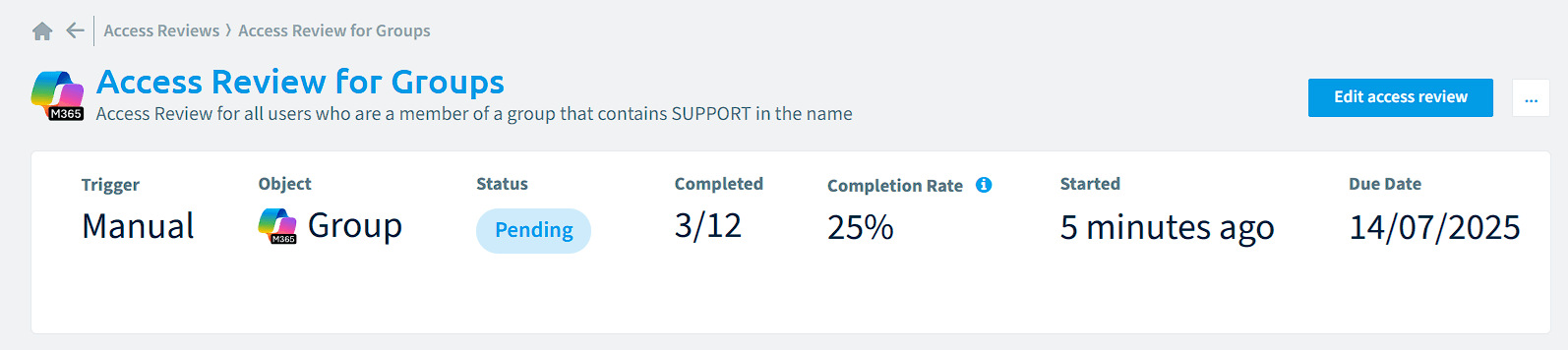
Click on the title of a Review. This shows the objects that need to be reviewed. At the top, you see the statistics of the review: the Trigger (Manual/Scheduled), Object (Users, Groups, FlowsFlowA flow is a Power Automate workflow, made of a trigger and actions, that runs a task automatically across apps and services.Read more…), Status (Pending, Completed), Completed, Completion Rate (number of reviews triggered and completed in the time frame), Started (when the Access Review was created) and Due Date (when the Access Review should be completed).
-
Click on the Display Name of the object. This lists the objects that need to be reviewed.
-
Click on an object to show the details of the review.
-
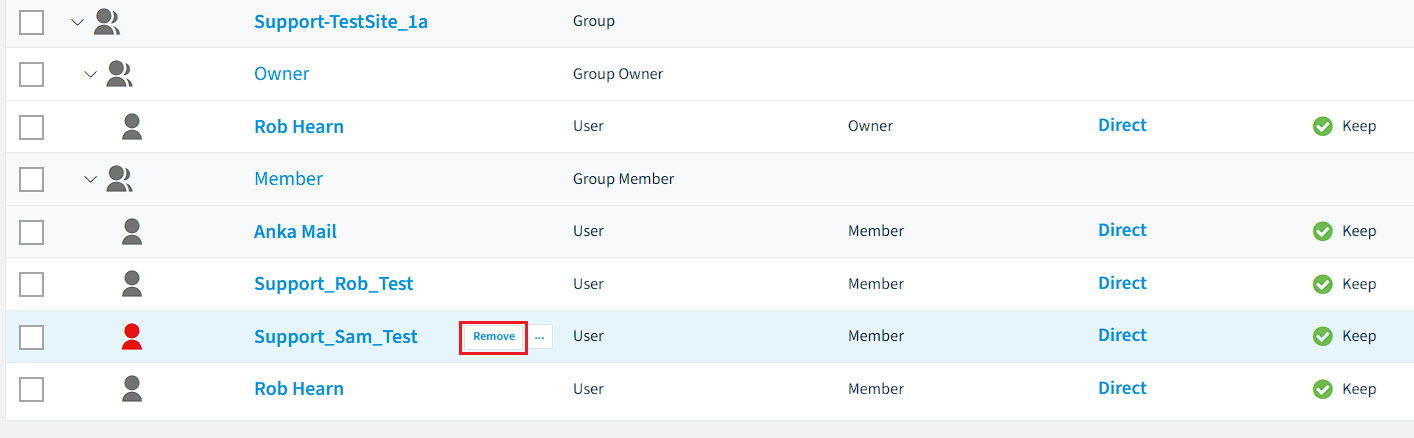
To change the action of the Review, click the action to the right of the Name (i.e. Remove).
-
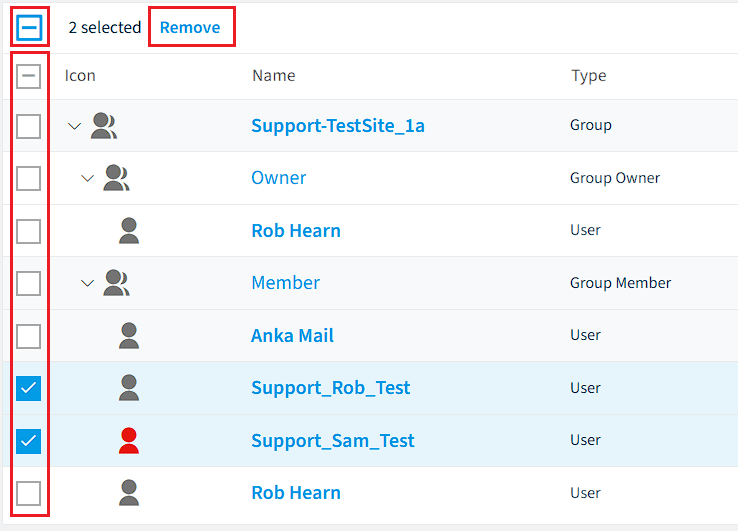
To change the action of several objects at once instead, tick the objects on the left, click the action at the top, then click the desired action.
-
After reviewing some or all objects, click Approve Review at the top right corner of the screen.

-
A list of all the changes that will be made is shown. Click Approve Changes. The status is updated to “Approved”.
-
Repeat this for all the remaining objects in the Access Review.
What you see
When all objects are reviewed, the status of the Access Review changes from Pending to Complete.
Frequently asked questions
Which Rencore role permission do I need to approve an access review?
You need the Approve Access Review permission. The Admin, Contributor and Owner roles have it.
How do I change the action for several objects in an access review at once?
Tick the objects on the left, click the action at the top, then click the action you want. To change a single object, click the action to the right of its Name instead.
How do I approve the changes after reviewing objects in an access review?
Click Approve Review at the top right corner of the screen. A list of all the changes that will be made is shown; click Approve Changes. The status is then updated to Approved.
When does the status of an access review change from pending to complete?
The status changes to Complete when all objects in the Access Review have been reviewed. Repeat the approval steps for each remaining object until none are left.
Is access still available for access reviews?
Access is deprecated and will be shut down on 31 December 2026. It has been replaced by Reviews, so migrate your access review processes to Reviews before then.
Was this page helpful?
Thanks for the feedback.
Thanks. What was wrong?