Environment settings
AI summary
Configure a single tenant connection through environment settings to manage consent, toggle connectors, monitor scans, and set up notifications and virtual environments. If scans stop, check consent and scan history.
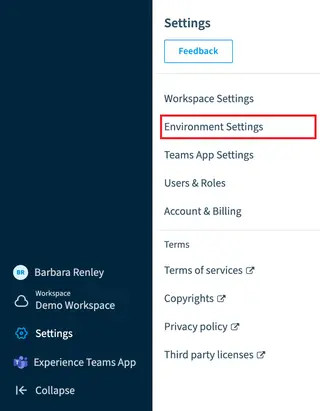
EnvironmentEnvironmentAn Environment is the connected Microsoft 365 tenant inside a Workspace.Read more settings apply to one Environment, which is the connection to one tenant. Here you give or renew consent, turn connectors on or off, follow scan jobsScanA scan is how Rencore Governance reads metadata from a connected tenant into the inventory.Read more, set up email and notifications, change the currency and split the tenant into virtual environmentsVirtual EnvironmentA Virtual Environment is a logical segment of the data in one Microsoft 365 tenant, for example a department, region or subsidiary.Read more. If scans stop or a connector shows no data, check consent and the scan job history first.
Start with
- Re-consent permissions Give consent again after it was lost or after new permissions were added.
- View scan job history See every scan job of an Environment, including failed ones.
- Set up Environment notifications Set up the alerts an Environment sends for lost consent, automation errors and thresholds.
- Add a Virtual Environment Add a virtual environment that shows one part of your tenant, such as one country.
All guides in Environment settings
Consent, connectors and scans 4 guides
Give or renew consent, stop a connector, and check past scans.
-
Give consent again after it was lost or after new permissions were added.
Before you begin: Your role needs the Manage consent permission. (+1 more)
-
Give Power Platform consent with the admin consent workflow
Give Power Platform consent when your tenant uses the admin consent workflow.
Before you begin: Your Rencore Governance role needs the Manage consent permission. (+2 more)
9 steps
 Power Apps
 Power AutomateConsent
 -
Stop scanning a connector, and what happens to the dashboards and policies that use it.
Before you begin: Your role needs the Manage services permission. (+1 more)
-
See every scan job of an Environment, including failed ones.
Before you begin: Your role needs the View job history permission.
Notifications and email 3 guides
Who gets alerts, what they are about, and which account sends them.
-
Configure system notifications
Choose who gets an email when consent is lost or an automation or provisioning fails.
Before you begin: Your role needs the Notifications permission.
-
Set up Environment notifications
Set up the alerts an Environment sends for lost consent, automation errors and thresholds.
Before you begin: Your role needs the Notifications permission.
-
Send Rencore Governance emails from your own mail account instead of rencore.com.
Before you begin: Your role needs the Manage mail settings permission. (+1 more)
Environment details 3 guides
Currency, the IDs Support asks for, and where demo EnvironmentsDemo environment and Demo ModeA demo environment is an Environment filled with demo data instead of tenant data.Read more come from.
-
Change an Environment currency
Change the currency an Environment uses for license costs and other amounts.
Before you begin: Your role needs the Edit Environment permission.
-
Copy the IDs of your workspace and Environment to send them to Support.
Before you begin: Any role can copy this information.
-
Get a demo Environment with demo data from try.rencore.com.
Before you begin: You do not need a Rencore role or a Microsoft 365 tenant.
Tenant segmentation 1 guide
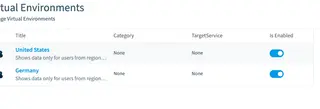
Split one Microsoft 365 tenantMicrosoft 365 tenantA Microsoft 365 tenant is the dedicated instance of Microsoft 365 that holds an organization's users, groups, data and settings.Read more into virtual environments, for example one per country, region or subsidiary.
-
Add a virtual environment that shows one part of your tenant, such as one country.
Before you begin: Your role needs the Create Virtual Environment permission. (+2 more)
Frequently asked questions
What should I check first when scans stop or a connector shows no data?
Check consent and the scan job history first. Lost or missing consent is the first thing to rule out, and the scan job history shows every scan job of an Environment, including failed ones.
Which permission do I need to give consent again after it was lost?
Your role needs the Manage consent permission. With it you can re-consent permissions after consent was lost or after new permissions were added.
Can I stop scanning a connector I do not use?
Yes. You can disable a service to stop scanning a connector, and your role needs the Manage services permission. The guide also explains what happens to the dashboards and policies that use that connector.
 How can I split one Microsoft 365 tenant into parts, such as one per country?
How can I split one Microsoft 365 tenant into parts, such as one per country?Add a Virtual Environment. A virtual environment shows one part of your tenant, for example one country, region or subsidiary. Your role needs the Create Virtual Environment permission.
Can I send Rencore Governance emails from my own mail account?
Yes. You can set up custom mail settings to send emails from your own mail account instead of rencore.com. Your role needs the Manage mail settings permission.