Inventory
AI summary
The inventory lists all scanned objects, grouped by connector like Teams and SharePoint. Use it to filter objects, save views as segments, run actions, and add custom metadata.
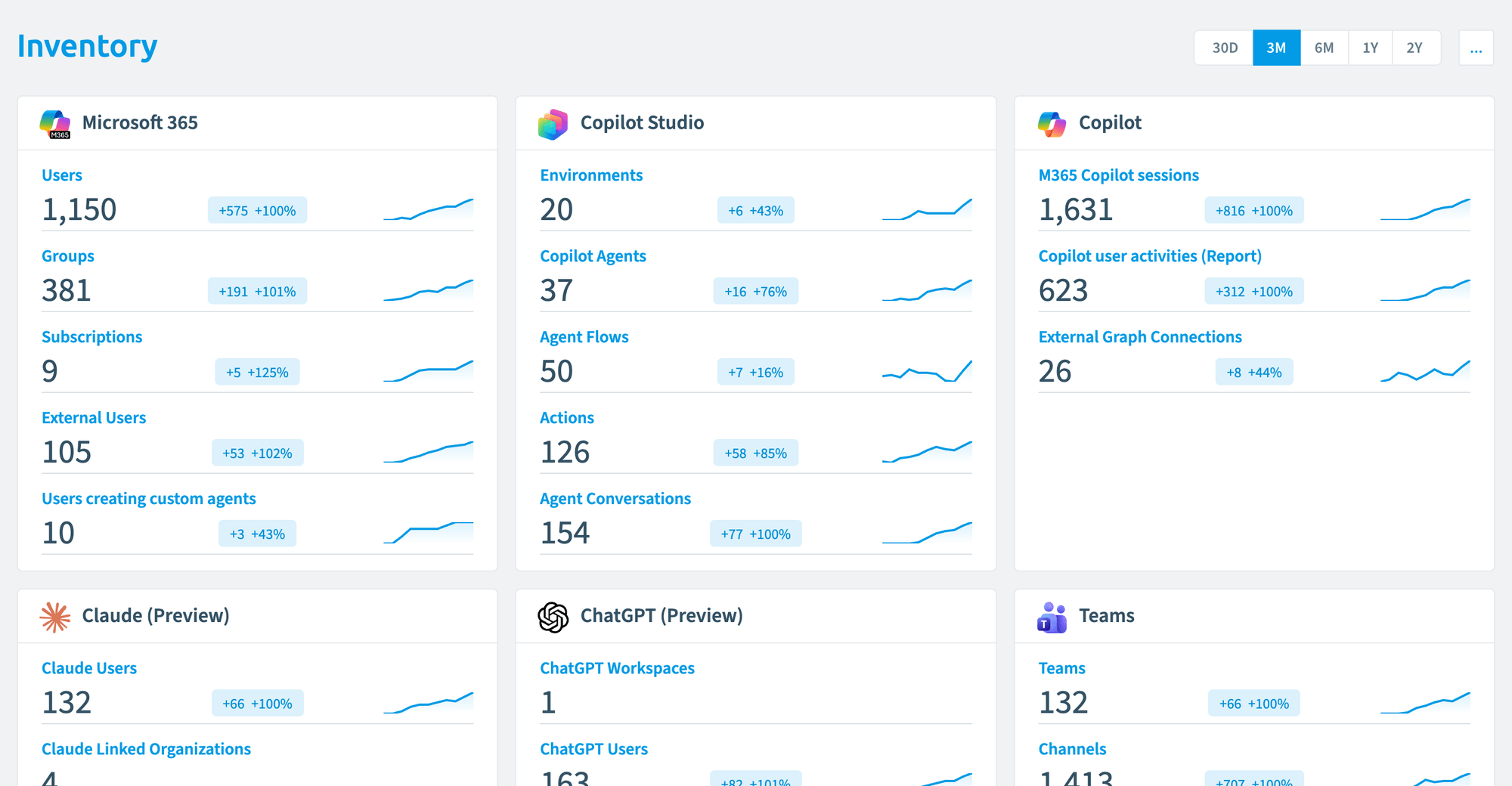
The inventory lists everything Rencore Governance has scanned, grouped by connector: one group for TeamsMicrosoft TeamsMicrosoft Teams is the Microsoft 365 app for chat, meetings and team collaboration.Read more, one for SharePoint, and so on. Use it to find objects, save filtered views as segments, run built-in actionsBuilt-in actionA built-in action is a ready-made operation you run directly on inventory objects without building an automation, for example adding a user to a Team.Read more on the objects you select, and add your own business data with custom metadataCustom MetadataCustom Metadata is a Rencore Governance add-on that adds your own business fields to the inventory, such as cost centers or project codes.Read more. For the object typesInventory objectAn inventory object is one item Rencore Governance has scanned from a connector, such as a single Team, SharePoint site collection, user or Power App.Read more each connector brings and the properties you can filter on, see the inventory reference.
Start with
- Create a segment Save a filtered view of an inventory, such as all teams with guests, to reuse in reports and policies.
- Run a built-in action Run a built-in action, such as archiving a team, on one object or many from the inventory.
- Custom metadata Custom Metadata lets you add your own business fields, cost centers, project codes, classifications, to the inventory, then use them in Policies, Reports, Provisioning, Reviews, and Automations.
- Update monthly license costs Enter your own monthly license costs for inventory objects.
All guides in inventory
Explore the inventory 3 guides
Find objects across your connectors, filter the grid and download what you see.
-
Use Search in the left navigation to find inventories, segments, reports, policies, automations, reviews and…
Before you begin: Search only shows items your role already has permission to see.
-
Filter a grid to the rows you need by searching its columns.
Before you begin: Any Rencore role that can open the Datagrid can search it.
-
Export data grids to PDF or Excel
Download any inventory or report grid as a PDF or Excel file.
Before you begin: Your Rencore role needs the Export data permission.
Segments 3 guides
Save a filtered view of the inventory to reuse in reports, policies and automations.
-
Save a filtered view of an inventory, such as all teams with guests, to reuse in reports and policies.
Before you begin: Your Rencore role includes the Create Segment permission.
-
Create a segment from a report
Turn the filters of a report into a segment you can reuse.
Before you begin: Your Rencore role includes the Create Segment permission. (+1 more)
-
Delete a segment you no longer need.
Before you begin: Your Rencore role includes the Delete Segment permission. (+1 more)
Built-in actions 3 guides
Run one-click changes, such as archiving a team or removing a sharing linkSharing linkA sharing link is a link in SharePoint or OneDrive that grants access to a file or folder, sometimes to people outside your organization.Read more, on objects you select in the inventory.
-
Run a built-in action, such as archiving a team, on one object or many from the inventory.
Before you begin: Your Rencore role includes the Execute actions permission for the action's criticality (low, medium or high). (+1 more)
-
Restrict built-in actions for a role
Limit which roles may run each built-in action.
Before you begin: Your Rencore role includes the Manage roles permission.
-
Delete a Claude project from the inventory
Use the Delete Project built-in action to permanently delete one or more Claude projects directly from the Anthropic…
Before you begin: A role that is allowed to use the Delete Project action. (+3 more)
6 steps Watch it · 4 min
 Claude Enterprise
Custom metadata 6 guides
Custom Metadata lets you add your own business fields, cost centers, project codes, classifications, to the inventory, then use them in Policies, Reports, Provisioning, Reviews, and AutomationsAutomationAn automation is a workflow Rencore Governance runs on inventory objects when a trigger fires.Read more.
-
Manage your metadata lists every Custom Property, Custom Relation, Custom Object and data source of your Environment…
Before you begin: Your Rencore role includes the inventory's Edit permission. (+1 more)
-
Add your own field, such as a cost center, to an inventory object.
Before you begin: Your Rencore role includes the inventory's Edit permission. (+1 more)
-
Add your own object type, such as projects or departments, to the inventory.
Before you begin: Your Rencore role includes the inventory's Edit permission. (+1 more)
Show 3 guides more
-
Link inventory objects to each other or to your custom objects.
Before you begin: Your Rencore role includes the inventory's Edit permission. (+2 more)
-
Connect a data source for custom metadata
Keep a Custom Object or a Custom Property current automatically from a SharePoint file or library, refreshed on a…
Before you begin: Your Rencore role includes the inventory's Edit permission. (+3 more)
-
Use custom metadata in policies and reports
Custom Properties and Custom Relations appear as operands in the Segment, Report, and Policy builders, so you can…
Before you begin: Your Rencore role can create the Segment, Report, Policy or Automation you want to use the metadata in. (+2 more)
Costs and licenses 1 guide
Put your own license prices on inventory objects, so reports show what unused licenses cost you.
-
Enter your own monthly license costs for inventory objects.
Before you begin: Your Rencore role gives you access to the inventory that holds the license data, for example Subscriptions. (+1 more)
Import and export 2 guides
Copy segments between workspaces and EnvironmentsEnvironmentAn Environment is the connected Microsoft 365 tenant inside a Workspace.Read more as files.
-
Save a segment as a file to copy it to another workspace or Environment.
Before you begin: Your Rencore role includes the Export Segment Schema permission.
-
Add a segment exported from another workspace or Environment.
Before you begin: Your Rencore role includes the Import Segment Schema permission. (+1 more)
Frequently asked questions
How can I save a filtered view of the inventory to reuse later?
Create a segment. A segment saves a filtered view of the inventory, such as all teams with guests, so you can reuse it in reports, policies and automations. Your Rencore role needs the Create Segment permission.
Can I run a built-in action on several inventory objects at once?
Yes. You can run a built-in action, such as archiving a team, on one object or on many objects you select in the inventory. Your role needs the Execute actions permission for the action's criticality (low, medium or high).
How do I add my own business fields, such as cost centers, to the inventory?
Use Custom Metadata. It lets you add your own business fields, cost centers, project codes and classifications to the inventory. You can then use them in Policies, Reports, Provisioning, Reviews and Automations.
Can I copy a segment to another workspace or Environment?
Yes. Export the segment as a file, then import it in the other workspace or Environment. Exporting needs the Export Segment Schema permission, and importing needs the Import Segment Schema permission.
How can I download what I see in an inventory grid?
Export the grid to a PDF or Excel file. Your Rencore role needs the Export data permission to download an inventory or report grid.